
Use tags as conditions
Tags as conditions control who may book an offer in the public booking process. They can clearly represent course sequences, recertification, member offers, exclusions, and one-time registrations.
A tag condition is not a general user permission, however. It applies in the designated booking, promotion, or visibility checks. Manual admin bookings must therefore be checked separately.
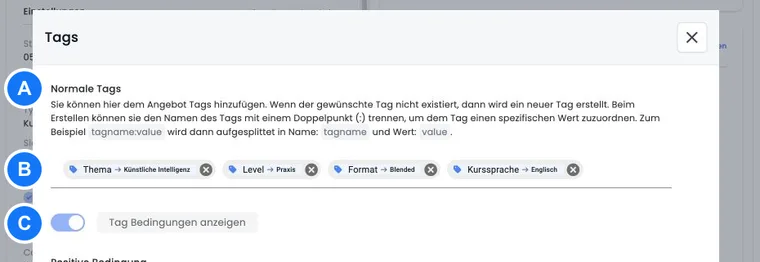


Regular tags, positive conditions, and negative conditions
| Type | Meaning | Effect |
|---|---|---|
| Regular tag | Attribute of the offer or person | Can become an effective tag for a person through a booking. |
| Positive condition (+) | Tag must be present | Booking is possible only if all positive conditions are met. |
| Negative condition (-) | Tag must not be present | Even one matching negative condition blocks the booking. |
Multiple positive conditions are joined with AND. To provide alternatives, both paths must therefore supply the same required tags. Example: a combined offer receives the tags from part 1 and part 2 so it satisfies the same prerequisite as two individually booked courses.
Which tags are considered for a person
For the check, edoobox builds a list of effective tags. These include regular tags from bookings not on the waitlist, tags assigned directly in the user profile, and tags from an SSO/SAML assignment.
Tags from earlier or archived offers may still belong to the booking history.
A waitlist-only booking supplies no effective offer tag.
In templates,
UserTagscontains effective tag names, not their values.OfferTagscan also contain names of positive and negative offer conditions; its output is therefore not a list of regular offer tags alone. Do not automatically treat this list as the current booking’s status.
If a condition is selected with a value, both name and value must match. A condition without a value accepts any effective tag with the same name. For more details, see Use tags with values.
Positive prerequisites and chronological order
If a required tag comes from an earlier booking, the tag alone is insufficient: the offer that supplied the tag must end before or exactly when the new offer starts. This prevents edoobox from treating a basic course running at the same time as a completed prerequisite.
Tags assigned directly to a person or through SSO/SAML have no offer end date and satisfy a positive condition immediately. Use direct person tags for states such as “Member” or “Certificate externally verified”, not as a substitute for a course still in progress.
Negative conditions and duplicate bookings
For a negative condition, any matching effective tag blocks booking. Offer tags have no additional end-date check here. An offer can therefore mark itself with a regular tag and require that same tag negatively to prevent a second booking by the same identified person.
Check group registrations correctly
For a group registration, the main contact and individual group participants are checked if they can be identified. Configure identification fields so edoobox matches existing people unambiguously. Otherwise, a prerequisite may appear unmet despite an existing history.
Also check whether group registration without a main participant is used. In that case, the prerequisite must not accidentally apply only to the booking contact.
Tags as promotion code conditions
A promotion campaign can also check positive and negative tag conditions. Once a promotion contains such conditions, the person must be logged in and linked to an existing user account. All positive conditions must be met and no negative tag may match.
Promotion conditions check the effective tag list but not the end date of an earlier offer. If a discount should apply only after a course has actually finished, a deliberately maintained person tag such as “Alumni confirmed” is more reliable.
Display widgets based on the logged-in person’s tags
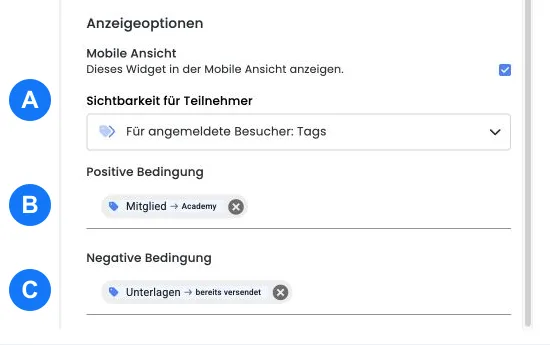
In the Design Manager, a widget’s visibility can be set to Condition. This setting checks the logged-in person’s effective tags, not the tags of the currently open offer. Without login, such a widget remains hidden.
All positive visibility tags must be present, and no negative visibility tag may be present. For example, members can see an additional download, while people with a “Materials already sent” tag receive no further notice.
Limitations and checkpoints
Manual admin bookings can bypass tag conditions, capacity logic, and other public form rules. Check prerequisites yourself before adding a booking.
With free date selection, the timing prerequisite is based on the offer’s start and end, not an individually selected date.
Give tags meaningful names that remain understandable over time. Later renaming can affect conditions, filters, templates, and documented processes.
Test positive, negative, and unknown people separately. A successful test with a logged-in admin does not prove the public process.
Use cases
Use case: Advanced course after completing a basic course
The basic course receives the regular tag English A1. The advanced course requires + English A1. An earlier booking qualifies only if the basic course ends no later than the advanced course starts. For externally verified knowledge, an admin can instead assign the same tag directly to the person.
Use case: One-time registration
The “Annual meeting 2026” offer receives the regular tag GV2026 and the negative condition - GV2026 at the same time. After the first regular booking, the identified person has the tag and a second public booking is blocked. Admin bookings continue to be checked manually.
Use case: Member discount and exclusive download
Confirmed members receive the person tag Member directly. A promotion requires this tag positively. A Design Manager widget also displays a download only to logged-in people with Member. The discount and additional content therefore use the same deliberately maintained audience.
Configure and check conditions on an offer
- Open the offer and its Tags editor.
- Add required tags under positive conditions and exclusions under negative conditions. Use existing tags; for a specific value, select the exact combination of name and value.
- Apply the assignment and open the public preview.
- Check a recognized person with fulfilled prerequisites, one with a missing tag, and one with an exclusion. For booking tags, also check the chronological order of offers.
If a tag should come directly from the person, open the user profile and Edit tags. A direct person tag has no offer end date. For a purchasable subscription with validity or pass uses, use the Subscription Manager; for price eligibility, see Price categories.