
Descriptions in offers and categories
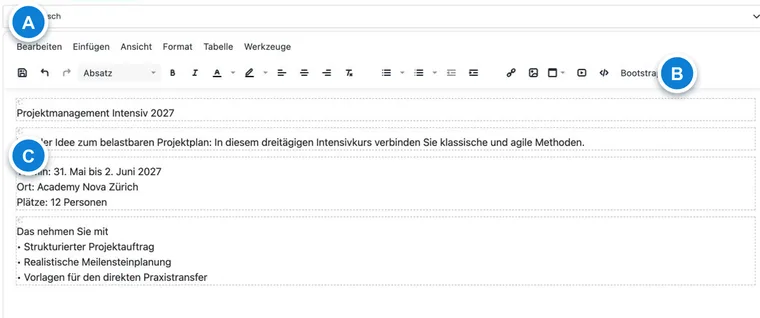
Description texts are one of the most important contents in the booking process: They explain to interested parties what a category or offer is about, which prerequisites apply, what is included in the price, and what must be considered before booking.
edoobox distinguishes between category descriptions and offer descriptions. Category descriptions suit recurring information about a course series, location, or subject area. Offer descriptions cover the specific content, dates, instructors, materials, meeting point, or special features of an individual offer.
Choosing a category or offer description
| Variant | When is it sensible? | Effect |
|---|---|---|
| Category description only | All offers in a category have the same framework. | Changes only need to be maintained in one place. |
| Category plus offer description | Introduction, target group, or terms of participation are the same, details differ per offer. | On the detail page, both texts can appear one after the other. |
| Offer description only | Offers differ significantly or the category should not be explained. | Each offer receives its own text. |
Choose the variant deliberately. Too many duplicate texts make later corrections difficult; too little specific offer information leads to inquiries before booking.
Entering and saving texts in the editor
Open the desired category or offer and switch to the Description or Texts section. There, you edit the content with the rich-text editor.
Formatting, lists, links, images, videos, PDF documents, and tables can be used directly in the text. If you copy text from Word, websites, or emails, use Paste without formatting if possible or remove foreign formatting in the editor. Check the display in the booking process afterwards.
edoobox uses the same storage rules for category and offer descriptions. If no text exists yet for the selected language, a new text is created; existing texts are updated. Empty texts are not unnecessarily saved.
Please note: Tables. Tables are often difficult to use in mobile booking processes. To keep your iFrame responsive, use tables sparingly or replace them with lists, column layouts, or accordions.
Maintaining multiple languages
If you offer the booking process in multiple languages, maintain description texts per active language. The language selection above the editor shows which language version is currently being edited.
Deliberately save each language before switching to the next. If the editor contains unsaved changes and you switch the language, edoobox asks whether the changes should be saved or discarded. This keeps the language versions separate and prevents you from accidentally overwriting the wrong language.
For a fixed language on the website, use the appropriate embedding code or the language setting of your embedding. Details are in Language settings and Embedding in the website and preview share.
Exclude automatic browser translations: Browser plugins can modify texts in input fields during editing. If you want to reliably maintain multilingual texts, exclude app1.edoobox.com, app2.edoobox.com, and your edoobox admin domain in such plugins.
Use case: Updating a multilingual course description
Open an offer, first select the default language, and revise the text. Save deliberately and then switch to the next active language. If edoobox asks to save or discard, decide per language so that no version is overwritten.
Media, Bootstrap, and AI assistant
The editor supports images, links, media, formatting, colors, alignment, and lists. Images should be inserted via the file manager or the intended media functions. When editing, edoobox normalizes image attributes where possible, such as alt texts, width, height, and responsive display.
If Bootstrap elements for descriptions are available in your account, the editor can offer additional building blocks such as alert boxes, buttons, or columns. For structured content, Accordions or tabs in description texts and Embedding videos in description texts are also helpful.
The AI assistant can create, modernize, improve, or translate descriptions. Before use, edoobox may notify you that the editor content will be sent to the AI service for processing. The result is shown first and inserted only when you choose to use it. Review AI-generated text for factual accuracy, legal issues, and language before publishing.
Use case: Preparing a description with AI and structure
First, write the key details of your offer in the standard language. Then open the AI assistant and select an offer template or optimize text. Check the result, transfer it to the editor, and add an info box for important prerequisites.
Display description in Design Manager
For description texts to appear in the public booking process, the appropriate widget must be placed in the Design Manager.
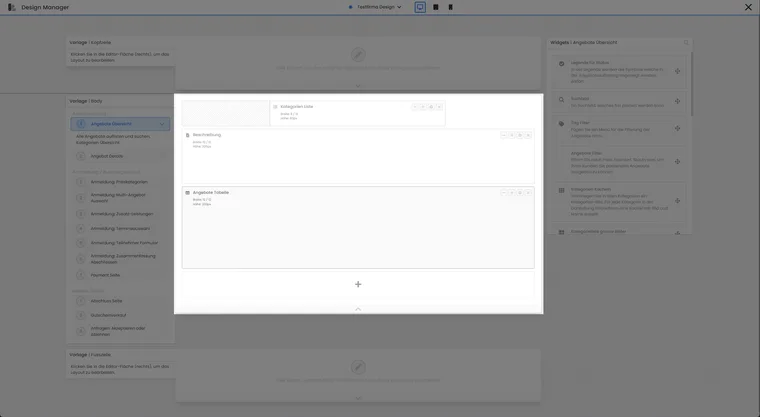
The description widget can be located in the Offers Overview template between the category selection and the offer list.
In the Offers Overview template, a category description can be displayed above the offer list. Offer descriptions usually do not appear there.
In the Offer Details template, the description widget displays the category and offer description at the desired location.
Check the preview on desktop and smartphone. Long texts should be well structured so that participants can quickly find prices, dates, and registration.
Maintain a custom summary for an external course planner
If an external website requires a custom short description, agree on one of the three additional texts of the offer. First check whether the same text is already used in confirmations or PDFs. Keep the detailed description in the description field.
- Open the offer and edit the agreed additional text, for example Additional Text 1.
- Enter and save the summary for each language actually used.
- The responsible development team calls
GET /v2/text/listwithresource=additionaltext1,resource_idset to the public offer ID, andlanguageset to the required language. These values are passed as JSON field filters. - Pass the value from
valueto the course planner and check for empty text, HTML display, and a second language.
Additional Texts 2 and 3 are used accordingly with additionaltext2 and additionaltext3. The offer field shortdescription is a derived summary and not this freely maintained additional field. The full description is read separately with resource=description.
The read-only API example shows the encoding and correct mapping to the offer and language. A category text is loaded using its own category ID and is not automatically included through an offer filter.
SEO and structured offer data
Offer pages can contain structured data that helps search engines categorize an offer. For this information to be useful, the offer name, image, location, price, dates, and description must be properly maintained in edoobox.
Description texts should therefore not only be well written but contain actual information: target audience, content, benefits, prerequisites, duration, location, and special notes.
Do not just write booking rules in the description text
The description explains prerequisites but does not replace settings: Additionally, maintain subscription prerequisites in the price category and cancellation deadlines in the appropriate cancellation group. This ensures that the visible text and the actual booking process align.
For tabs and accordions, the HTML block must match the Bootstrap version of the public design. A Bootstrap 3 block copied from an old offer will not automatically work in Bootstrap 5.3. The instruction Tabs and Accordions contains the appropriate current syntax.