
Transfer newsletter consent via Zapier
With a participant data field and Zapier, you can transfer people to Mailchimp or another newsletter system after a booking. The key purpose is not the largest possible export, but a traceable process: Only people with appropriate consent are transferred, duplicates are avoided, and unsubscribes remain effective in the newsletter system.
Zapier is an external service. Check the contract, data location, costs, access permissions, and legal basis before the first transfer in production.
Safe process at a glance
Create a custom participant data field for newsletter consent.
Integrate an unchecked checkbox with a clear purpose into the booking form.
Connect Zapier using a dedicated edoobox API key.
Select a suitable trigger and test it with real demo data.
Before the target action, set a filter on the actual consent value delivered.
Search for the contact in the newsletter system using the email address and create or update it.
Manage Double-Opt-in, unsubscribe, and proof in the newsletter system.
Create consent field
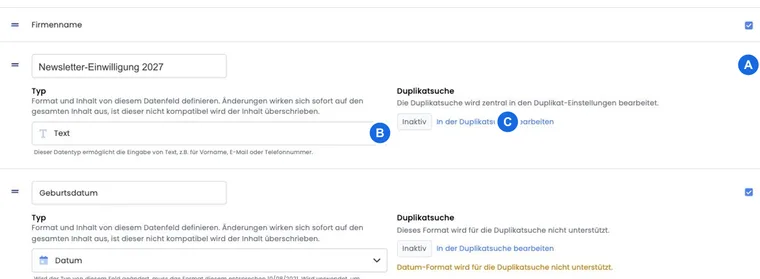
Open the global settings and activate and name a free custom field slot under Participant Data Fields, for example Newsletter Consent. The name should indicate the purpose and not be confused with a general marketing authorization.
Do not use an existing mandatory field such as email or privacy confirmation as a substitute. The email address is necessary for the booking but does not prove newsletter consent.
Integrate checkbox in booking form
Open the template Registration: Participant Form in the Design Manager.
Add a form field and connect it to Newsletter Consent.
Select a checkbox that is not enabled by default and is not treated as a mandatory booking requirement.
Clearly formulate the sender, content or topics, and the possibility of revocation.
Link to your privacy policy if necessary.
One possible short text is: Yes, I would like to receive Example Ltd’s monthly newsletter. I can unsubscribe at any time. Have the final wording and legal basis reviewed for your organization.
Select Zapier trigger suitable for the purpose
Which triggers and fields are available depends on the edoobox app version selected in Zapier. For a booking-related consent, New Booking is often more suitable than New User, because an existing profile can book again later. A trigger for new profiles does not automatically become a new event for an already existing profile.
Test the trigger with a new person, an existing person, and a group booking. Check in the test dataset whether the custom consent field is actually included and what value the enabled or disabled checkbox provides. Set the Zapier filter to this actual value; do not guess between true, 1, or a text value.
Assign the renamed field name to the technical field slot
The general assignment of display name and identifier is explained in Participant Data Field and Technical Field Slot.
The visible name “Newsletter Consent” and the technical field slot are separate pieces of information. Renaming does not change the existing slot, from data_1 through data_30. Moving a row does not turn field slot 5 into field slot 1 either. Determine the mapping before filtering a field labelled Additional Field in Zapier.
- Check the name and purpose of your consent field under Settings → Participant Data Fields.
- If the field number is unclear, have the API-responsible person retrieve the data structure with the reading call
GET /v2/datastructure. In the response areadata.datafields, the keys and their names are listed, for exampledata_5withname: Newsletter-Einwilligung. The API Introduction explains the separately authorized access. - Document this assignment. Select the corresponding additional field in the integration and check its actual test value once with the checkbox set and once without the checkbox set.
- Only when the field and consent value clearly match, activate the filter. Check the assignment separately in each connected edoobox account.
The naming of fields in Zapier depends on the app version used there. Therefore, do not infer the assignment solely from a similar name and do not use a row position as a field number. No participant lists are exported for this assignment.
Build Zap with filter and duplicate protection
Create a separate API key for Zapier and grant only the required permissions. Details can be found under API Keys and Access Rights.
Connect edoobox in Zapier and select the tested trigger.
Add a filter: Only the clearly positive consent value may proceed.
First search for an existing contact in the newsletter system using the normalized email address.
Create the contact only if it does not exist, or update only the intended fields.
Transfer only necessary data such as email, name, language, and consent status.
Test positive, negative, and missing field values.
For detailed connection instructions, see Zapier: Create your first Zap. After activation, check the Zapier history and the first contacts in the target system.
Separate Double-Opt-in and unsubscribe
The edoobox checkbox stores the information from the booking form. The confirmation link, proof of consent, unsubscribe, and a block list usually belong in the newsletter system. Activate the Double-Opt-in process suitable for your organization there.
A Zap for adding contacts must not bypass a previous unsubscribe. Use the search or update action of the target system so that unsubscribed or blocked contacts are not reactivated without being asked.
Handle changes and revocation
A field in the edoobox profile shows the current value but is not alone a complete log of all consent and revocation time points. Rely on the data provided for this purpose in the newsletter system for newsletter proof.
Also define what happens in case of a change in edoobox. A Zap that only reacts to new bookings does not necessarily transfer a later profile change. Use a suitable update trigger, if available, or handle changes and unsubscribes exclusively in the target system.
Monitor operations
Check Zapier history for filter errors, expired keys, and mandatory field errors.
Compare on a sample basis whether only positively confirmed demo contacts arrived.
Prevent duplicates caused by differences in capitalization and spaces in email addresses.
Do not transfer additional questions, health data, or booking details without a clear purpose.
Replace the API key in case of personnel changes or suspicious use.
Use cases
Application example: New booking with confirmed interest
A person activates the voluntary newsletter checkbox. The New Booking trigger provides the custom data field with the positive test value. A Zapier filter lets the run pass, Mailchimp searches for the email address, and starts the Double-Opt-in process set up there.
Application example: Existing profile books again
A previous participant already has a profile but had never chosen the newsletter. With a new booking, they consent. A pure New User Zap would not trigger again; therefore, the organization uses the tested booking trigger and updates the existing contact without overwriting a previous unsubscribe.
Application example: Company registers five people
A contact person books five employees. Only two people set their personal newsletter checkbox. The Zap is tested with a group booking and transfers exclusively these two profiles. The consent of the contact person is not copied to the entire group.
Use newsletter consent and subscription status separately
A participant can have an active subscription without having consented to a newsletter. Use subscription ownership or a membership tag only to select the intended audience. The newsletter Zap also requires the person’s own verified consent.
In group bookings, the contact person themselves may not participate. Check before transfer which specific profile the address and consent belong to. An open, still unnamed slot does not have its own newsletter consent.