
Offer settings
The offer settings determine when an offer is visible and bookable, how spots are counted, and which rules apply for payment, cancellation, collective registration, ticketing, and target groups. Open an offer and select Settings.
The values work together. Published status alone does not make an offer bookable if registration starts in the future; a waiting list cannot be combined with free date selection; and booking cancellation is controlled account-wide.
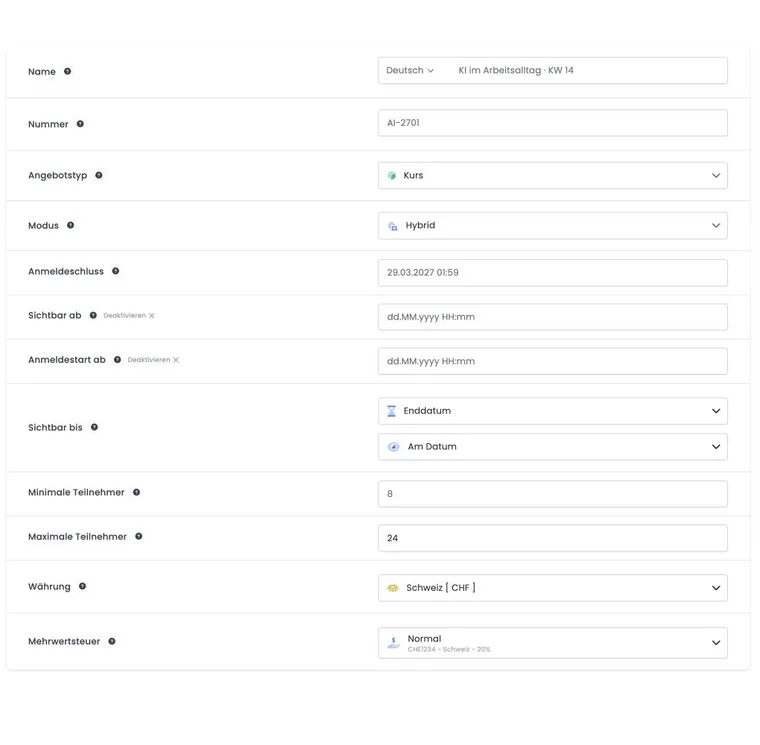
Name, number, type, and mode
Name: Public title in the booking process, emails, PDFs, and overviews. For multiple languages, the name is maintained per language.
Number: Optional internal or external reference for support, exports, and templates.
Offer type: Professional designation such as course, seminar, or event. The type can be output in templates but does not automatically change the price or booking logic.
Mode: In-person, online, or blended. The mode serves for classification and public display; access data or rooms must still be maintained separately.
Do not casually change the name or number for ongoing offers if external links, invoice reconciliations, or evaluations use these values.
Cleanly separate four time points
| Setting | Controls | Important boundary |
|---|---|---|
| Registration deadline | End of the regular booking opportunity. | Required for publication and must be in the future when activated. |
| Visible from | From when a published offer appears in the booking process. | Must be at least 24 hours before the registration deadline; dependent on the subscription. |
| Registration start from | From when the visible announcement can actually be booked. | Not after the registration deadline; dependent on the subscription. |
| Visible until | How long the listing remains displayed after a reference date. | The reference is the start date, end date, or registration deadline; followed by 0 days, 7 days, 2 weeks, 1 month, or 6 months. |
A visible but not yet bookable offer is suitable for advance announcements. An offer that remains visible after the registration deadline can serve as an archive or information page, as long as the status and design support the desired behavior.
Check time zone: The time fields use the time zone configured in edoobox. Test time-controlled visibility and registration start with a private browser window, not just in the admin area.
Minimum and maximum number of participants
The minimum is the threshold for the offer to take place; the maximum limits occupied places. edoobox keeps both values consistent: if the maximum is set below the minimum, the other value is adjusted. The highest permitted participant limit also depends on the subscription.
For standard registration, the maximum applies to the whole offer. With free date selection, capacity is calculated across dates. Reserved places and unnamed group participants can further reduce how many people may currently be added.
The minimum automatically triggers Guaranteed to take place only when the corresponding global offer setting is active.
Set currency and value-added tax before the booking starts
The currency selection is linked to a country. For value-added tax, no tax, active fixed tax rates of the matching country, and – if sufficiently configured – GeoDynamic are available for selection. GeoDynamic determines the country during the booking process and selects a suitable tax rule.
Currency and tax affect prices, booking total, invoice, and reports. Do not change these values for ongoing bookings without checking existing prices and invoices. Details: Global value-added tax and GeoDynamic value-added tax.
Select a cancellation group for the offer
First open Settings → Cancellation & Withdrawal and select Rules. Create the required active cancellation groups with deadlines, fees, withdrawal, and refund. Then, in the offer settings under Cancellation terms, select the appropriate group.
The selection Standard is saved in the current interface as the specific ID of the standard group valid at that time. A later change of the account-wide standard group does not automatically switch this already saved offer assignment. After a standard change, open the affected offers and select or save the desired group again. An explicitly selected group allows deviating terms, for example for a multi-day course. The selection field is hidden for sub-offers of a multi-offer; the assignment is made in the parent booking context.
New bookings save the selected condition as their own copy. A later change to the group does not silently adjust existing bookings. There, check or change the condition in the booking details. Set up groups and Understand rules and fees explain the process.
After a schedule change, compare the public cancellation decision and the fee preview in the booking details: the saved and current offer start may be used differently there. The verification process from text version and design to cancellation is explained in Legal texts, cancellation and proofs.
Countdown, free date selection, waitlist and MustPay
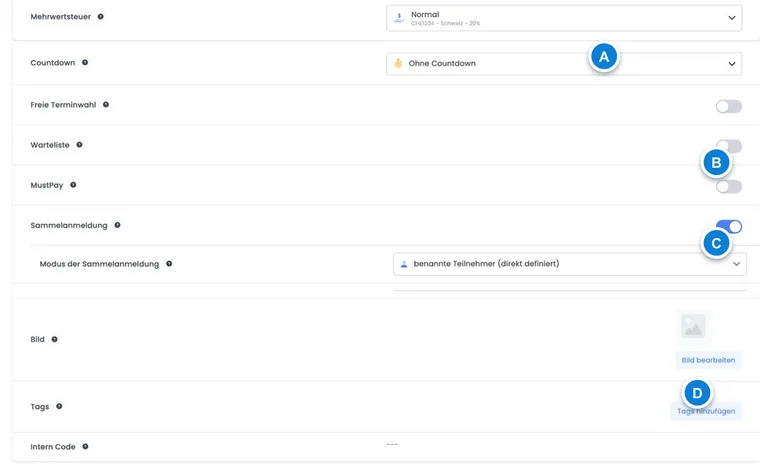
Countdown: reserves capacity for the selected time during an ongoing booking process. The value alone does not guarantee payment.
Free date selection: Participants select individual dates. This feature is subscription-dependent.
Waitlist: Admits interested parties when regular spots are no longer available or the intended status allows this.
MustPay: Holds a started registration in the MustPay intermediate status until the required payment is made.
Current protection rules: Free date selection cannot be enabled as long as a waitlist or inquiry list exists. A waitlist cannot be enabled as long as free date selection is active. After existing bookings, the registration type can no longer be safely switched.
MustPay is a separate payment logic and is not automatically replaced by free date selection. Test payment, timeout, cancellation, outgoing mail, and free spots for the specific combination.
Group registration and its three modes
Enable Group registration and select the desired entry point:
- Named participants (defined directly): The first person can participate themselves and enter the details of additional participants.
- Named participants (defined directly) – first person as contact person: In the Bootstrap 5.3 booking process, the first person starts as the organizational contact person without their own participation. A separate participant block is already prepared. This is particularly suitable for parents, HR, or secretariats; the subsequent selection of participants remains verifiable.
- Unnamed participants (assignable later): The contact person books a number of places and price categories. Names are assigned later.
Free offer seats and the global maximum per group booking limit the quantity. Form visibility additionally controls which fields are to be filled out by the contact person only, by everyone, or by group participants only. Named group registrations and open participations guide you through both workflows.
Ticket, image, tags, and internal code
Ticket PDF: is only selectable in the offer if global barcode ticketing is configured at the offer level.
Image: is used in the overview or detail view depending on the design.
Tags: Normal tags describe and filter; positive + tags require a permission, negative − tags exclude matching persons. Value tags can carry additional offer data.
Internal code: hides the offer from the regular public selection and changes the valid share URL. Anyone who receives the complete link can forward it; personal permissions must be checked separately.
The three tag types have different effects: standard tags are used for assignment and filtering; positive and negative conditions check a booking requirement. A condition does not give the person a standard participant tag. In email and PDF templates, OfferTags may also contain the names of conditions set on the offer. Do not use this output as proof of a successful eligibility check or a valid subscription. Details: Tags on an offer and Tags as conditions.
Special features for multi-offers
For a sub-offer of a multi-offer, several settings are determined by the main process or intentionally hidden. New sub-offers start without free date selection, waitlist, MustPay, group registration, and ticket PDF. Currency, tax, and other rules are coordinated in the parent booking context.
Do not try to force missing switches through a different instruction. Check the structure under Multi-offer / Congress module.
Checklist before publishing
Check name, language, number, type, and mode.
Verify that visible from, registration start, registration deadline, and visible until are in chronological order.
Test minimum, maximum, reservations, and group booking limit.
Check currency, prices, tax, legal texts, and communicated cancellation terms.
Perform a standard booking as well as relevant special cases such as MustPay, waitlist, or free time selection.
Check the preview, emails, PDF/ICS/ticket, invoice and outbox.
Use case: Advance announcement with later booking start
A conference should be visible from August 1, but bookings should only be allowed from August 15. The registration deadline is September 30. The administration sets both start values, checks the minimum interval between visible from and registration deadline, and tests the advance announcement first and the active booking button later via the private share link.
Example: a company course with unnamed participants
Companies book up to eight places but often know the names only later. The offer enables group registration in unnamed-participant mode. The global maximum per booking is also set to eight. Test a booking for five places, assigning names later, and the restriction when only two offer places remain available.
Use case: International online offer with clear terms
An online course uses EUR and GeoDynamic VAT. The administration publishes a legal text with a 14-day withdrawal period, assigns the appropriate cancellation group in the offer, and tests booking, tax, invoice, and confirmation from two countries. The financial consequences of a later cancellation are checked separately.
Linking price categories with subscription limitations
The subscription limitation is configured on a price category. It is not an additional switch alongside MustPay or waitlist. For each affected price category, check which participant subscription is required, when it must be valid, and what usage it allows. The total number of seats in the offer remains additionally effective.
Activate and configure the feature via the Plugin Manager. The subpages Set up subscriptions and Book and use subscriptions describe the complete process. For groups, check whether the required permission exists for each participation; a subscription of the contact person is not a blanket permission for all group members.
Scheduling step by step
An advance announcement, a later registration start, or the reopening of an offer require several coordinated values. The subpage Plan visibility and registration period explains the sequence, the 24-hour check, the time zone, and typical error messages.
Coordinate price groups, ongoing registration, and partial quotas
For multiple target groups, set the overall limit on the offer and the respective price limits under Price categories . An exhausted youth or member price is not the same as a fully booked offer. The Waiting list for partial quotas explains the possibilities and limits of a backfill process.
If an ongoing course should remain bookable after the first appointment, coordinate Registration deadline and Visible until . The step sequence under Registration after course start distinguishes execution date, sales period, and subscription validity.
For a Pair price or fixed group tariff , additionally plan how many actual participations are recorded and which conditions are checked. The offer maximum limit and a price name do not enforce a minimum size of a booking. For Course and individual blocks , first determine which appointments use the same real place stock; independent offer copies do not share their capacity.