
Use the Design Manager safely
The illustrations show an earlier version of the interface. Use the steps in this guide for the available features and options.
In the Design Manager, you design the public booking process. Work consciously in the correct combination of design, content area, and template so that changes do not accidentally end up in another place.
Check design and template first
Before every change, check the name of the active design and the selected content area. Header, main content, and footer have their own templates. A change of content area can therefore show a different last used template.
Select and edit widget
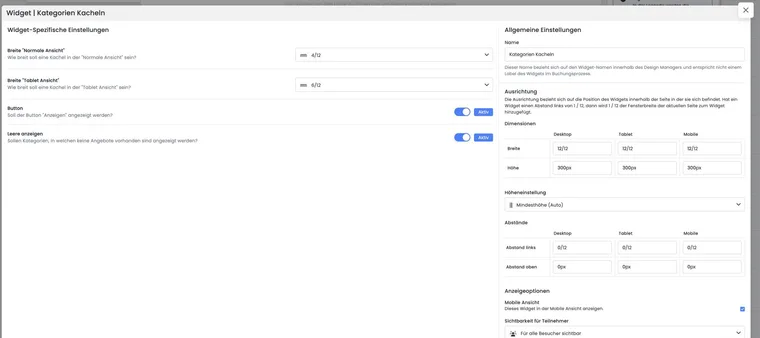
Select an existing widget in the preview or add a suitable widget from the selection. Editing separates general settings such as width and margin from widget-specific details such as text, filter, or display.
Change only one clear area per step if possible.
Check required fields and visible warnings.
Use unique names for own designs and templates.
Test changes in all languages used.
Save and check preview
Save the widget settings before closing the editing window or selecting another template. Then open the public preview and check desktop and mobile view.
Navigation, the offer list, offer details, participant form, payment page, confirmation, legal texts, and error messages are particularly important.
Distinguish between system design and custom design
System designs serve as a starting point and may be restricted in certain areas. For permanent individual customizations, use a custom design and document internally which template is used in production.
Practical example: Customize offer details
A team opens its custom design, selects the Body content area, and the Offer Details template. It adjusts a text widget, saves, and then checks a demo offer with a date, price, and available spots in both desktop and mobile views.
Use insertion, focus, and custom widget names
Select the desired component in the widget selection. Accessible selection cards can also be focused with the keyboard and opened or inserted using the Enter key. After insertion, check the active selection and its position on the workspace before adding further components.
If a widget is intended to be used only once, its re-insertion in the same template is locked. In that case, edit the existing widget. Name custom code widgets clearly, for example «Contact line in footer», so they can be distinguished in the selection and editing.
If subscription widgets are missing, check the template and plugin status. The Template overview helps with the assignment.
After a failed save
If a save error remains visible, do not open another template before you have saved the change again or deliberately discarded it. First check the editing access to a custom design. After a successful save, check the category assignment and reopen exactly the associated public link. A different category design or the account default design may display a different version.