
Category dashboard
The category dashboard summarises a category and its offers. Open a category in the offer tree and select Overview. It shows key figures, a four-week trend, current direct offers, promotions and the main category settings.
The view suits programme managers who oversee several courses or events as a unit. For texts and rules, switch to Description or Settings.
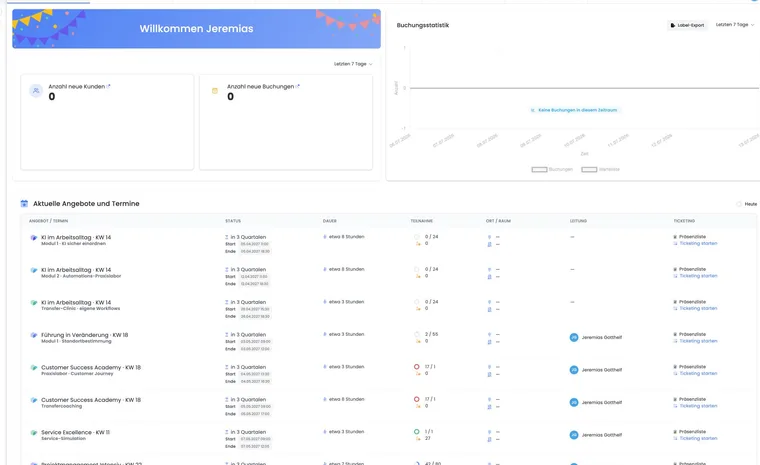
Category overview areas
The dashboard connects three levels:
Key figures and chart: Aggregated development of offers in the selected category tree.
Current offers: Active offers directly within this category, with their period and status.
Context: Promotions, design, internal code and duplicate-booking protection.
Important distinction: Key figures include offers throughout the category, including subcategories. The Current offers list, however, shows active offers directly within the open category. The count and list may therefore differ.
Revenue, active bookings and offer count
Key figures count offers in the category tree and active bookings. Cancelled bookings, waiting lists and unfinished MustPay processes are not counted as regular active bookings or revenue.
If the category contains bookings in several currencies, edoobox keeps their totals separate. Do not add CHF and EUR into an apparent overall total. As with the offer dashboard, revenue is a sum of booked transactions and not evidence of paid invoices.
Interpret the four-week trend correctly
The chart loads the last four weeks up to today. It can show created bookings, started bookings, waiting-list entries and vouchers. A decline therefore does not automatically mean lower demand: check whether offers were moved into subcategories, ended or became visible later.
For longer periods and account-wide comparisons, use the analytics and key-figure views.
Open current direct offers
Offer cards show the name, optional number, start and end dates and status. Clicking opens the offer overview. Drafts without active status do not appear in this list but may remain in the offer tree.
If an expected offer is missing, check its direct parent category, status, archive and bin. For subcategories, open their own dashboards.
Check promotions in category context
Promotions assigned to the category appear as separate cards. Admins with sufficient permission can open a card directly. Check validity, status, redemptions and the offers actually assigned under Promotions and vouchers.
A promotion is not effective merely because it appears in the dashboard. The period, code, restrictions and booking status must also match.
Category settings with a broad effect
The quick view shows design, internal code and duplicate-booking protection. Open Edit settings to change the name, image and these rules.
Design: Controls this category's public display. Without an assignment, the intended default/inheritance logic applies.
Internal code: hides the section from the regular public selection and changes the share URL. The complete link can still be forwarded and does not verify personal membership.
Prevent duplicate bookings: Compares the selected unique participant field within the category workflow. Test the rule with waiting lists and MustPay.
Preview, new offers and lifecycle
Depending on permissions and state, the action bar offers:
preview and Share link for active categories;
a new offer directly in this category;
renaming;
archiving or moving to the bin;
restoring an archived or deleted category;
permanent deletion if it is already in the bin.
Before archiving or moving to the bin, always check which subcategories and offers are also affected.
Example: annual programme with subcategories
An academy has Spring and Autumn subcategories under “Further training 2026”. The main dashboard shows aggregated bookings for both half-years, while the list contains only directly assigned offers. For detailed checks, the administrator opens each subcategory in turn.
Example: keep currencies separate
An international category contains offers in CHF and EUR. The dashboard lists revenue separately for both. The programme manager compares booking counts together but analyses money separately per currency and additionally checks payment receipts in invoices.
Example: internal member area
A category receives an internal code and its own design. The administrator tests the preview and Share link in a private browser window, checks an offer in every subcategory and documents which members received the protected link.