
Manage bookings
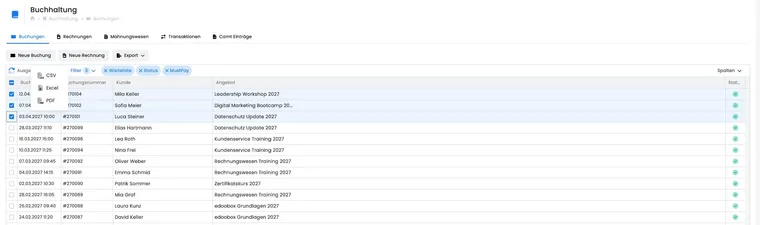
The booking table is the central working view for managing multiple bookings. It appears globally in the accounting navigation, in offer details, in the user profile and in sidebars opened from offers or reports.
The table is designed for recurring administrative tasks: filtering, sorting, adjusting columns, opening bookings, creating new bookings, adding invoices and exporting selected rows. General table functions are described under Table tools and Table filters.
Consider the context: The visible filters and columns depend on where you open the table. Within an offer, the offer is already specified; within the user profile, the person is already specified.
Access and typical starting points
Open bookings globally through the appropriate navigation. This view allows filtering by offer, customer, booking number, payment requirement, status, waiting list and period.
In offer details, the table focuses on that offer. The same area can also display the participant list, attendance list, invoices, waiting list or request lists. In the user profile, it shows bookings for the person whose profile is open. Context-specific filters are hidden when their values are already fixed.
Individual rows lead directly to booking details. The user profile is also important for tasks involving a specific person.
Table view and columns
Typical columns are selection, booking date, booking number, customer, offer, status and ID. Other columns, such as customer number or description, may be available but hidden by default.
Columns can be shown, hidden, moved and resized. Personal table settings are saved for each admin. If an old or incorrect configuration is detected, resetting the table view may help.
Practical example: A booking view for support and follow-up checks
A custom booking view for support work
Show Description and ID, move Booking number and Status to the front, and keep Customer and Offer visible. Support cases can then be narrowed down more quickly using the booking number, customer name or offer name.
Export for a follow-up check
Filter by period and offer. Show only the columns needed for the export, select the relevant bookings and choose Excel or CSV. Before sending individual lists, spot-check a booking if its status, invoice or payment requirement is unclear.
Filter bookings
Open the booking table filters. Offer, Customer, Booking number, Status and Booking date are offered depending on the visible table columns. If an expected filter field is missing, first show the associated column. MustPay and Waiting list are separate filters; the fixed offer or user context also remains in effect.
Filters persist when the page is refreshed and, depending on the URL, can also be shared as a link. The booking number is applied as a search field. Status, Payment requirement and Waiting list are toggle filters. The period limits the booking date using a start and end date.
Practical example: Check open waiting list bookings
In offer details, open Participants and select Bookings. Set Waiting list to active, Status to not cancelled and, if needed, Payment requirement. Then open the relevant row in booking details to process the request, waiting list confirmation or invoice.
Confirmation received, but booking missing from the list?
Use the message as a starting point for your search and compare it with the current booking record. An older or forwarded confirmation does not automatically show today's status in the edoobox account currently open.
- Identify the account and message: Check the organization, offer and booking number in the confirmation. Search in the corresponding edoobox account. An invoice number is different from a booking number.
- Search the right records: Open the global booking table. A list within another offer or person's profile remains restricted to that context, even after its visible filters are reset.
- Check filters: Use Reset, then check Offer, Customer, Booking date, search text, Status, Waiting list and MustPay. A narrow date range can hide an older registration. If the number filter is missing, show the Booking number column.
- Distinguish contact from participants: The booking contact may have registered a group without participating themselves. Therefore, also search using the contact or booking number and open the individual participations in booking details. If several profiles exist, check which identity contains the record.
- Check the offer and current state: If the offer is missing from the normal offer tree, check the offer archive. On the booking record found, read its current cancellation, waiting list, request or MustPay status. An earlier confirmation does not undo a subsequent booking transfer or cancellation.
- Compare the message with the record: Check the offer, person, booking time, active participations and payment in booking details. If necessary, compare the specific message sent in the outbox.
Example: A contact forwards the confirmation to a group member. The administration initially searches unsuccessfully only in that member's profile. Using the booking number in the global list, they find the group booking under the contact and check the member's participation there. They do not create a replacement booking until it is clear whether a valid place already exists.
If the search still finds nothing, document the account checked, search method, booking number and sending time for further investigation. Do not request passwords, confirmation codes or personal access links. An empty search result alone is not a reason to merge profiles or create a second chargeable booking.
Selection, export and actions
Many actions apply to selected rows. Therefore, first select the bookings and check the selection count. If no row is selected, edoobox displays an error for exports.
CSV, Excel and PDF export the exportable columns currently visible. CSV uses a tabular format for further analysis; PDF is typically generated in landscape format. Always check the purpose and authorization for exports containing personal data.
Clicking a data row opens booking details. Clicking checkbox columns changes only the selection and does not open a detail view.
Label export from booking statistics
Label export is a special export from booking statistics. It is not tied to the table rows currently selected; it creates a file for all bookings in the selected period.
Depending on the interface, supported formats are Excel, OpenDocument and CSV. Exported data includes booking date, label, offer, offer number, start and end, amount, booking number, waiting list, cancelled status and visible form fields.
Practical example: Export booking labels for a period
Open booking statistics, choose Label export from the menu and set the required period. Then choose Excel, OpenDocument or CSV. edoobox creates a file containing booking labels and visible form fields for the affected bookings.
Create a booking and invoice from the table
Depending on the context, you can start a new booking or add an invoice from the booking table. In the offer context, the offer is already specified; in the user context, the person is already specified.
For manual bookings, check the price, status, MustPay, waiting list, participant data and email delivery. A manually created invoice should always match the underlying transactions. See Create/edit invoices and cancellation invoices for details.
Open booking details, offer and user profile
From the booking table, you can quickly access booking details, offer details or the user profile. Use these links to check status, participants, invoices, transactions, emails, notes, cancellation and payment status.
Sidebars or compact booking lists may already have fixed values such as offer, period, status, payment requirement or waiting list. Therefore, check active filters before drawing conclusions from the results displayed.
Participant list, attendance list and other offer lists
In offer details, other tables or lists can be opened from the same area, for example participant list, attendance list, invoices, waiting list or request list. These share the offer context and differ mainly in filters and actions.
Selected bookings or booking labels based on a period can form the basis of exports for ID cards, labels or mailings. Before bulk actions, check that you have opened the intended table and the correct offer context.
Data logic and refreshing
After changes, check the current booking row and open booking details if amounts differ. Compare the booking total, invoice and balance there. Refreshing the view helps when several admins edit records concurrently.
Actions such as a new booking, cancellation, transfer, date change, additional service, additional question, multi-offer, billing address, price category, promotion or participant status can update booking data, the offer dashboard and invoice notices. Individual actions are described in booking details.
Check a participation's subscription association
For a question about a member price or pass, open the relevant booking. The booking summary shows subscription benefits and the pass used for a person. An access pass with a 0 percent discount may permit access without reducing the price. Find a person's subscriptions under Memberships in their participant profile. See Manage participant subscriptions.
Track cancellation cases through to completion
The status in the booking table primarily tells you whether a booking is active or cancelled. A booking shown as cancelled does not prove that a refund has been issued. To process it, open the row and also check the saved conditions, fee object, invoice, original payment and outbox.
Open cancellation requests can be found in the associated note/TODO context. Mark such a task complete only after reviewing the case: if it is linked to an open request, completing it may execute the actual cancellation. The full sequence, including fee status and error handling, is under Check cancellation requests and fees.
For each case, bring together the booking number, person, intended outcome and remaining step. For example, «Booking cancelled, fee invoice checked, bank refund still pending» is more informative than simply «cancelled». For a straightforward change of offer, use Transfer booking; for only one person in a group booking, use Change an individual participation.