
Plan admission with a handheld scanner or turnstile
For admission control, the browser-based ticket scan, the DINACO integration, and the Comydo connection for room access are available. A handheld scanner can work directly with the browser-based ticket control. For fixed entry stations, multiple areas, or turnstiles, the DINACO integration is available.
Choose the solution based on the number of visitors, number of entrances, desired area logic, and fail-safe requirements. The technically more complex solution is not automatically the faster one if a single entrance with a handheld scanner is sufficient.
Choose between handheld scanner or DINACO
| Solution | Suitable for | Typical strength |
|---|---|---|
| Browser and handheld scanner | Courses, seminars, and single entrances. | Quick setup, direct feedback, and simultaneous attendance setting. |
| Browser and webcam | Small events without special hardware. | No additional scanner needed. |
| DINACO with station or turnstile | High visitor numbers, multiple zones, entry and exit, or fixed infrastructure. | Access areas, permissions, multiple entries, and capacity rules. |
Use a handheld scanner with ticket control
Connect a USB or Bluetooth scanner that enters the barcode like a keyboard.
Open the ticket control and select the scanner mode.
Set up no more than five validity scopes, each containing no more than 20 sessions.
Scan several demo tickets and check focus, speed, and feedback.
Define a manual alternative process for unreadable codes or missing bookings.
A handheld scanner does not require its own access platform as long as the browser used and the edoobox ticket control cover the entire admission logic. For parallel entrances, each workstation should be tested with identical validity rules.
Prepare the DINACO connection
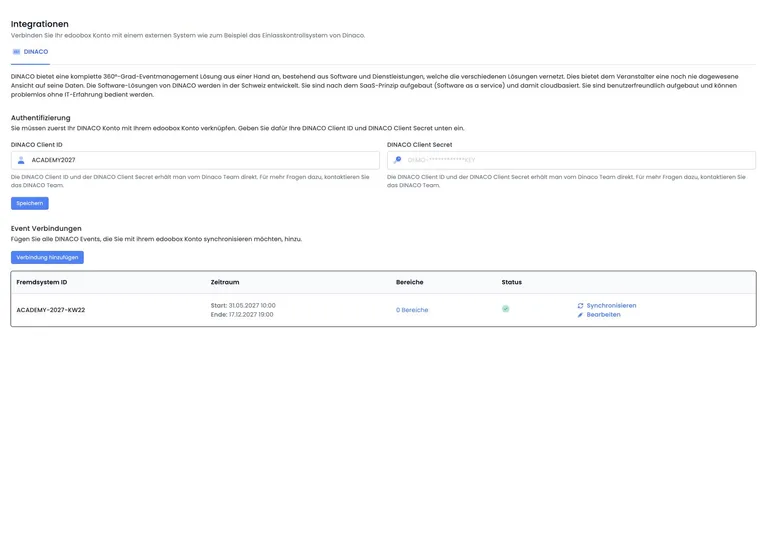
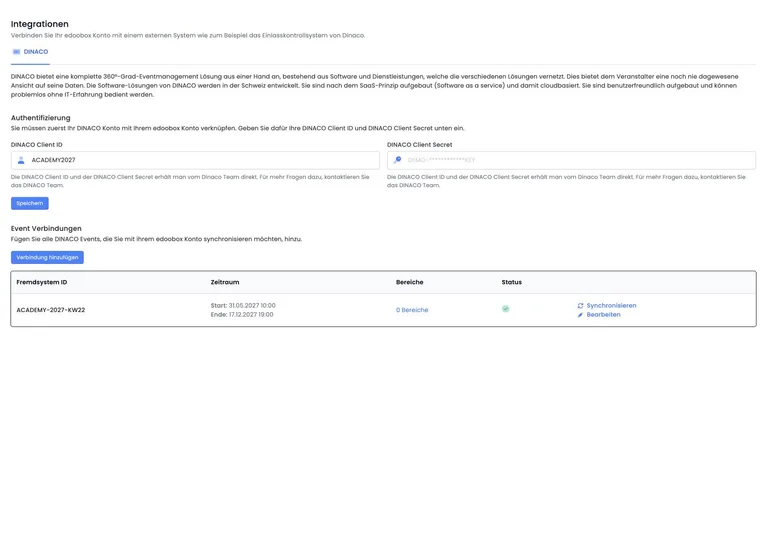
The DINACO integration uses credentials with a client ID and client secret. Afterwards, an event connection with a unique external ID, a time period, and an active status is created.
Plan the event connection carefully: The external system ID and period cannot be changed after creation. If either is incorrect, agree on a new connection with the person responsible for DINACO. Check the required areas and the effects on the access system before deleting the old connection. The active status can be changed separately.
The complete technical setup is described in DINACO integration. This page focuses on planning and on-site operation.
Define access areas and rules
A DINACO area can contain the following operational rules:
Name of the area;
additional entry and exit time in seconds;
allowed number of people;
merging or assignment of stations;
multiple entry;
allowed exit.
Assign permissions to specific offers. Categories are not an access permission. Therefore, for a congress with multiple workshops, each relevant offer access requires a deliberate assignment.
Synchronize areas and tickets in the correct order
First check the event time period, active status, and area settings.
Synchronize the areas.
Check the offer permissions per area.
Then synchronize the tickets.
Test entry and exit at each real station.
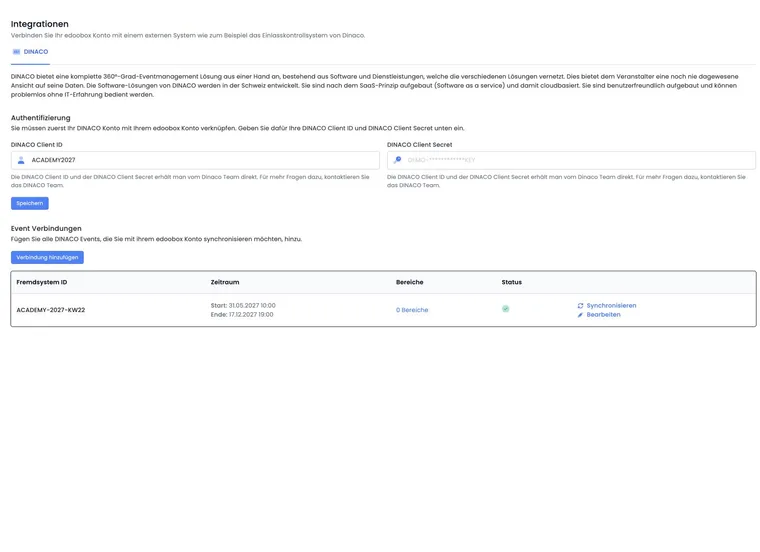
Areas and tickets are synchronized via separate actions. The reconciliation is linked to the time window of the event connection. If tickets are missing, check the active connection, the start and end of the synchronization window, the first successful synchronization, and the current personal barcode. After a ticket change, check the reconciliation again before making a replacement decision on the real device.
Operational check for scanners and turnstiles
Power and network: Every station, scanner and backup device must have power and a network connection.
Signage: Guests recognize the correct area before they stand at the scanner.
Test matrix: valid, wrong area, too early, too late, already used, multiple entry, exit, waiting list, and manual exception.
Capacity: The allowed number of people per area fits the safety and event concept.
Fallback: Prepare a paper or offline list, appoint a responsible person and define how to enter records afterward.
Data protection: Only necessary data is shown on publicly visible displays.
After admission, perform a spot check comparison between scan results, attendance list, and actual occupancy. Discrepancies are best resolved during the event.
Use case: Workshop with one USB handheld scanner
A workshop has 80 guests and one entrance. A laptop with a USB scanner and a backup scanner are sufficient. The validity scope contains the single session and sets attendance to “Present”. The admin team tests valid, invalid and waitlist tickets beforehand and keeps a participant list as a fallback.
Use case: Congress with multiple access zones
A congress has a plenary, VIP lounge, and three workshop rooms. In DINACO, separate areas with appropriate capacities are created and assigned to specific offers. Multiple entry is active for the lounge, but not for a limited workshop. Areas are synchronized before tickets.
Use case: Turnstile with entry and exit
A museum event uses fixed stations at its entrance and exit. The area permits exit and limits the number of people present at the same time. The full rehearsal tests re-entry, network failure and manual opening. A responsible person records every exception so that attendance can be updated afterward.
Release rooms with Comydo based on the booking
After activation in the Plugin Manager, the Comydo connection is available under Global settings → Integrations → Access systems. It links door scanners to confirmed edoobox participations and a permitted time window for each session. Room access can also record attendance.
The setup is performed via connection, access, scanner, and access rule. Check the assignment of the actually participating person: A non-participating contact person does not receive blanket access as a result. You can find the complete guide with test check and log under Set up Comydo access system.