
Single Sign On via SAML in Google Workspace for Business and Education
Requirement: SAML Single Sign-On requires a suitable edoobox subscription. Plan setup with your Google Workspace administrator and retain an independent superadmin login during testing.
As the identity provider, Google Workspace authenticates the people who sign in to edoobox. Depending on Login visibility, you use the same provider for admins, participants or both groups. Google confirms the identity; edoobox then determines access based on login scope, mapping, permissions and tags.
An identical email address alone does not automatically grant permissions to a new admin. Existing admins are adopted only if linking is enabled; new admins require either valid ACL mapping or existing authorisation.
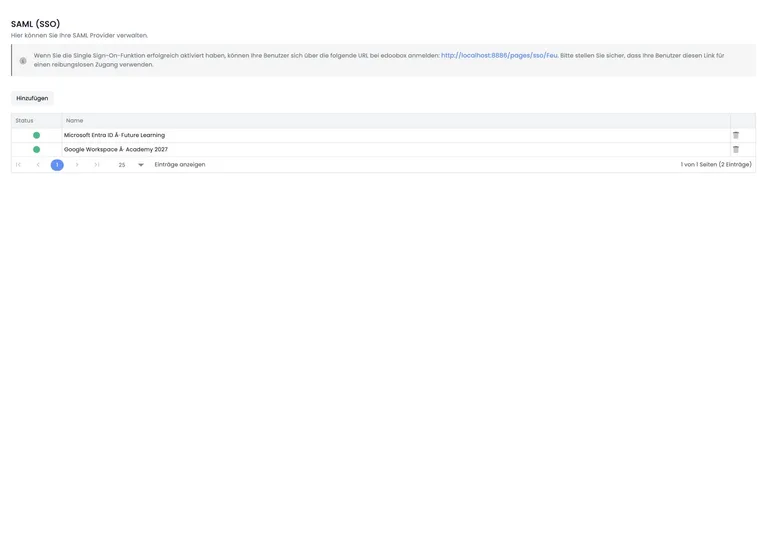
Requirements and test plan
Google Workspace superadmin for a custom SAML app.
edoobox superadmin with access to SAML provider management.
At least one test account with a known primary email address.
A decision on whether the provider is visible for admins, users or both.
A documented emergency login independent of the new provider.
1. Create a custom SAML app in Google
In the Google Admin console, open Apps > Web and mobile apps, add a custom SAML app and give it a unique name such as “edoobox SSO”. Google requires a superadmin for this.
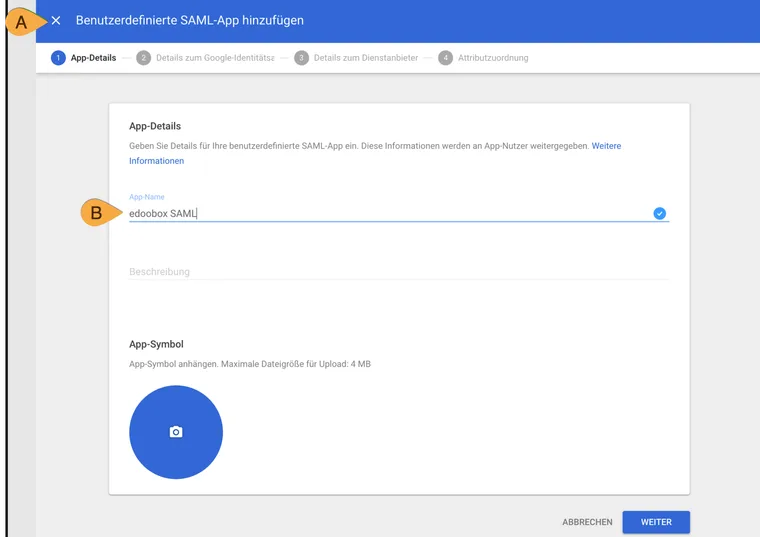
The custom SAML app receives an internal name in Google Workspace. This name is separate from the edoobox login button’s label.
- A
- Wizard for adding a custom SAML app.
- B
- Internal app name in Google Workspace, for example “edoobox SAML”.
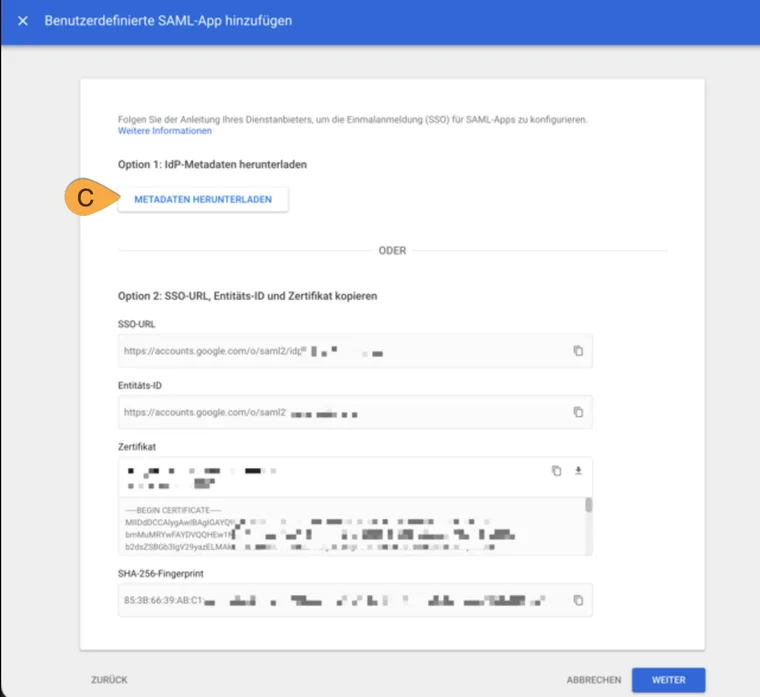
Download the Google app’s IdP metadata as XML. This file is then used to create the edoobox SAML provider.
- C
- “Download metadata” saves the IdP metadata for configuration in edoobox.
Download the IdP metadata as XML. For the Google workflow, use the downloaded XML file as the metadata source in edoobox.
2. Create a SAML provider in edoobox
Create a provider under the global SAML settings.
Select User & Admin, Admin only or User only.
Select the NameID format. For primary Google email addresses, Email Address is the natural starting point.
Select XML upload and upload the metadata file downloaded from Google in the previous step.
For admin scope, choose a deliberately restricted fallback permission.
Complete creation using the save action and wait for successful creation. Then open the saved provider; its information and downloadable edoobox metadata are available only there.
3. Transfer edoobox metadata to Google
After creating the provider, download federationmetadata.xml from edoobox. Use its Entity ID and Assertion Consumer Service URL for Google’s Entity ID and ACS URL fields. Do not copy an example address from another account or environment.
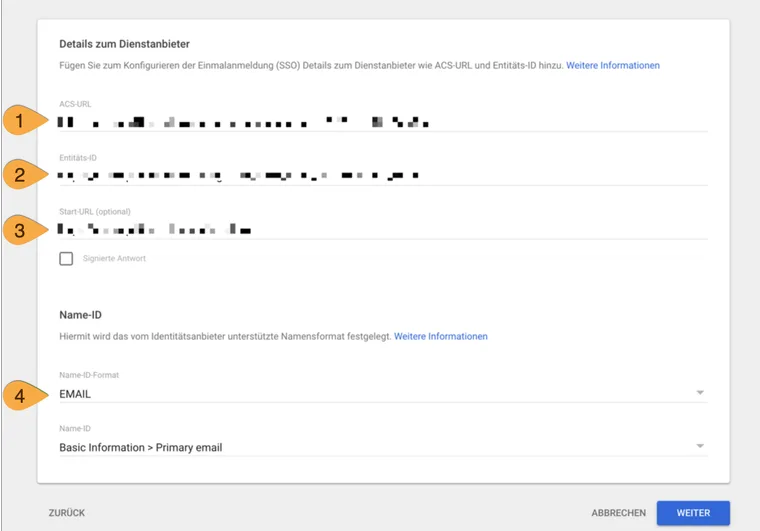
The service provider settings use your edoobox provider’s values. Copy the ACS URL and Entity ID from its metadata; the screenshot deliberately contains no account values to copy.
- 1
- Copy the ACS URL from the Location attribute of the edoobox AssertionConsumerService.
- 2
- Copy the Entity ID from entityID in the edoobox metadata.
- 3
- Optional Start URL; it belongs to the intended environment and is not derived from the metadata.
- 4
- Align Name ID format EMAIL for login using the primary Google email address.
Test login initiated by edoobox. The SSO URL displayed in edoobox is for admin login; participants use login in the booking process. The host address can differ by environment, so generated values are more authoritative than a fixed APP1 or APP2 link.
4. Align attributes and field mapping
In Google, map the primary email address, first name and last name to app attributes. The current edoobox standard names for Google or generic SAML are:
| Google data | App attribute | edoobox field |
|---|---|---|
| Primary email address | email | email |
| First name | givenName | first_name |
| Last name | sn | last_name |
Attribute names must be exact. If you assign different app attribute names in Google, adapt the field mapping in edoobox accordingly. At least the unique identity and fields required for the selected scope must arrive.
5. Deliberately choose current edoobox options
| Option | Effect |
|---|---|
| Login visibility | The provider appears for user login, admin login or both. |
| Fallback permission | Configured fallback permission for admin scope. It does not by itself permit an unknown person to obtain new admin access. |
| Permission management via edoobox | Allows edoobox.acl to be mapped to edoobox permissions. |
| Link admins with SAML | Links an existing admin with the same email address on first SAML login. |
| Auth Request Signed | Signs the AuthnRequest using the edoobox certificate saved for the provider. Enable only if Google expects this appropriately. |
| Participant tags | Indirectly assigns tags to signed-in participants from this provider; admins are unaffected. |
| Tag filtering of offers | Displays only offers with selected provider tags, or displays them additionally in additive mode. |
Control participants and offers with provider tags
Provider tags apply only to participants signed in through this SAML provider. An offer filter may use only tags previously selected as provider tags.
Enforced filter: only offers carrying all selected filter tags remain visible in the normal overview.
Additive: offers with the selected tags become additionally accessible. This is useful for displaying internal tagged offers to this SAML group.
Always test a matching and a non-matching offer. A tag name and, if used, its value or status must match.
6. Assign the app, activate the provider and test
Initially enable the Google app only for a test group or organisational unit.
Check the provider status in edoobox. After successful creation, the provider is active; existing providers’ status can be changed under Configuration.
Open the generated SSO URL in a private browser window.
Check identity, name, email, admin permissions or participant access, and logout.
For participant scope, check visible offers, provider tags, promotion references and return to the booking process.
Troubleshooting
App not visible: check Google assignment for the person or organisational unit.
Response rejected: compare Entity ID, ACS URL, NameID format, certificate and time.
Missing fields: compare Google app attribute names and edoobox field mapping exactly.
Admin without access: check admin linking, fallback permission or
edoobox.acl.Incorrect offers: check provider tags, offer tags, filter mode and login scope.
Use cases
Example: School administration signs in through Google
A school sets the scope to Admin only, enables the app for the “Course administration” organisational unit and links existing admins using identical email addresses. The fallback permission remains deliberately restricted; an independent superadmin tests the process.
Example: Internal training for employees only
The provider has the participant tag Employees. Internal offers carry the same normal offer tag. With additive offer filtering, signed-in employees see these offers in addition to the public overview; external people do not see them.
Example: Separate providers for admins and learners
A university creates one provider with Admin only scope for course organisation and another with User only for students. Admin permissions, participant tags and offer filters can then be tested separately.
Usage notes and further setup
The provider dialog is divided into Configuration, Data field mapping and Information. The original metadata source is displayed read-only under Information. For a source change or required renewal of uploaded XML, plan the transition with your responsible SSO administrator.
Configure data matching with SAML data fields and admin permissions. For User only, additional participant fields, indirect provider tags, internal offers and login in embedded booking pages, read Participant SSO, tags and offer access.
External setup follows the official Google guide to custom SAML apps (checked on 16 October 2026). Google distinguishes signing the response from signing outgoing AuthnRequests. Therefore, do not equate Auth Request Signed in edoobox with Google’s Signed response option.