
Template: Participant form
The illustrations show an earlier version of the interface. Use the steps in this guide for the available features and options.
The Participant form is the part of booking where participants enter their data. Request only data actually necessary for registration, delivery, invoicing, communication or legal requirements. An overly long form lowers completion rates.
Edit the template in Design Manager. Changes to order, width and spacing are first saved as a layout draft. Save a field’s content settings in its widget popup.
Video tutorials
These videos complement this guide. The spoken language is indicated for each video.
Preview images are loaded directly from this website. Playing a video connects to YouTube, only for the video you select.
Customise your registration form in the Design Manager
Design your registration form in the Design Manager and adapt its layout and appearance to your booking process.
The current guide also covers data field mapping, required fields, visibility and checking the complete booking journey.
Available widgets in the participant form
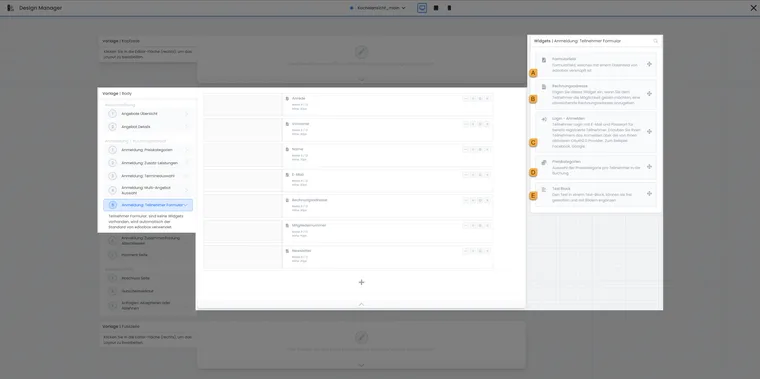
In the participant form, combine linked data fields with required additional components. A–E refer to widget selection on the right of the image.
- A
- Request a participant data field
- B
- Record a different invoice recipient
- C
- Sign in to an existing participant account
- D
- Assign a price per participant
- E
- Add multilingual notices
Form field: requests a participant data field, such as first name, last name, email, telephone or a custom data field.
Billing address: permits an alternative billing address, for example for employers, companies or reverse charge cases.
Login – Sign in: allows existing participants to log in and reduces duplicates.
Price categories: permits assignment of different prices, especially for group registrations.
Text block: adds notices, images or instructions in every active language.
If no custom form is placed
If you place no custom participant form in this template, edoobox automatically uses active standard fields. This may suffice for simple booking processes, but gives less control than a deliberately designed form.
Create a custom form if order, mandatory fields, multilingual labels, field widths, booking-type visibility, group participants or validation matter. After creating your first custom form, especially check that first name, last name and email remain present.
Distinguish participant data fields and additional questions
Participant data fields belong to a person’s profile and can be reused for later bookings. Depending on the subscription, custom data fields can be created beforehand and then linked in the form. The number available depends on the edoobox account model currently enabled. Check available fields in data field management, then link required fields in the form.
Additional questions instead belong to a specific booking or offer. Use them for offer-related information such as allergies, materials requests, course goals or accommodation needs. Use participant data fields for lasting personal information.
Configure a form field
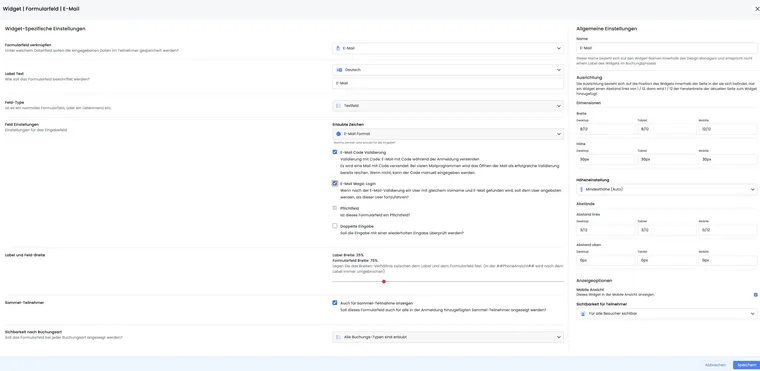
Open the form field widget and first choose its data field. Then maintain label, field type, required status, validation, width, visibility and other options. Depending on the interface, data fields already used in the template do not reappear in selection to avoid accidentally requesting a field twice.
Label text should be understandable to participants and maintained in every active language. Avoid internal terms such as ‘UserCustom1’. Prefer ‘Date of birth’, ‘Membership number’ or ‘Invoice reference’.
Link each data field only once in the form. If an expected field is missing from selection, it is often already placed in the same template or inactive in Participant data fields.
Label and field width control the ratio of label to input on larger screens. On mobile, the label normally appears above the field to keep the form readable.
Field types and typical uses
Text field: short information up to a limited length, such as a membership number.
Text area: longer answers, such as comments or previous knowledge.
Option selection: predefined answers when exactly one or several variants make sense.
Dropdown menu: compact selection from a list.
Checkbox: yes/no confirmation or individual consent.
Hidden content: technical or prefilled values that should not be visibly requested.
Date field: date of birth, reference date or another date.
File: upload of evidence, images or PDFs if required by the process.
Choose a field type that requires as little explanation from participants as possible. Selection is better than free text if you later want to filter, export or analyse automatically.
Mandatory fields and validation
edoobox checks required information when applying or completing the form. Missing or invalid values may prevent continuation or return to the affected step. Therefore check both the form step and the final route.
A custom participant form should include first name, last name and email. Without this basic data, confirmation, participant management and communication do not work reliably.
Enter information twice: useful for email addresses or other particularly error-prone details.
Email validation: can send a confirmation code to check access to the email inbox.
Telephone number validation: can use SMS or a call. This check incurs costs that may be charged to your edoobox account; check costs, account balance and credit before actively using it.
Date validation: checks a permitted range or derives age restrictions from it.
Pattern validation: uses regular expressions and is intended for experts.
A pattern can check the format of a custom text field, such as an internal reference. The standard email field has a fixed email type; format selection for custom patterns is locked there. Test several matching and non-matching examples and consider case-insensitive server-side validation. Details are provided under Pattern validation in a form field.
Make a field mandatory only for one category
An additional participant data field can be requested differently in different designs. For a requirement only in one main category’s booking route, use a dedicated assigned design and set the requirement in its form field widget.
- Create the required participant data field or check that it is active. For an offer-related answer, use the appropriate additional question instead.
- In Design Manager, copy the existing design and give the copy a clear name, such as ‘Specialist courses with membership number’.
- In this copy, open the Participant form body. Add the form field if missing, save the new layout and open field settings.
- Link the widget to the correct additional data field. Enable Mandatory field if the field type offers this switch, and maintain an understandable label. Save widget settings and remaining layout changes.
- Open design settings and assign the copy to the desired main category under Categories using this design. Check the interaction of default design and category assignment.
- For this category, open the appropriate link from Preview/Share. Check empty and completed input through to booking completion. Repeat the check on an offer outside this category that still uses the previous design.
Example: Specialist courses require a membership number; for public information events it remains optional. The ‘Specialist courses’ category gets the design with the mandatory field; the general design keeps the optional request. The data field remains the same profile field. A person already logged in can therefore bring a stored value: also test a new person without a membership number.
For group registrations, check which people see the field and undergo validation. First name, last name and email follow their own rules; they are unsuitable examples of freely switchable additional requirements. For a date field, the general required switch is hidden in the current editor. Hidden category navigation or a different heading does not replace design assignment.
Field types in detail
Field type | Can it be mandatory? | Typical use |
|---|---|---|
Text field | Yes | Short input such as membership number, company or reference. |
Text area | Yes | Longer comments or special notices. |
Option selection | Default value possible | Selection from predefined answers. |
Dropdown menu | Default value possible | Compact selection among several options. |
Checkbox | Yes | Individual consent or yes/no information. |
Hidden content | Yes | Values to save without visible entry in the form. |
Date field | No separate required switch in the current date editor; check existing specifications and offer requirements | Date of birth or another date with a consistent format. |
File | Yes | Upload evidence, images or PDFs. |
Available settings differ by field type. For option fields, check translations of all values; for file fields, permitted file types; and for hidden fields, whether the saved value is actually needed later.
Login, duplicates and Magic Login
The login widget reminds returning participants to use their existing account. This adopts known profile data and reduces duplicates.
For first registration, access details can be sent in the confirmation email. Ensure the relevant email template contains ##UserAccess## or the appropriate user access placeholder. Further placeholders are provided under All placeholders for emails and PDFs.
Automatic profile recognition, or Magic Login, can recognise existing profiles from suitable data and offer participants the option to use their data after successful validation. Setup and checking existing profiles are explained in Automatic profile recognition and Avoid duplicates and check participant data.
Login details and confirmation email
If participants should be able to log in for the first time, the confirmation email must contain suitable access information. Check the booking confirmation template, especially ##UserAccess##. Without this information, new participants may not know how to open their participant account.
Billing address and price categories
The Billing address widget saves an alternative billing address against the booking. It differs from the participant’s general address. Enable only billing fields actually needed.
For reverse charge or company invoices, recording a VAT number may be necessary. Coordinate this with Reverse Charge B2B, VAT settings and your invoicing processes.
Price categories help in group registrations when several people should receive different prices. Check display alongside Price categories and payment method.
Group participants and booking types
For group registrations, decide per field whether it is also shown for additional participants. Disable this option for details concerning only the main booker, such as invoice reference or contact for queries.
Booking-type visibility controls whether a field appears for normal bookings, waiting lists, enquiry lists or MustPay cases. Use this restriction when information is needed only for binding bookings, rather than non-binding enquiries.
Form fields should remain visible for all booking types by default. Restrictions are especially useful for fields deliberately not requested for waiting or enquiry lists, such as invoice references, mandatory evidence or internal cost centres.
Text block, notices and iframe behaviour
The text block widget adds notices, images or short instructions directly in the participant form. Maintain text in every active language and keep it brief to avoid unnecessarily interrupting registration.
Depending on embedding, a text block can be set to appear always or only when booking is opened outside an iframe or directly. This helps when information is already visible on your website but additionally needed in a directly opened booking link.
Plan booking-type visibility in detail
Visibility by booking type helps when a field is needed only in certain processes. An invoice reference may be needed only for binding bookings, while a brief reason suits an enquiry list better.
Always check such rules with a normal booking, waiting list, enquiry list and MustPay booking if these variants are active in the account. A field hidden in the wrong place leads to missing information later in email, PDF, export or booking details.
Test the participant form
Perform a normal booking with mandatory fields and validation.
Have an existing person book through login or Magic Login.
Test group registration with several people.
Check waiting and enquiry lists if these booking types are used.
Check Booking.pdf, invoice, email, export and user profile.
Example: Form for children’s courses
A provider requests date of birth, emergency contact and allergies for children’s courses. A suitable age limit is configured for date of birth; rejection of empty input is checked against the specific field and offer requirements. Emergency contact is maintained as a participant data field, allergies as an additional question for affected offers. In group registrations, child-related fields appear for each participating child.
Example: Group registration with a main contact
A company registers four employees. The main contact enters billing address and communication details; individuals enter only data required for participation and certificates. The test checks adding, removing and mandatory fields for each person.
Example: Returning person without a duplicate
A former participant enters her known email address and uses the intended login or recognition route. The form adopts only approved profile data. The administration then checks that no second profile was created and the new booking belongs to the existing profile.
Participant photo, mandatory fields and group participation
In a Bootstrap 5.3 design, you can add the Participant photo widget. The person can take a photo or select an image. Choose Face or Symbolic image in the widget; faces are cropped accordingly. Photo capture is a dedicated widget and is not replaced by an arbitrary file field. Setup: Image and form widgets.
For additional non-core data fields, Bootstrap 5.3 offers three variants: Show only for main participant, Also show for group participation and Show only for group participants. Core identity fields follow their own rules; older designs offer a simplified yes/no choice. This setting also decides which people undergo field validation.
Require login through the login widget if needed. Email code and Magic Login remain email field options. If you want to reserve places without specific names first and have them filled later, also design the dedicated Place registration template. It uses its own field selection and contains no billing address, login or price category selection.
Fully configure dates and files
For a date field, choose limits using fixed dates or age and set both boundaries. The current editor hides the general mandatory field switch here. Public validation may still apply existing mandatory settings or offer requirements. Check empty input, a boundary date and a date outside the range separately. A missing mandatory field switch does not mean that input is optional in every booking route.
For a file field, define permitted file formats and minimum and maximum file size in MB. If the optional VirusTotal service is used, it requires its own setup. Check an allowed upload, prohibited format and file outside size limits. A file field replaces neither the participant photo widget nor substantive approval of submitted evidence.
A hidden field or display limited to certain booking types is not access control. For group registrations, additionally check which fields appear for the main contact and every further person. First name, last name and email follow their own fixed rules.
Related guides
- Design Manager: Editor, layout, and widgets
- Template: Booking steps 1 to 4
- Participant data fields
- Question group columns
- Additional questions and additional services
- Automatic profile detection / Magic Login
- Avoid duplicates and check participant data
- Price categories
- Group registration with participant data