
Cancellation and withdrawal
Cancellation ends an active booking. It may be performed by the participant, following an admin decision, or directly by the administration team. The specific process depends on the conditions saved with the booking. This overview combines setup, booking management, and financial follow-up into a complete workflow.
Legal texts, cancellation, and evidence shows the entire process from the published text version and booking confirmation through to reversal.
Video tutorials
These videos complement this guide. The spoken language is indicated for each video.
Preview images are loaded directly from this website. Playing a video connects to YouTube, only for the video you select.
Set up cancellations and withdrawal
An overview of setting up cancellations and withdrawal, and checking fees, refunds and messages in the booking details.
The current written guide is authoritative for applicable conditions and saved copies of rules.
Choose the appropriate guide
| Your task | Appropriate instructions |
|---|---|
| Configure groups, defaults, tiered fees, and the refund method. | Manage cancellation conditions |
| Understand remaining days, percentage fees, partial payments, and dunning fees. | Calculate cancellation rules and fees |
| Configure the withdrawal checkbox, form, and saved evidence. | Withdrawal for participants |
| Cancel an entire booking, process a request, or rebook. | Cancel or rebook a booking |
| Remove or rebook just one person from a group booking. | Manage group participation |
| Correct an invoice or process a monetary refund. | Invoice and cancellation invoice and Check refunds |
| End a participant subscription contract. | Subscription renewal and cancellation |
A changed legal text, a changed group template, a cancellation request, a cancelled invoice, and a completed refund each have their own effect. Check which steps have actually been completed in the specific case.
Check scope and evidence before cancellation
Open the booking details and check the offer, contact person, active participations, selected dates, total price, invoice, and payments. Read the saved cancellation group, rules, withdrawal period, and confirmations. First define the scope: the entire booking, one person, or one date item.
A participant subscription has its own contractual process. Cancelling a course booking does not cancel the subscription. Also check which subscription usage is available again or remains booked, and use the subscription guide for contract changes.
Cancel as an admin with a fee preview
- Select Cancel in the booking details.
- If conditions are saved, choose Cancel using attached rules, No cancellation fee, or Custom cancellation amount.
- Check the fee, any outstanding dunning fees, available payment, refund method, and withdrawal notice. Document the decision.
- Confirm the process and wait for the actual result.
- Check completion using the following table.
The booking dialog guide describes the individual actions. A valid withdrawal without a confirmed waiver sets the fee to zero. A blocked refund or externally managed invoice may require manual review. Without a saved copy of the rules, an open invoice in particular may block the previous cancellation action; first open the financial process indicated.
Process self-cancellations and requests
Under Settings → Cancellation & withdrawal, you can choose Inactive, two active modes marked as deprecated, and Rules mode. For new bookings in rules mode, admins configure groups and assign them to offers. Existing bookings with their own rule copy retain it even after the global selection changes.
An automatic rule attempts to process the participant’s request directly. A rule with Admin confirmation, or a case without a matching rule, creates a request. The booking remains active until a decision is made and does not release a place. Open the task, read the reason, and check the current fee preview before approving. Another time threshold may be reached before the request is processed.
A still-valid withdrawal without a confirmed waiver may be processed immediately without a fee, even if the rule otherwise requires admin confirmation. If an automatic refund fails, however, admin review may be necessary. A task or success message does not replace checking the actual booking and transaction statuses.
Check withdrawal using the appropriate access method
A group can use a technical withdrawal process of 14 times 24 hours, with an additional required checkbox when services start at short notice. The version saved with the booking and its associated legal text evidence are decisive. The person can use the provided form link with contact details and booking number, or open the available action in their booking view.
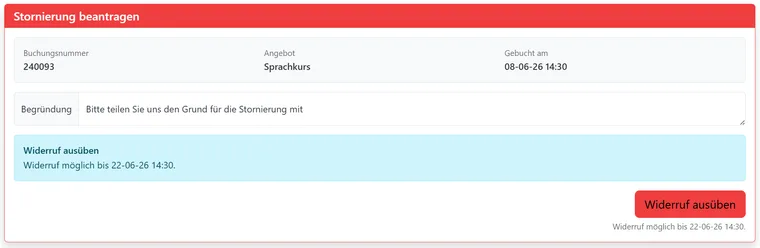
If withdrawal is still available, the dialog shows the deadline and appropriate action. Check the affected booking before confirming.
For setup, form fields, error messages, and examples, see Withdrawal for participants. Withdrawing from a specific course booking does not terminate another contract or the person’s other bookings.
Check completion in every area
| Area | What must be correct after processing |
|---|---|
| Booking and capacity | The selected scope is cancelled; active participations, date links, and reservations match the result. A pending request still counts as an active booking. |
| Cancellation condition and fee | The copy used, fee type, amount, and reason can be traced. Later template changes do not remove fees that have already been generated. |
| Invoice and documents | The original invoice, any cancellation invoice, and fee document match the reversal. External invoices may require separate processing. |
| Online refund | Correct original payment transaction, completed refund, and amount; handle outstanding balances separately. |
| Voucher code or user balance | Code with currency and validity, or correct participant credit balance. This does not constitute a bank or card refund. |
| Manual payment | The task and required return transfer have actually been completed; creating a task alone does not move money. |
| Communication | The correct confirmation is in the outbox; handle failed messages and clearly communicate the completed action. |
| Subscriptions | Check usage and remaining allowance; handle any required contract cancellation separately. |
Depending on the group, the remaining amount is refunded online, issued as a voucher code, or retained as a positive credit balance. Without automatic refunds, process the payout separately. Outstanding dunning fees can further reduce the remaining amount. The calculation examples also cover partial payments.
For an admin cancellation, check sending particularly carefully: in rules mode, the previous admin cancellation confirmation switch is hidden, but its saved value may still apply. After checking, send any missing message directly from the booking. The registration and confirmation settings explain this special case.
Clarify special cases before confirming
- Pending waitlist or inquiry: The rules process generates no new cancellation fee or automatic refund because participation has not yet been confirmed.
- Only one group participant cancels: Manage that individual person, then check the total price and invoice.
- The offer has been rescheduled: Compare the participant action and admin preview. The current implementation does not use the same start reference everywhere; the calculation guide explains the difference.
- Assign a different group to an existing booking: Afterwards, also check the recalculated withdrawal deadline and confirmation state.
- A financial process is blocked: Open the indicated invoice or payment case and check steps already completed before running the action again.
Examples of follow-up work
CHF 200 paid, 50% fee: If the rest of the case is unchanged, admins expect a CHF 100 cancellation fee and CHF 100 for the configured refund route. For an online refund, they check the transaction; for user balance, the participant credit; and for a voucher, the code and sending.
Only one child in a family booking cancels: The rest of the booking remains in place. Admins manage the individual group participation and check the price and invoice changes.
An external invoice requires review: The responsible person handles the reported accounting case and checks the progress already made. Only after the required steps are completed is the entire reversal communicated as complete.