
External integrations
An integration connects edoobox to another system to avoid maintaining the same data twice or to create a continuous workflow. It can provide faster admission, centralised sign-in, an accounting handover, automation or embedding on your website.
Choosing the right integration type is important: in the current edoobox V2, not all connections are in one shared menu. Under Settings → Integrations, you will find DINACO, access systems and, if available for the account, accounting. Plugins such as Bexio and automations are first enabled in the Plugin Manager. SAML, API keys, email delivery, exports and website integrations are located in their respective specialist sections.
Choose the appropriate integration method
| Method | Suitable for | Starting point |
|---|---|---|
| Native integration | A connection directly supported by edoobox with its own configuration. | DINACO integration |
| Automation | External automation with Zapier: forward supported events, such as a new booking or new invoice, to other apps. | Zapier templates |
| API | Custom, controlled read or write processes using your own software. | API Keys and Access Rights |
| File or export | Periodic handover to accounting, reporting or an archive. | Tables and export options |
| Identity provider | Centralised sign-in and controlled access through SAML. | Single Sign-On via SAML |
| Website integration | Display offers and the booking process on an existing website. | Website integration and preview |
Native connection using DINACO as an example
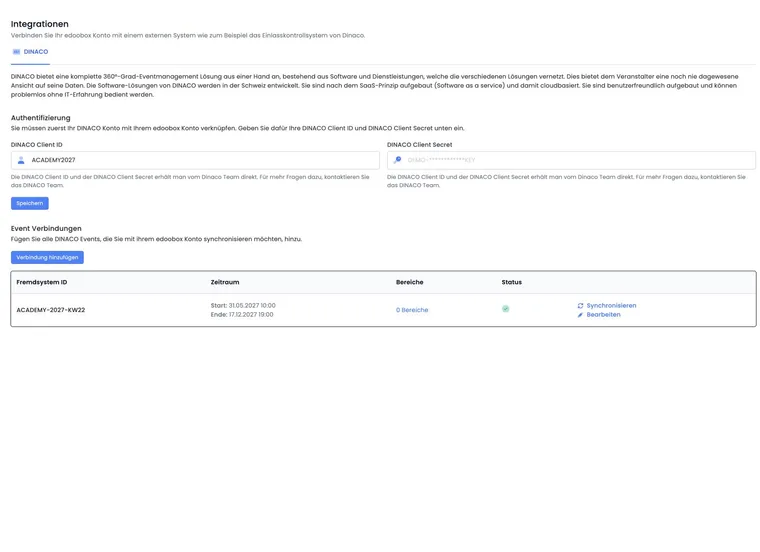
The V2 integrations page contains two clearly separate DINACO sections: first save the Client ID and Client Secret. Then create individual event connections. Each connection has an external system ID, synchronisation period, assigned areas and status.
You can edit an existing connection's active status and deliberately synchronise it manually. The external system ID and original period cannot be changed after creation. This connects a specific DINACO event with the intended edoobox offers without transferring all account data indiscriminately. For details about areas, tickets and checks, see Admission control using a handheld scanner or turnstile.
Distinguish API integration from automations correctly
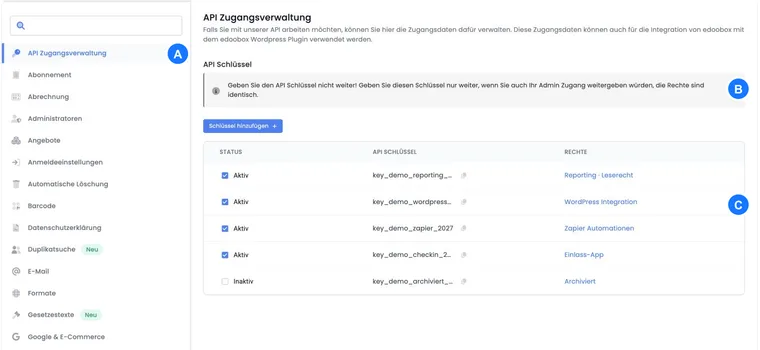
Zapier is suitable when a supported event should be connected to a standard action. A custom API integration is useful when you need special data models, write-backs, complex rules or your own user interface. Create separate API access with only the required permissions; do not use a personal admin account as a permanent technical solution.
Before implementing a write integration, define which system is authoritative for each field. Without this decision, names, statuses, invoices or tags may overwrite one another repeatedly. For repeated events, the integration must recognise the same message to avoid duplicate bookings or invoices.
For periodically importing new bookings and resuming after an outage, use Synchronise bookings through the API. Pay particular attention there to the distinction between creation time and later status changes.
Other connections are located in their specialist sections
Accounting: First check existing methods such as transaction exports, DATEV or CAMT payment reconciliation.
Sign-in: Configure SAML in the sign-in and security settings. Provider examples are available for Microsoft Entra ID and Google Workspace.
Email delivery: Configure a Microsoft account, SMTP or Mailjet under Email, not Integrations. See Connect a Microsoft account.
Website: The WordPress plugin, iFrame and Share link concern public embedding and have their own settings.
External instructors submit course proposals
For active instructors, edoobox offers a personal offer submission link. The instructor enters course details through a dedicated form; the offer is saved as a draft and then reviewed and published by the administrator.
- Check the instructor's status and role. Open management under Administrators → Offer submission links and generate or copy their personal link.
- The instructor enters the offer name, category and other required details such as description, price, capacity, location, room and first session. An unresolved room question can be recorded in the note. The form workflow explains the fields and uploads.
- After Save as draft, the instructor checks completion. If an upload fails, the draft already created is reused; do not enter the entire offer again.
- The administrator opens the draft, checks details and files, adds further price categories and settings, and publishes only the approved version. The follow-up checks guide you through this step.
If you also need your own website form, special mandatory fields or a handover from your CRM, plan that custom integration separately. Review the fields and actions in the API V2 reference, access permissions and approval process. Embedding a website form alone does not connect it to the edoobox offer editor.
Planning checks before implementation
Objective: Which manual step or customer problem should be eliminated?
Data direction: Does the external system read, write to edoobox or both?
System of record: Where are names, statuses, prices, invoices and tags authoritatively maintained?
Trigger: Does the handover happen immediately, after a status change or periodically?
Matching: Which IDs and fields link the same person, booking, invoice or event?
Duplicate protection: What happens if the same message arrives twice?
Permissions and secrets: Who manages keys, secrets and SAML certificates, and when are they renewed?
Error workflow: Where are failed transfers visible, who responds and how are they retried?
Data protection: Which personal data is actually needed and when is it deleted?
Fallback plan: How does the team continue working if the connection is temporarily unavailable?
Test, approve and operate
Test with an internal offer and clearly identifiable test data. Cover creation, changes, cancellation, missing mandatory fields, repeated messages and external system outages. Then compare both systems and document the expected results.
After approval, every integration needs an owner, regular checks and a documented key rotation process. A technically successful transfer is only operationally successful when the amount, status, person and assignment in the target system are correct.
Example: DINACO for a congress
A congress has several entrances and workshop areas. The organiser saves the DINACO credentials, creates an event connection with a limited period and assigns only the relevant areas. Valid, cancelled and already-used tickets are tested before the event.
Example: monthly handover to accounting
A small organisation does not need a real-time API. It exports invoices and transactions monthly, imports them into the accounting system and reconciles control totals. The simpler file workflow reduces maintenance and remains traceable for accounting.
Example: SSO plus a custom participant platform
Admins sign in through SAML. A separate platform uses API access to read only approved offers and writes bookings back through a custom-configured mapping. Sign-in, API permissions and error logs are tested separately so that a platform outage does not block admin access.
Use an internal rule or connect an external system?
If the action stays within edoobox, such as a user tag, note or selection of a sending template, start with internal automations. These offer predefined creation and communication events. They have no arbitrary invoice or scheduling trigger.
For invoices and payment reconciliation with Bexio, use the native accounting integration. For actions in other apps, choose a Zapier trigger that is actually available or the documented API. Before enabling it, define which method creates a document; two parallel invoice generators can easily create duplicates.
Related guides
Set up Bexio and internal automations
The native Bexio integration connects an accounting company, transfers invoices and reconciles payments. Start with the connection and invoice mode, then maintain customer/accounting mappings and check synchronisation and open issues.
Internal automations connect an edoobox event with conditions and actions. They can control tags, data fields, notes and templates. The executions show why a rule applied or an action did not occur.
Under Access systems, configure the available access integration after its plugin has been enabled. For marketing measurement, use Tracking V2 under Google & E-Commerce instead.