
Legal texts: publish a new version
A new version updates an already published legal text. The existing entry and its links remain intact; older versions remain traceable as read-only versions. Changes are published separately for each language.
Prepare a version change
You need editing permissions for settings, the approved new text and a list of the languages and designs used. Open Settings → Legal texts, expand the existing text and note the currently published versions per language.
If cancellation deadlines or fees also change, prepare the cancellation terms separately. They are not automatically part of the new text version.
Create a new version in the correct language
- In the existing text, select the relevant language group, for example German.
- Click New version. If the button is disabled, open the draft already present for that language.
- In the dialog, check the text name, language, new version number and Draft status.
- Check the copied content and Confirmation field label. Both come from the last published version in the same language.
- Add your changes and save the draft.
For the first version in a language, there is no published source text: the content starts empty and the label uses default text. Explicitly translate the content and label; version numbers across languages do not have to match.
Check the saved draft
Close the editor after saving and reopen the version card. Check that your changes were retained, paragraphs and links are correct and the checkbox label matches the text exactly. For changes in multiple languages, repeat this check per language group.
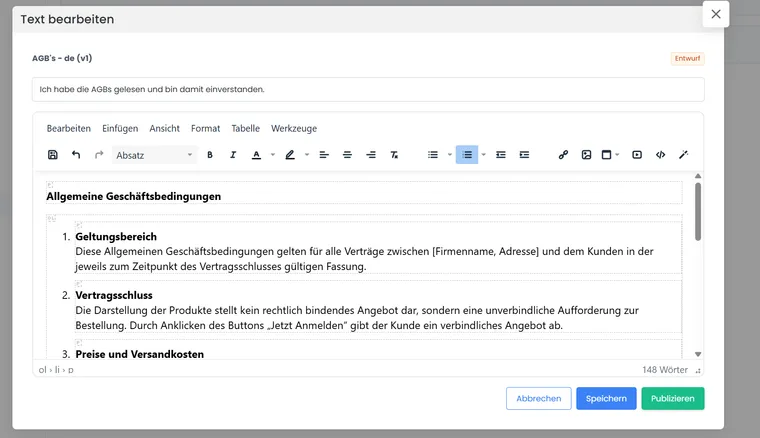
The editor shows the text and confirmation label. Save retains the draft; Publish releases the reviewed version.
The public Legal texts widget does not use a draft instead of an existing published version. If you only save and the booking page remains unchanged, this is expected behaviour. Cancel or closing the editor does not replace saving.
Publish a version and understand its effect
- Open the reviewed draft in the correct language.
- Click Publish at the intended changeover time.
- In the overview, check the Published status, date and publishing administrator.
- Reopen the version: the content and confirmation label are now read-only.
- Reopen the public booking summary and check the version, language and content.
Publishing takes effect immediately; this dialog does not configure a future release date. The previously published version in the same language appears as Archived. As long as you only save a new draft, the old version remains published.
An existing widget continues to refer to the same legal text and loads its current published language version. It does not need to be changed to a new version number during a normal version change.
Example: change terms and conditions in German and English
Your German terms and conditions are at version 2 and the English ones at version 1. You create German version 3 and English version 2. Both drafts can be prepared and saved independently. Until publication, people booking continue to see the previously published versions.
If you publish German first, German is already at version 3 while English still uses version 1. A desired simultaneous change therefore requires coordinated publication of both language versions and subsequent checks in both booking languages. edoobox does not treat the numbers as a version package spanning languages.
If a published translation is missing in the course workflow, another configured account language may appear. When checking, rely on the language stated in the widget, not merely the language of the rest of the page.
Check existing bookings and linked rules
Open an older booking under Information → Legal texts. Its saved confirmation still refers to the version at that time. This may now appear as Archived and can be opened read-only. Publishing the new version does not constitute retroactive consent for existing bookings.
After the change, check a new booking using Check integration and evidence. For linked cancellation terms, also check their state saved in the booking: the rules table attached to the text is generated from the offer assignment and is not the finalised content of the text version.
For a subscription sale, follow the separate rules for legal texts and confirmations.
Resolve common errors
| Observation | Procedure |
|---|---|
| New version is disabled | Open and edit the draft already present for that language. |
| The old text still appears publicly | Check publication status, booking language, selected design and linked legal text; reopen the booking page. |
| The wrong language appears | Add a published version in the required active language and check the public language display. |
| The published text contains an error | Create another version within the same legal text, correct it, check it and publish it. The finalised version cannot be reverted to an editable draft. |
| An additional text should apply in future | Also link the new legal text in the appropriate widget; a new text card alone does not add a requirement to the booking process. |
Related guides
The relationship with cancellation rules, withdrawal, refunds and data protection is explained in Legal texts, cancellation and evidence.