
Participant data fields
Participant data fields determine which information edoobox stores about a person and requests in the registration form. These include standard fields such as name and email, and additional custom fields.
Plan data fields carefully: each mandatory field can improve data quality but lengthens booking. Request only information you actually need for booking, delivery, billing or communication.
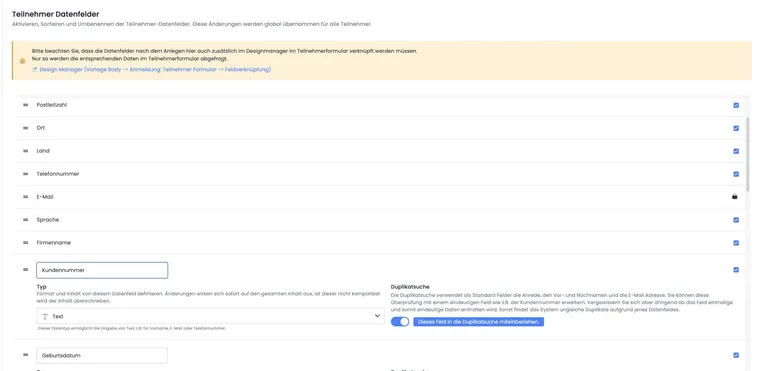
Existing data fields
edoobox contains central fields such as salutation, first name, last name, email, address, telephone number and language. These fields are used in many areas, for example bookings, invoices, emails, exports and participant profiles.
Change standard fields only with a clear purpose. If a field is used in invoices, email templates or forms, a change may affect several processes.
Activate and configure a custom data field slot
The data structure contains standard fields and 30 custom field slots. For new information, activate and name a free custom slot. You need administrative permissions and an account plan that permits data structure editing.
- In global settings, open Participant data fields.
- Select an unused custom field slot and activate its visibility.
- Give it a unique name, such as ‘Employee number’ or ‘Proof of participation’.
- For a custom field, select the global format Text, Date or File.
- Position the field and check the saved structure.
- Open the participant form template used in Design Manager. Connect a form widget to this data field there and configure appearance, help text, required status and visibility.
Checkboxes, selection lists and other form elements are configured on the widget. They are not additional global data formats. Do not rename a populated slot for a different purpose: its previous values would be labelled incorrectly in substance.
Find a field slot again after renaming
The visible field name and technical field slot are separate. A custom slot is represented in the API as data_1 to data_30. Renaming, for example from ‘Additional field’ to ‘Newsletter consent’, does not move stored values to another slot.
- Before changing an integration, note the custom slot used and its current name.
- For an API integration, compare the data structure read with the stored person value of the same
data_Nfield. Select the slot based on its name and a unique test value. - Check the value actually arriving in your integration. A connector-side label such as ‘Additional Field N’ alone does not confirm correct mapping.
The specific newsletter comparison using payload and data structure is explained under Determine the technical field slot for newsletters. Do not give an occupied slot a new substantive purpose without checking existing values and integrations.
Sorting, visibility and field type
Sort the global data structure using drag handles and activate required fields through visibility. Locked standard fields are marked with a padlock. Participant profile settings show the activated fields in this structure.
Custom data fields offer Text, Date and File. A format change must suit existing values. Afterwards, check profile, all form templates used, import, exports and placeholders. Date and file fields are unsupported for duplicate search.
Global activation does not replace a form widget. Check every design used; an existing data field is not automatically requested in the desired position in the public form.
For birthdays, after setup check the calendar day actually stored and its output. Use an unambiguous check date such as 17 May instead of a number that could also be interpreted as a month. The complete checking route through profile, form, import and export is described under Check birthdays and date fields.
Enter longer descriptions appropriately
A multiline text area is not automatically unlimited. In the form widget used, check permitted characters and configured minimum and maximum character counts. For normal character checks, the editor offers limits up to 200. The ‘Number of rows’ setting changes the text area’s visible height.
- Open the specific field in the participant form template used.
- Compare data type, character validation and length values with the required input. A value of 0 does not promise unlimited length.
- Check short and longer input, including accented characters, in the actual form. Technical length validation may also depend on character type.
- For longer project materials, use a suitable file upload and enter a short summary in the text field. Offer-specific requests may be better suited to additional questions; their input limits must also be appropriate.
Enlarging a text area or renaming its field does not override validation. Plan longer materials before publishing the offer so existing values are not truncated or incorrectly assigned without control.
Use data fields for duplicate search
For suitable fields, the participant data structure shows current duplicate search status and the Edit in duplicate search link. Rules are centrally maintained under Duplicate search → Settings. There you define active fields, mandatory matching and weighting.
Custom text fields with stable values, such as an employee number, can help identify the same person. Custom date and file fields are unsupported for this duplicate search. Switching to such a field type disables its use in duplicate search.
A field marked as a mandatory comparison must match when profiles are compared. A high weighting makes a value more important to the match score; it does not make a shared email address unique. Full configuration is provided under Duplicate search: Rules and automatic merging.
Data fields in the booking form
Data fields can be visible in the public booking process. Check order, mandatory fields, help text and mobile appearance. Too many mandatory fields can cause booking abandonment.
If information is needed only for a particular offer, additional questions are often more suitable than a global data field.
Design fields for the contact person and group participants
In a Bootstrap 5.3-based design, under Group participants in the form field you can determine whether it is shown only for the booking person, also for group participation, or only for group participants. First name, last name and email remain intended as identity fields for people.
Example: A company’s contact person enters billing and organisational details. The ‘Participant’s department’ field appears only for employees. The contact person need not participate. Therefore check the main form, additional people’s form and actually booked places separately.
A data field’s global visibility does not replace this form widget setting. For every design used, check display, mandatory validation and saving with an individual and a group booking.
Data fields in emails and PDFs
Many data fields can be output using placeholders in email templates or PDFs. After creating a field, check whether the appropriate placeholder is documented and whether output works in the desired template.
Perform a test booking if data fields are relevant to invoices, certificates, attendance lists or individual emails.
Keep participants’ academic titles separate from salutations
An academic title such as ‘Dr.’ or ‘Prof.’ is different information from a salutation. Give a custom text field slot a clear name for this and include it only where needed. The desired template uses the participant placeholder belonging to that field for display.
##UserTitle## supplies the participant salutation. It is not a general placeholder for an academic title. The academic profile field for admins and instructors belongs instead to the admin profile and its instructor display. Check a template with and without a title so titles are not duplicated and unnecessary spaces do not remain.
Data protection and maintenance
Personal data should be collected only when substantively necessary. Clarify internally who may see the data, how long it is needed and whether it should appear in exports.
When changing data fields, check existing bookings and profiles. Removed or renamed fields can make older analyses harder.
Example: Record a membership number
An organisation wants to record membership numbers for association courses. It creates a custom ‘Membership number’ data field, makes it visible in the form and checks with a test booking that the value appears in the user profile and export.
File uploads as a separate process
For evidence or another participant file, configure a custom slot with File format. In Design Manager, specify permitted file format and size; you can open or remove an existing file in the profile. One file is maintained per person and file field. CSV mapping does not offer file fields.
Preparation, form options and error checking are explained under Set up file uploads for participants.