
Tasks, pending items, and recurring tasks
The task manager bundles planned edoobox tasks for an offer and the associated participants. This includes manual email tasks, system tasks, financial tasks, file or job tasks, and custom email templates.
The view separates tasks into Create, Pending tasks, Recurring tasks and Archive. This shows what is scheduled, what responds to new bookings after the initial send, and what has already run. Recurring tasks here are not configurable daily, weekly or monthly schedules.
Task Manager and permissions
The task manager is only visible if the logged-in admin has the necessary rights. Without permission, edoobox displays a notice. If no task area has been selected yet, edoobox typically opens the Create area. After creating a task, the view can switch directly to pending items.
Tasks can be started from an offer, a participant table, the user overview, or from existing tasks. If an offer or participants are already selected, edoobox takes over this context.
Application example: Plan a task from an offer
Open an offer and select the desired persons in the participant table. Then start the Task action. The task manager takes over the offer and participants as context and shows in the Create area which persons were selected.
Task types and custom email templates
edoobox loads available task types and groups them, for example bookings and emails, financial tasks and emails, files and tasks, miscellaneous, and custom templates. A search can narrow down both group names and contained task types.
Active custom email templates can appear as tasks of the email template type. This lets you schedule system emails as well as your own follow-up, information, or reminder emails. For template details, see Edit email templates in edoobox and Create custom email templates.
Application example: Use a custom template for a follow-up
Use custom follow-up template
First create a custom email template, for example for feedback after a course. Then open the task manager, search for this template in the Custom Templates area, and create a task from it with the desired execution time.
Plan feedback email after course
An organization first creates a custom email template for feedback. Then it selects the participants in the offer, opens Create Task, selects the custom template, and schedules the sending two days after the end of the course. Before the date, it checks the pending items and after sending the outbox.
Create task
A task requires a name, a task type, an offer, and an execution time. You determine the target group via selected persons or all participants. If you start from an offer or a participant table, edoobox takes over the offer and selected persons as context.
The execution time must not be in the past and uses the time zone from the current settings. If no offer is pre-selected, the offer selection searches in suitable offers. If no single person is pre-selected, edoobox can automatically set all participants as the target group.
Before adding, check the name, task type, offer, target group, and time. For a custom email template for all participants, additionally check the option for new bookings after the execution time. For email tasks, a test email with demo data is worthwhile.
Example: Schedule a reminder and check delivery
Send reminder to all confirmed participants
Do not select a single person in the participant table and start the task. edoobox thereby sets all participants as the target group. Select a suitable email template and a time before the appointment so that the reminder is scheduled.
Offer reminders in the background
edoobox prepares due reminders in the background. In the task manager, check the offer, target group, and scheduled time; check delivery and errors in the outbox.
Check pending items
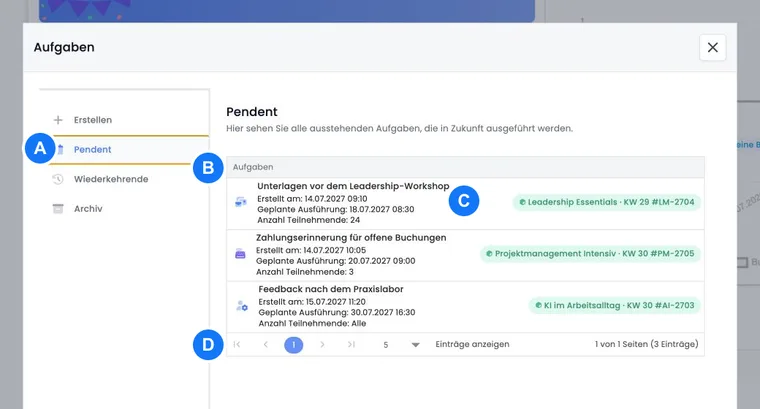
Pending items are planned tasks that have not yet been executed. They show which task is scheduled for when and for whom. Use this area for daily control or to check planned emails before sending.
If a pending item should no longer be sent, edit or delete it in time. After the execution time, it may already appear in the archive. A click on a table row opens the editing dialog as long as the status allows it.
Recurring tasks
The Recurring tasks area shows tasks where Send this template to new bookings of participants after the execution time? is enabled. The option appears when creating a custom email template as a task if all participants is selected. After the scheduled sending, the same template can thereby also reach new bookings.
This task form does not offer a freely selectable day, week, or month interval. Select the scheduled time and the option for later added bookings according to the desired workflow. For a different sending time, create a suitable additional task and check for possible duplicates.
Archive and traceability
In the archive, you see already executed tasks. This helps in support cases: you can check whether a planned email was created and executed and with which context it was associated.
For delivery status and specific email events, additionally check the outbox. A task in the archive means that the task was executed; it does not replace the delivery control of the email.
Table display, editing, and deleting
The task lists are tabular. Per row, you see, depending on the area, the symbol and color of the task type, task name, creation date, planned execution, recurrence note, number of participants, and linked offer.
If no individual participants are saved, the target group is shown as all, or equivalent wording. After loading, edoobox adds offer data so that the offer name and offer number are visible.
Open a planned task by clicking on the row to change the execution time. For archived tasks, this time is no longer offered for editing. Name, task type, offer, and the option for later bookings cannot be redefined in this editing dialog; create a suitable new task for such a change. When deleting, a security prompt protects against accidental removal. After changes, you should reload the list or reopen the affected area.
Background jobs and automatic processing
Not every task is executed immediately in the browser. edoobox processes many planned workflows in the background, for example offer reminders, expired offers, mail outbox, attendance confirmations, certificate batches, dunning runs, Dinaco synchronization, or participant exports.
For admins: When a task is due, its actual processing may use queues and background jobs, depending on the task type. If you have questions, first check the pending item or archive, then the outbox, offer context, attendance status, or dunning status.
Best Practice
Use descriptive template names and task labels.
Do not plan emails to too many people without checking recipients and content.
Regularly check pending items before important course starts.
Document recurring tasks internally so they are not forgotten later.
After sending, check the outbox and, for important emails, spot-check the recipients.
Check and change a specific task
- Open the offer and the Task Manager. Select Pending and open the relevant row.
- For a task that has not yet been archived, change the execution time. The name, type, offer, and recurrence option are not redefined there.
- If you need a different target group or template, create a new task and remove the previously planned task if it should no longer be executed. To delete it, you need the corresponding task permission.
- Subsequently, check the time and target group in the pending items. After execution, check the archive and, for emails, additionally the outbox.
If you start from a person profile without a predefined offer, suitable offers from their bookings are suggested; waitlist bookings are not used as regular participation. If an offer selection is missing, open the task directly in the desired offer.
Check the action for invoice tasks
For a financial task, read the task type and do not rely on its freely assigned name. Create invoice creates the document, Invoice email processes existing open invoices for dispatch. The Action table with example shows the sequence and follow-up check.
An archived creation task without an invoice email in the outbox is therefore not automatically a dispatch error. First check whether a dispatch action was planned at all. For new workflows, use the Test run with internal recipients.