
Review and follow up on outstanding payments
Check outstanding payments using invoices, bookings, transactions and payment reconciliation. The interface also includes Dunning with rule configuration and a dunning journal. The automatic feature is announced as Coming soon. If you are interested, contact support; individual activations may already be possible. Until the feature is enabled for your account and automation is active, continue checking and handling outstanding payments manually.
A reliable workflow therefore has four steps: identify the outstanding amount, assign new payments, check the affected booking and only then follow up deliberately.

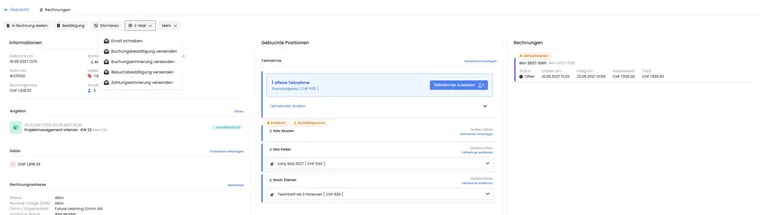
Which views to check together
| View | What to check there |
|---|---|
| Invoices | Invoice number, payment deadline, amount, status and payments already assigned. |
| Booking | Contact person, booked items, balance, invoices, cancellation status and email actions. |
| Transactions | Payments, reversing entries and refunds. |
| CAMT reconciliation | Bank payments not yet assigned or only partially assigned. |
| Outbox | Whether a payment reminder was created and sent successfully. |
Reliable workflow
Filter the invoice table for outstanding or overdue entries.
Import and process new bank movements before contacting people.
Open the invoice and booking and check partial payments, refunds, cancellations or manual entries.
For a confirmed outstanding amount, send the payment reminder.
Check the outbox and document further contact attempts internally.
Multiple bookings on one invoice
An invoice may contain items from several bookings. In this case, assess the entire invoice rather than only one booking's balance. A partial payment may be correctly assigned while an amount remains outstanding.
Example: company invoice with three bookings
A company has three participants on one invoice. After CAMT import, only a partial amount is posted. The administrator first checks the invoice and its items, then sends one coordinated reminder to the responsible contact.
Further steps beyond a payment reminder
If a claim remains outstanding despite a reminder, your organisation decides on further steps according to the contract, internal responsibilities and applicable law. The dunning rules also include fees and cancellation. If automation is not yet enabled and active for your account, carry out these steps through your manual process.
Document calls, new deadlines or instalment agreements as notes.
Create fees only after checking their substance and legal basis.
Do not cancel a booking before clarifying the invoice, payment and any possible refund.
After each change, check the balance, invoice and outbox again.
Example: payment arrives before the second contact
Payment arrives after the first reminder. The next CAMT import assigns it to the invoice. The invoice no longer appears in the outstanding-amount filter and no further message is sent.
After cancellation, a separate outstanding cancellation fee may exist. Open its fee details and use the payment reminder offered there if needed. A disabled reminder action on a cancelled booking says nothing about whether this separate fee is paid. The workflow is explained in Cancellation rules and fees and Send a payment reminder.
Open dunning and prepare rules
- Open Settings → Cancellation & withdrawal → Dunning.
- First check the Coming soon notice, whether the feature is enabled for your account, and the global activation switch. If interested, ask support whether individual activation is possible.
- Open the With invoice or Without invoice context. These two sequences have separate rules, with at most ten per context.
- Enter or check days without payment, multilingual name, type, level, delivery method, template and individual status.
- For Dunning notice, you can set a non-negative fee. Cancellation ends the sequence; further rules after it cannot be saved.
- Save the configuration. Saving rules alone does not activate automation. Also check whether the feature is enabled and whether its global status is active.
| Context | Deadline and functional scope |
|---|---|
| With invoice | Processing is based on the payment deadline, or invoice date as a fallback, and outstanding invoice amount. An invoice can concern several bookings. |
| Without invoice | The deadline relates to the outstanding booking payment. A planned dunning fee is maintained as an outstanding payment item. |
Rule types are Reminder, Dunning notice and Cancellation. Email templates include payment reminders and dunning notices; postal delivery uses Postal dunning notice (PDF). A cancellation rule uses the account's existing cancellation process. Check its conditions separately before future activation.
Check dunning notices in the journal
In accounting, open Dunning and refresh the table. The initial view filters dunning notices at levels 2 and 3 with an outstanding balance. Remove or broaden these filters to see all operations.
- Filter by type, level, processing status, outstanding balance, delivery method, reference, booking number, invoice number and period.
- The table shows the outstanding amount, dunning fee, linked bookings/invoice, creation date and sending date, among other details.
- Open the linked invoice or booking for detailed checks.
- Distinguish Created, Sent, Failed and Cancellation triggered. A journal status is not equivalent to receipt of payment.
This journal view has no button for manually starting a dunning run. Refreshing the table reloads existing entries and sends no dunning notices.
Example: prepare rules and continue manual follow-up
Accounting first checks new CAMT entries and the outstanding invoice balance. It prepares a reminder and dunning sequence internally and saves the texts in the rules area. Until automation is enabled and active for the account, it deliberately sends a manual payment reminder for the due claim and checks the outbox. Saved rules alone do not confirm a running automatic process.