
Additional texts
Each offer has three multilingual additional texts. Store information there that differs per offer but should be output through shared email or PDF templates: access instructions, materials lists, meeting points or organisational details.
Saving alone does not send additional text. Only an appropriate placeholder in a template inserts it into booking confirmation, a custom email or PDF.
When additional texts are the right choice
| Information | Appropriate location |
|---|---|
| Publicly visible before booking | Offer or category description |
| Identical for all offers | Directly in the global email or PDF template |
| Differs per offer and relevant after booking | Additional text with a placeholder |
| Intended for only one person | Personal message or booking note, rather than general additional text |
Every booking of the same offer can receive the same additional text. Therefore do not store individual passwords, personal links or other secrets intended only for one person there.
Divide the three text fields usefully
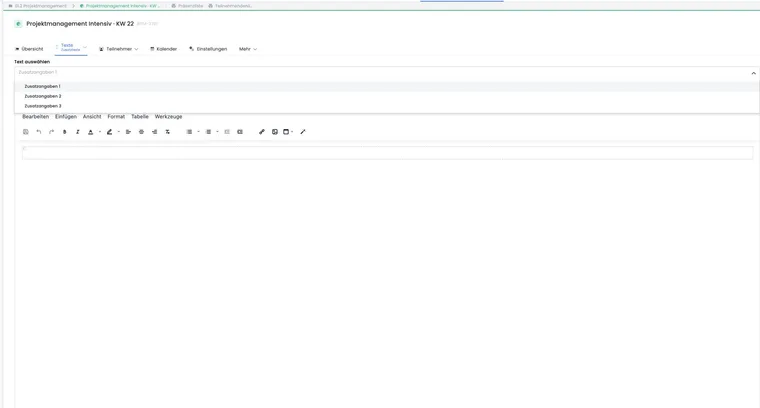
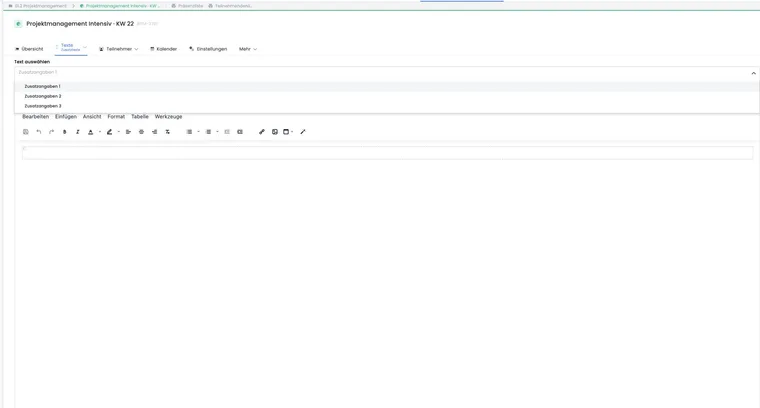
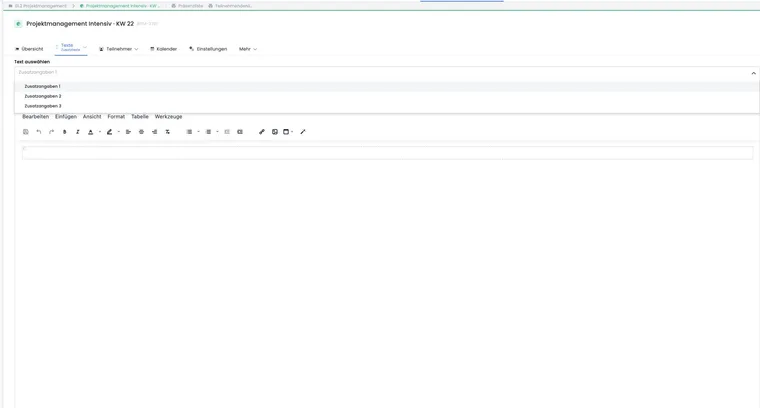
In offer details, choose Additional information 1, Additional information 2 or Additional information 3 and edit its rich text content. A proven division is:
Additional information 1: key information for booking confirmation.
Additional information 2: travel, materials or preparation.
Additional information 3: special notices for certificates, follow-up or internal sending plans.
Maintain the same substantive purpose across every offer and language. Other admins then know which placeholder is expected where in the template.
Use the correct placeholders
| Additional text | Recommended placeholder |
|---|---|
| Additional information 1 | ##OfferConfirmationText1## |
| Additional information 2 | ##OfferConfirmationText2## |
| Additional information 3 | ##OfferConfirmationText3## |
##OfferConfirmationText## is an existing alias for the first additional text. Prefer numbered forms in new templates to keep mapping clear.
An empty additional text produces no content at that position. Remove unnecessary fixed headings or spacing in the template if that text is not maintained for every offer.
Dynamic content within additional text
Additional texts are themselves processed as templates. They can therefore contain supported placeholders such as ##OfferName## or ##Tag[Standort]##. Required data context is also retrieved during rendering.
Nested placeholders increase reusability but also error risk. Check every additional text used with a test booking in email and PDF. The placeholder overview shows which data is available in each template type.
Maintain multilingual offers completely
The three additional texts are saved per active language. Output uses the language of the respective template and booking context. Therefore check every occupied text slot in every offered language; a German text does not automatically replace a missing translation.
Use the same field logic in every language. If Additional information 2 contains a materials list in German, it should also contain the materials list in English, rather than travel instructions.
Behaviour when copying an offer
When copying an offer, edoobox adopts its description and all three additional texts in existing languages. This saves work but may transfer outdated links, dates or meeting points to the new offer.
Review content after every copy. Especially check years, online links, rooms, materials details and all nested placeholders.
Test before sending
Maintain additional text in the offer and every required language.
Insert the numbered placeholder in the correct email or PDF template.
Perform a test booking with a demo person.
Check email content, PDF attachment and outbox.
Clean up test data and messages no longer needed.
Use cases
Example: Online access per offer
Additional information 1 contains the general access link and ‘Please join 10 minutes early’. Booking confirmation uses ##OfferConfirmationText1##. Only this text is adjusted per offer, while the global template stays unchanged.
Example: Materials list in Booking.pdf
Additional information 2 contains the materials list. Booking.pdf inserts it under ‘Preparation’ using ##OfferConfirmationText2##. Offers without materials requirements leave the field empty, and the template uses no fixed empty subheading.
Example: Insert a location value dynamically
Additional information 3 contains ‘Meeting point: ##Tag[Standort]##, reception on the ground floor’. Each offer carries a Standort tag with a value. Additional text thus combines a shared sentence with an offer-specific value.
Output additional texts from selected sub-offers
For multi-offers, ##OfferConfirmationTextMultiOffers1##, ##OfferConfirmationTextMultiOffers2## and ##OfferConfirmationTextMultiOffers3## are additionally available. These combine the respective additional text from selected sub-offers. Different workshop preparations can thus appear in a shared confirmation.
Example: Workshop A has a laptop requirement in Additional information 2; Workshop B has a materials list. The shared template uses ##OfferConfirmationTextMultiOffers2##. Check two different workshop selections to ensure only appropriate notices appear. Which template types supply context is listed in the placeholder overview.