
Payment reconciliation: review pending CAMT matches
After CAMT import, edoobox can automatically assign many bank payments. Incomplete references, partial payments, combined transfers or differing amounts may remain pending or produce an assignment needing substantive review. Check these entries before invoices count as paid or a payment reminder is sent.
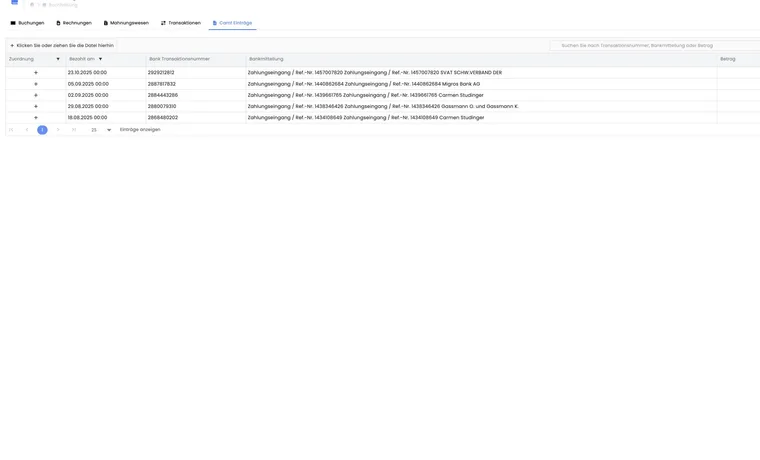
The CAMT overview distinguishes automatically assigned, manually assigned and unassigned transactions. Manual assignment connects a bank entry to an invoice; it does not replace accounting’s substantive review.
Check the import first
The V2 interface accepts CAMT XML files and can process several files in one step. Upload separates successful files, errors and duplicates already imported. Do not import the same statement again merely because individual assignments remain pending.
A detailed upload description is provided under Payment reconciliation with CAMT files.
If the file reports success but there is no matching bank row at all, use the checking route for zero new items. Missing individual transaction structure differs from an existing payment not yet assigned.
Find pending entries
The table shows Assignment, Paid on, Reference, Message and Amount. Use assigned/unassigned entry filters and the date range.
Search considers reference, message and additional bank information. Entering a number makes edoobox additionally search for an exactly equal amount. Payments can therefore be found even when invoice number is absent from the message.
Assign a transaction to an invoice manually
Open an unassigned entry and compare posting date, amount, currency, reference and message with outstanding invoices.
edoobox suggests up to five of the most recently created non-cancelled invoices whose amount and currency match exactly with the bank transaction.
If the invoice is not suggested, use Search for more invoices. Search considers number, customer, amount, currency, date, due date, description and status, among other things.
Select the uniquely matching invoice and confirm Assign. The entry then receives Manually assigned status.
Do not rely solely on equal amounts. For common standard amounts, customer, date and payment reference must also match.
Partial payments, combined payments and incorrect entries
Partial payment: Because amount and invoice total differ, the invoice is not suggested automatically. Clarify remaining receivable and posting logic before assignment.
Combined payment: One bank transaction may concern several invoices. Do not hastily assign it to an individual invoice; coordinate the case with accounting.
Wrong account or irrelevant entry: An unused CAMT entry can be removed with Delete. The interface requires confirmation because this cannot be undone.
Unclear payment: Leave assignment pending and document internal clarification rather than guessing a plausible invoice.
Already assigned: A linked CAMT payment can neither be reassigned to another invoice nor deleted in this assignment dialogue. If you discover an incorrect connection, stop further entries for this receipt and clarify correction using invoice, payment transaction and accounting; if no correction action exists, contact support with affected references. Reimporting the file does not undo the existing connection.
Several invoice numbers in a message do not trigger automatic splitting. Import may use the first recognised matching invoice number and post the full receipt there. Therefore first check a combined transfer under all entries and open an already linked invoice. A second invoice still outstanding is no reason to record the same receipt in full again.
Keep bank reference, payment date, currency, total amount and intended partial amounts per invoice together for clarification. The assignment dialogue offers neither multiple-invoice selection nor a field for arbitrary amount splitting. An already linked entry cannot be moved there. Clarify correction based on the payment already created with accounting or edoobox; reimporting or deleting another unlinked row does not correct the existing financial entry.
Check after assignment
Open the invoice and check payment, outstanding balance and status.
Check the associated booking, especially for partial or excess payments.
Before the next payment reminder, check that settled receivables no longer appear outstanding.
If assignment was wrong, correct it promptly before invoice or accounting exports are created.
Use cases
Example: Payment without an invoice reference
A payment contains only the company name. Accounting filters by exact amount, compares suggested invoices by date and customer, and assigns only after just one invoice uniquely matches.
Example: Partial payment is not suggested
CHF 500 arrives for a CHF 800 invoice. As the amount does not match exactly, the invoice does not appear in automatic suggestions. Accounting searches manually, documents the CHF 300 remaining receivable and then checks the outstanding balance.
Example: File accidentally uploaded again
The same bank statement is selected a second time. Upload reports it as a duplicate. The team does not import it again, but handles existing pending entries in the CAMT table.
Additional practical information
Benefit: Plausibly assign a payment using several details
Manual assignment helps when a bank payment arrived but its reference does not produce a unique automatic connection. Compare amount and currency alongside customer, date and message. Particularly for equal course fees, several invoices may match the amount.
An invoice suggestion is a starting point for review. Decide from the full context rather than adopting the first equal-amount suggestion. For queries, the linked booking helps identify the responsible contact and substantive reason for payment.
Limitation: Partial and combined payments need separate clarification
If a person pays only part or a company transfers several invoices together, equal amounts alone cannot explain the case. Record which portion belongs to which process and who clarifies any remaining balance.
After your work, check the invoice as well as the CAMT row. Check outstanding amount, associated transactions and any planned contact. This prevents a correctly assigned payment from leaving internal follow-up working with an old state.
Confirm assignment only after checking current payment status
Refresh the table before handling if further payments have since been recorded. Open the suggested invoice and compare outstanding amount, currency and original payment. Suggestions show at most five invoices; additional search finds invoices outside this selection.
Manual assignment offers exactly one selected invoice per action. Arbitrarily splitting the same bank row across several invoices is not provided in this dialogue. Leave a genuine combined payment pending until substantive clarification and document agreed processing.
On deletion, you confirm irreversible removal of the CAMT entry. Deletion is not cancellation of an already posted payment; for an incorrect financial entry, check invoice and transaction processes.