
Register a new edoobox account
This guide describes how a new edoobox account is registered and started for the first time. It is intended for persons who want to test edoobox anew or create a new organization.
The registration proceeds through login data, organization data, email code validation, start options, and account activation. It should not be confused with the booking process for participants.
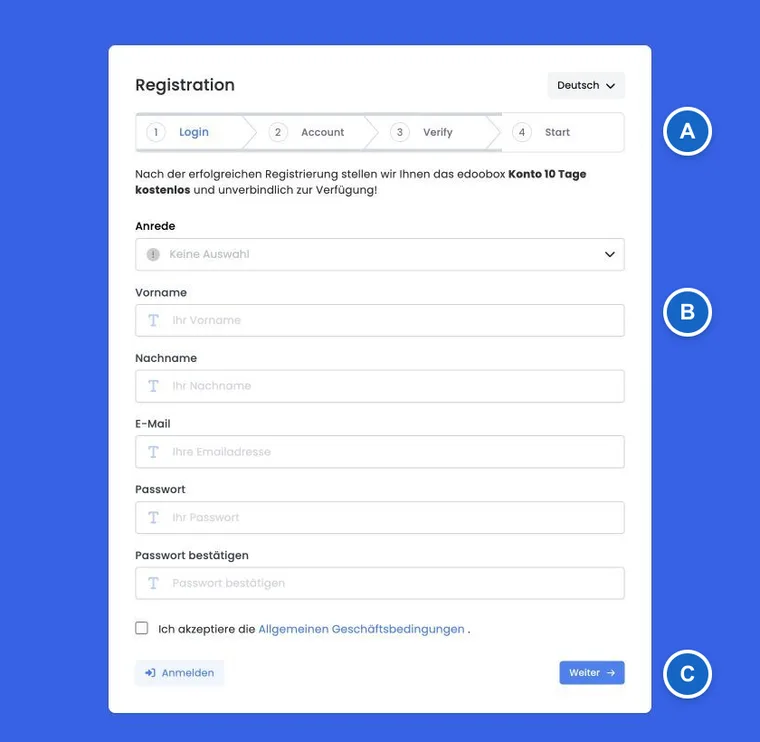
Overview
For a new account, the data of the first admin person is entered first. Then you create the organization, confirm the email address used with a code, and start the account.
Complete the registration step by step in the open window. If edoobox returns to the first step, restart there and check the information you entered.
Access and language
The registration is opened via the public registration page. At the top, the system language can be selected. If the language is changed, the page reloads and the selected language is retained in the next steps.
The progress indicator has four steps: set up login, set up account, verify email code and start. After you start, edoobox prepares your account.
1. Set up login
In the first step, you enter salutation, first name, last name, email address, password, and password confirmation. Additionally, the terms and conditions checkbox must be accepted.
The password must be at least eight and at most fifty characters long. edoobox checks for lowercase letters, uppercase letters, numbers, special characters, and consistency with the password confirmation. Salutation, first name, last name, email address, and terms and conditions consent are mandatory fields.
Submit the completed details and wait for the next step. If a security check appears, follow its instructions.
Use case: Abort registration and restart later
If you stop the registration in the first step, no account has been created yet. Open the registration again later and follow the steps shown. Check the email address and organisation details in particular before completing registration.
2. Set up account
In the second step, you enter the organization name, abbreviation, street, postal code, city, country, and optionally a phone number. These details are later relevant for the account, invoices, communication, and internal assignment.
The abbreviation must be three to eight characters long and match the valid pattern. When you leave the abbreviation field, edoobox checks availability. If the abbreviation is not available, the interface displays a notice and can adopt a suggestion or clear the field.
Use case: Choose organization and abbreviation cleanly
First enter the complete organization name. Then choose a short, recognizable abbreviation of three to eight characters and wait for the availability check. If the abbreviation is adjusted, use the suggestion or choose a different abbreviation before proceeding.
3. Confirm email code
When the email step becomes active, edoobox automatically sends a code to the email address provided. Enter its six digits within 15 minutes. You can request a new code after 60 seconds. After five incorrect attempts, wait until the waiting period ends and request a new code.
Via verify, edoobox checks the code. If the email address is verified, a success message appears and the registration continues. Via try again, a new code can be requested, provided no waiting time is active.
Typical reasons for problems are cooldown, invalid code, expired code, too many failed attempts, blocked or invalid email domain, and an email address that has not yet been verified. In case of too many failed attempts, verification is locked until a new code can be requested.
Use case: Code does not arrive or has expired
First check your inbox and spam folder. If the code has expired or too many failed attempts were made, request a new code after the countdown has elapsed. Enter only the six digits.
4. Start account
In the start step, you select the language of the new account. Additionally, you can enable options such as tips and tricks for the application or interest in an introduction. The time zone is read automatically from the browser.
The start button is only active when the email address is verified and the security check was successful. After the start, edoobox saves the registration and redirects to the administration.
Activation and longer processing
Normally, edoobox briefly indicates that the account is being prepared. If the activation takes longer, the interface informs you that you will be notified by email as soon as the account has been fully activated.
If the security check is blocked or the email address is not yet considered verified, edoobox displays an appropriate message or jumps back to email code validation.
Common problems during registration
Password is rejected: Check length, uppercase/lowercase letters, number, special characters, and repetition.
Abbreviation not available: Use a suggestion or choose a new abbreviation.
Code does not arrive: Check spam folder, spelling of the address, and email filters.
Registration restarts: Follow the displayed steps again. Before registering again, check whether you have already received an activation confirmation by email.
Activation takes longer: Wait for the confirmation by email and avoid parallel new registrations of the same organization.
Distinction from the booking process
Register a new edoobox account describes the registration of a new edoobox account. The Booking process for participants describes, on the other hand, how customers book an offer.
For form fields in the booking process, Template Body: Registration Participant Form and Automatic profile recognition (Magic Login) are relevant.
Further setup after activation
After the first start, you set up the organization, offers, and payment methods. Additional features are managed in the Plugin Manager. A participant subscription needed later is created via Set up subscriptions; it is a different product than the edoobox account subscription of your organization.
For later sign-in using SSO or a connected provider, see the login and security settings.