
AI assistants for translation and text improvement
AI assistants help you create, improve and translate descriptions in edoobox. They are particularly useful when an offer needs a clear, well-structured description quickly, or when you want to improve the wording of existing texts.
The AI provides suggestions. It does not replace your professional, legal, and linguistic review.
Create description text with AI
Open the relevant offer and go to its description. In the editor, the magic pen opens the AI assistant. Enter relevant details such as the title, target audience, content, requirements, duration, location and additional information.
After generation, a suggestion appears that you can apply in the editor and continue editing. Then add specific information such as the meeting point, materials, instructor, prices or legal notices.
Before first use, edoobox may point out that editor content is transferred to an AI service for processing. Only agree if the content used is suitable for this and does not contain unnecessary personal or confidential data.
Templates for different tasks
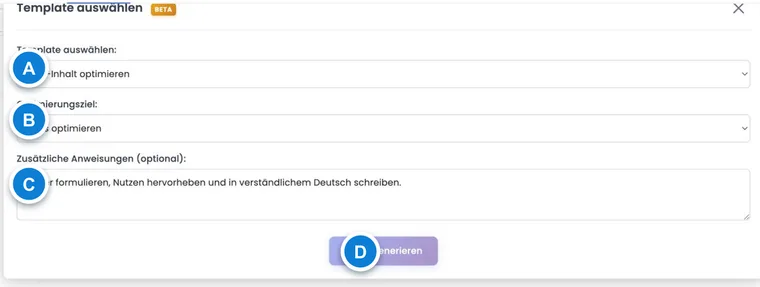
Depending on the context, various templates are available, for example create description, modern description, Bootstrap-oriented description text, optimize text, or translation.
Choose a template for your goal: a new course often needs structure and clear reasons to attend, while an existing text may need shortening, improved readability or a clearer design. Bootstrap-oriented text often produces better-structured content that is easier to navigate in the booking process.
Optimize existing text
If a description text already exists, you can have it revised with AI. Good inputs are, for example: “shorter and clearer”, “phrase more friendly”, “for corporate customers”, “with bullet points”, or “structure better for mobile view”.
Then check that all facts have been preserved. AI may change the emphasis, unintentionally omit information or produce wording that overstates the facts.
Application example: Improve text for mobile view
A long offer text is very hard to read on a smartphone. The admin opens the AI assistant, selects optimize text, and asks for short sections with bullet points. Then he checks all facts and tests the display in the preview.
Automatically translate offer
For offer translations, there are two typical starting points. As long as an offer is in draft, the translation can be started directly in the offer area. After publication, you find the automated translation via the menu More.
The translation refers to the currently open offer and processes relevant content such as title, description, and other texts into the active languages of the account. Check all languages in the booking process afterwards.
If existing translations are present, a new automated translation can replace them. Therefore, check which source language and target languages are used before starting.
Application example: Prepare draft in three languages
A course provider first creates a German description in the draft with target audience, benefits, and process. Then he starts the automatic translation for English and French, checks all texts in the booking process, and corrects technical terms per language.
Good inputs for better results
Name the target audience, level, and benefit.
Mention duration, location, delivery method, and prerequisites.
Specify the desired tone: factual, friendly, professional, or short.
Provide specific content instead of just “write a nice text”.
Point out limitations, such as no healing promises, no invented certificates, or no price indications.
The more precise the input, the less post-processing is needed. AI is particularly strong at structuring and formulating, but weak on facts that are not in your input.
Check results and use them safely
Check AI texts for facts, prices, dates, target audience, legal statements, data protection, accessibility, and language. Especially for medical, financial, legal, or safety-related statements, human control is mandatory.
Apply the suggestion only once its content is accurate. Then save the description and test its appearance in descriptions, the Design Manager and the mobile booking process.
Do not enter sensitive data: Do not use unnecessary personal data, internal customer data, access data, or confidential information in the AI assistant.
Limits of automatic translation
For offer texts and descriptions, use the AI functions in the relevant editor or offer menu. The available tasks depend on the section you have opened. Before translating an offer again, check whether manually revised language versions could be replaced.
Automatic translation is a starting point, not final approval. When translating a lot of content, plan an editorial review for each language. Check placeholders, HTML structure, links, formatting, technical terms and country-specific terminology.
Use AI features in the appropriate editor
The available tasks depend on the editor. Offer editors provide suggestions for descriptions; general editors offer text improvement and translation. In email/PDF contexts, a PDF optimisation template may be available. Legal text editors may offer drafts for terms and conditions, data protection or withdrawal. Review a draft for accuracy before publishing it.
- Open the AI assistant in the relevant editor and confirm the displayed notice about data transfer upon first use.
- Select an available task.
- Enter the required details. To create an offer description, the title, target audience, and content are required; optimization and translation require existing text.
- Optionally add specific instructions and start Generate AI.
- Review the preview and select Use or Discard.
- Then save the actual text in the editor and check its public display.
The AI selection is an aid for writing. It does not activate any booking rule, does not change prices, and does not replace a configured membership requirement.
Monitor translation progress and detect errors
For automated offer translation, you distinguish between pending, in progress, and completed. A notification that the translation has started does not yet confirm that all language variants are finished. Wait for completion and then open the affected texts in the active languages.
In case of an error, check the displayed message and the existing source text. Do not start a second identical translation while the first job is still shown as in progress. In the editor, you accept a result only with Use; Discard removes the suggestion. Afterwards, save the actual editor content.