
Integration with the WordPress plugin
edoobox can be embedded in WordPress either via the edoobox WordPress plugin or via an iFrame. The plugin is useful if you want to use shortcodes, better WordPress integration, more SEO-friendly URLs, meta data, direct category or offer links, and structured data in JSON-LD format.
If your website does not run on WordPress or you need a very simple embedding, use the general guide Embedding in the website and Preview-Share. For very individual frontends or special logic, the edoobox API may be a better fit.
When the WordPress plugin is useful
- You want to place edoobox offers via WordPress shortcodes.
- Your offers should appear better in WordPress with clean URLs, meta data, and structured data.
- You need direct links to categories or individual offers.
- You use multiple offer areas on different WordPress pages.
- You want to define root pages so that details and booking open at an appropriate WordPress location.
For a quick embedding without a plugin, an iFrame is often sufficient. Before starting the project, check whether SEO, direct links, theme integration, or easy maintainability are more important.
The plugin is not a pure copy of the iFrame. It lives within WordPress and is therefore more dependent on permalinks, theme, cache, and server configuration. In return, it can better fit into the website structure and make offer pages more understandable for search engines.
Distinguish between edoobox embedding and WooCommerce orders
The edoobox WordPress plugin loads the edoobox booking process into a WordPress page. Installing WooCommerce alongside it does not automatically connect products, shopping carts, payments or order statuses to edoobox.
| Goal | Procedure |
|---|---|
| Display courses within the WordPress website and book in edoobox | Set up the edoobox shortcode with the appropriate environment, its own API key, and a checked booking path. |
| Sell other goods in parallel via WooCommerce | Clearly distinguish the two purchasing processes in your procedures and website menu. Check which system manages each receipt and payment. |
| A shared shopping cart or automatic order reconciliation | Check a connection expressly intended for this purpose or a separate integration project. This synchronization is not a setting of the edoobox shortcode described here. |
For a custom integration, decide in advance which system manages bookings, available places, payments, cancellations and refunds. The API synchronization pattern explains how to identify records and handle later status changes; it does not itself provide a WooCommerce connector.
Install and activate the plugin
Open the Plugins section in the WordPress dashboard, search for “edoobox” and install or activate the edoobox plugin. Afterwards, a menu item edoobox appears in the WordPress navigation. Open this menu item and enter the connection settings.
In the main settings, you need at least the API Key, Secret API Key, edoobox Account Code, environment, and the setting for API V2. Afterwards, check Design Select, cache, permalinks, and possibly the debugger code.
API Key and Secret API Key
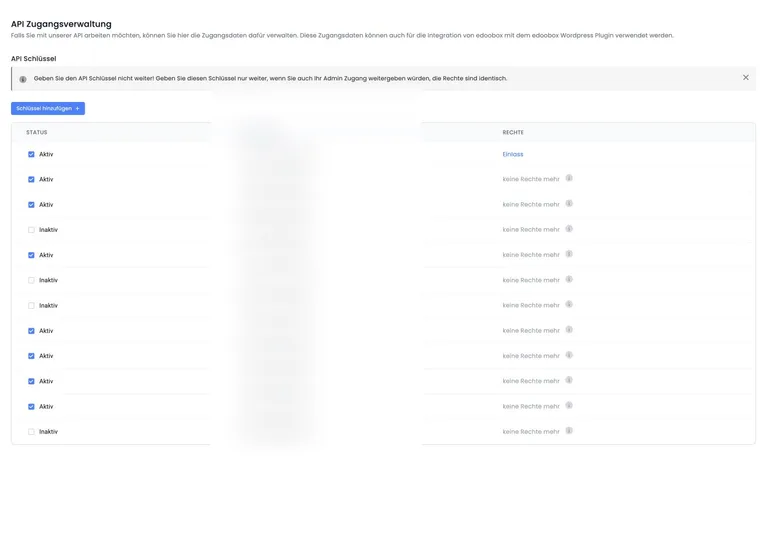
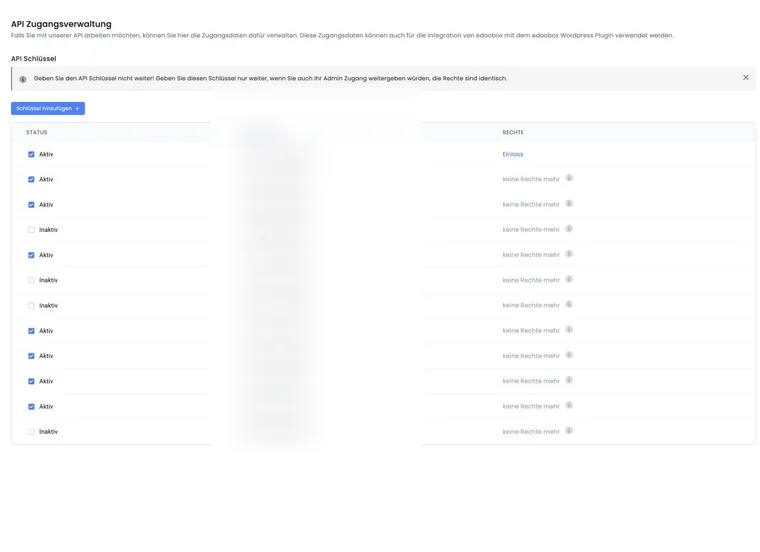
In edoobox, create an active API key under Settings > API access management and select the predefined WordPress permission. In the current interface, this permission is specifically intended for the plugin connection. Use the WordPress permission instead of Superadmin permissions when it is sufficient. For details, see Manage API keys and access permissions.
The secret API key is displayed only when it is created. Store it securely straight away, for example in a password manager. Do not send secret keys by email, chat or screenshot. If a secret is accidentally shared, deactivate the affected access immediately. Create a replacement key, enter it in the plugin and then check the complete booking flow.
Account Code, environment, and API V2
The edoobox Account Code or account abbreviation is at the top level of your offer tree. Use exactly this abbreviation in the plugin so that WordPress loads the correct offers.
For Choose Environment, select the environment where your edoobox account runs. Refer to the edoobox URL with which you log in. Accounts can be on APP1 or APP2. This environment is not the same as the software version V1 or V2. An APP1 account can open the V2 administration via a different path than the classic interface.
For current integrations, we recommend enabling the Use API V2 in the plugin and using API keys from the current edoobox version. If you intentionally use old API-V1 keys, this setting must match the key generation in use.
If offers do not load although the keys appear correct, check these three details together: account abbreviation, environment, and API version. A correct secret does not help if the plugin points to APP1 while the account is on APP2, or if API V2 is disabled although a V2 key is used.
Do not confuse APP1, APP2, V1, and V2
The environment APP1 or APP2 describes which edoobox server your account is on. It is not the same as the software version V1 or V2. Check the URL with which you log in before selecting the WordPress plugin environment.
Environment | Typical URL | Note |
|---|---|---|
APP1 |
| Older server environment; V2 administration may be accessible via an additional path. |
APP2 |
| Newer server environment; also to be considered independently of the API version. |
For new WordPress integrations, we recommend API V2. Create the key in the current edoobox administration and enable Use API V2 in the plugin. Use API V1 only deliberately for existing legacy integrations.
Design Select, cache, and debugger code
Use Design Select to choose how strongly the edoobox default design or your website’s design should influence the display. Depending on the plugin version, the options correspond to using the default design or adopting the website’s design. Test both carefully, as theme CSS, Bootstrap versions and page builders can affect the result.
The plugin may have its own cache settings. A cache speeds up output but can display old data. Set the cache time to 0 hours temporarily for tests and then clear WordPress cache, CDN cache, and browser cache.
The debugger code gives the intended support access to a diagnostic view. Treat this code confidentially as well and share it only in the responsible support case. Create the code in the plugin area Further settings if support asks for it. Never share API Secret Keys or WordPress admin passwords.
Create and place shortcode
Generate the shortcode in edoobox via Preview - Share. Right-click the account abbreviation, a category or an offer in the tree and select Integrate/Embed plugin. Click the shortcode to copy it.
Insert the copied shortcode in WordPress with the block Shortcode and publish the page. Multiple different shortcodes on the same page are possible but should be used deliberately for performance and overview reasons.
[edbs_panel language="de" url="demo/Deutsch" label="website" tag="Intensivkurs" ]Structure of the shortcode generated by edoobox
The current edoobox interface generates WordPress code under Preview / Share > Integrate / Embed plugin. Copy newly generated code instead of reusing an old shortcode from your notes.
| Parameter | Meaning |
|---|---|
anchor | Currently generated with true and leads to the embedded area when navigating. |
label | Reference of the source. The label can later help to distinguish booking paths. |
language | Selected language with two-letter abbreviation; the parameter may be missing for automatic language. |
tag | The offer tags selected in Preview / Share. Multiple values are output by edoobox in the expected format. |
url | Account alias and language-dependent path to the selected category or offer. |
edcode | Can be supplemented from the Share dialog for a protected area. The forwarding of this attribute must be verified with the installed plugin version; see the note on protected areas below. |
[edbs_panel anchor="true" label="kurse" language="de" tag="Intensivkurs" url="demo/Deutsch" ]Additional parameters from older plugin versions are not part of the code currently generated by edoobox. Use such parameters only if they are explicitly documented and tested in your installed plugin version.
Multiple shortcodes and clear target pages
Multiple shortcodes on a page are possible, for example for different categories. Use unique labels and check load time, mobile display, and navigation to the offer details and registration. Often, a single category overview is clearer than many areas loaded simultaneously.
Embed edoobox on a dedicated WordPress page such as /kurse or /seminare. Check direct links from search engines, newsletters, and social media. If an installed plugin version offers a separate root or target page, configure it in WordPress and test all detail and booking links.
Language, SEO, and URL rewrite
The plugin can provide SEO-friendly URLs, meta data, direct offer links, and JSON-LD data. For these benefits to apply, WordPress permalinks and URL rewrite must function correctly. In WordPress, the permalink setting Post name is usually the best foundation.
The URL rewrite function in WordPress or on the hosting must work for the plugin. If links do not open cleanly, offer details are not reachable, or the homepage has issues, check permalinks, rewrite rules, cache plugins, and redirects.
The language output differs from a simple iFrame. In booking mode, the plugin can output the language based on the browser of the booking person from the click on the registration action, provided the languages are active in edoobox. Example: If German and English are active and the booking person uses German as their browser language, the participant form appears in German.
Check canonical, SEO plugin, and event data
Check the final WordPress detail URL of an offer in the HTML source code. og:url is the social media target address; <link rel="canonical"> is a different specification. The edoobox header output sets its OpenGraph URL but does not create its own canonical link.
The edoobox plugin settings provide Prevent Social Media SEO and SEO Priority options for use alongside a separate SEO plugin. These affect social media metadata in the page head. They do not provide one general switch for overriding every page title, standard meta description and JSON-LD description at once.
Compare the overview page, two different offer detail pages and every language version. Agree with the person responsible for your website which system supplies the canonical URL, title and description. Check the canonical URL explains the review steps; JSON-LD and SEO descriptions explains the separate outputs.
Test display and booking
Test the WordPress page after every change in a private window or with a cleared cache. Check the homepage, category, offer details, registration, payment, completion page, and email confirmation.
If font sizes, spacing, or buttons do not fit, first check the Design Manager, the used Bootstrap configuration, and the WordPress theme. Small CSS adjustments can be made in the Design Manager via suitable text or CSS areas. Ensure that WordPress theme CSS does not unintentionally override edoobox elements.
When adjusting CSS, target specific edoobox elements rather than applying global WordPress rules to all buttons, tables or links. Global theme rules may unexpectedly change the booking process, price lists, forms or payment pages.
Troubleshooting plugin issues
Many WordPress issues arise from cache, permalinks, URL rewrite, old PHP versions, theme conflicts, security plugins, page builders, or incorrect API settings. Proceed systematically:
- Clear cache: Clear the edoobox cache in the plugin, WordPress cache, CDN cache, and browser cache.
- Disable cache: Set the plugin cache time to 0 hours for testing.
- Check PHP and WordPress version: Use current versions supported by the hosting.
- Check permalinks: First check and save the existing structure again. Switching to Post name changes existing website addresses. Plan this change with the website administrator, including the necessary redirects, and then check existing links too.
- Check URL rewrite: If offer or category URLs do not work, WordPress rewrite must be correctly active.
- Check API: Check API key, secret, API V2, environment, account alias, and permissions.
- Check plugin conflicts: Ask the website administrator to narrow down the conflict on a staging copy. Change only one plugin at a time, check the same booking flow and then restore the original setting. Pay particular attention to caching, security, SEO and page builder plugins.
- Test direct preview: Open the same level directly via edoobox preview share. If it works there, the problem is more likely in WordPress.
- Temporary iFrame: If a plugin issue blocks bookings, an iFrame can provide a temporary booking route.
If you need support, do not send secret keys. Instead, use the debugger code and anonymized screenshots.
Common cases: If the plugin does not work on the homepage, try a dedicated page such as /buchungen. If detail links lead nowhere, save the existing permalink structure again and check URL rewriting. If only certain languages display incorrectly, check the languages active in edoobox and test with a browser set to the required language. If old offers still appear after a change, first compare the direct edoobox page with the WordPress page. Then check the cache, shortcode destination, tags and environment.
Checklist before going live
- Copy the shortcode anew via preview share and do not take it from old notes.
- Check API key, secret, environment, account alias, and API V2 together.
- Test the existing permalink structure and URL rewriting; prepare suitable redirects for any planned URL change.
- Disable plugin cache during tests and set it deliberately before going live.
- Test category, offer details, registration, payment, completion page, and email confirmation.
- Check mobile display, language, root page, SEO data, and direct offer links.
Repeat this check after theme changes, WordPress updates, cache plugin changes, and major Design Manager changes.
Document the shortcode used internally directly on the WordPress page. If several people work on the website later, it is traceable which edoobox category, which label, and which root page are used in production.
What information support needs
If a problem persists, collect the most important details before the request. This way, support does not have to ask for basic data first and can quickly determine whether edoobox, WordPress, theme, hosting, or cache is involved.
- WordPress version, PHP version, plugin version, and hosting environment
- Affected WordPress URL and shortcode used
- edoobox environment, account alias, and whether API V2 is active
- Cache settings in the plugin, WordPress cache, and possible CDN or firewall services
- Theme and relevant plugins, especially cache, security, SEO, and page builder plugins
- Exact steps, expected result, and actual error message
- Screenshots with redacted secrets and personal data
Use cases
Application example: Display courses on a WordPress subpage
An organization creates the page “Courses” in WordPress. In edoobox, it opens the category “Courses”, selects the plugin in Preview / Share, and copies the newly generated shortcode. Afterwards, it checks the category, offer details, registration, and completion page in a private browser window.
Application example: Limit offers with a tag
The “Intensive courses” page should show only appropriately tagged offers. The editorial team assigns the Intensivkurs tag to those offers in edoobox, selects it in Preview / Share and uses the generated tag parameter. New offers appear only once the same tag has been assigned.
Application example: Embed a protected area correctly
An internal category has an access code. The organization checks after saving as a logged-out guest whether the generated shortcode actually passes the code to edoobox. If this fails, it uses the intended direct share link or iFrame embedding until clarification and additionally checks the Internal function. The shared access code belongs only in the intended protected distribution list.
Check protected areas with the installed plugin version
An edcode added by the Share dialog does not by itself prove that protected access works through WordPress. In the reviewed plugin version, this shortcode attribute is absent from the list of accepted attributes. Test the full link to your internal category while signed out. If the area does not open despite the intended code, have the plugin version and code forwarding checked.
Use the current direct share link or the complete iFrame code from edoobox for this special case if needed. Do not publish an access code in a generally accessible example or support screenshot.
Related guides
- Integration into the website and preview-share
- Embed iFrame in WordPress
- API: First steps
- Manage API keys and access rights
- Design Manager
- Design Manager: Editor, layout, and widgets
- Integration of edoobox
- OpenGraph and social media SEO
- Error feedback and system diagnostics
Check SEO output and current embedding
The plugin settings can prevent edoobox SEO output and control its priority. If title or image are missing when sharing, check these settings and the output of the SEO plugin in addition to the offer data. The OpenGraph guide describes the provided OpenGraph and Twitter/X specifications.
If Tracking V2 is active, additionally check the website setup for context and consent. A functioning WordPress shortcode alone does not confirm a complete Tracking V2 data flow.