
Create custom email templates
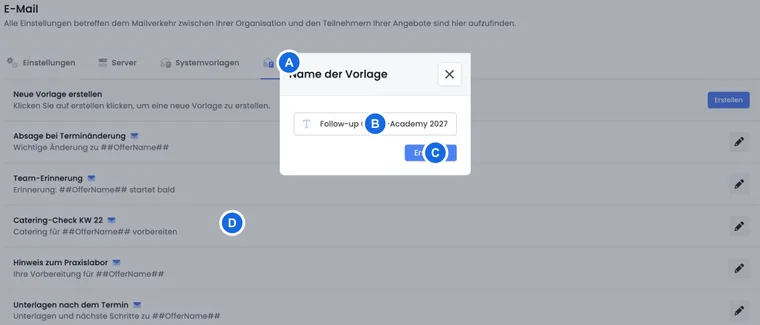
Custom email templates are reusable messages for processes not covered by a fixed system template. They can be selected in Tasks and scheduled emails. Location notifications and label notifications also require a custom template.
A custom template does not automatically send a message for every booking. The task or notification rule determines the recipients, timing and triggering event. To edit standard automatic messages such as booking confirmations, see Edit email templates in edoobox.
Create custom template
- Open Settings → Email → Custom Templates with the right to edit templates.
- Select Create new template and assign a clear name, for example «Feedback after course».
- Under Type, explicitly select Email template and confirm Create.
- edoobox creates the variant in the currently selected settings language. Enter the subject and message and save.
- Then maintain the other required language variants.
The type remains fixed. For a personal PDF, create a custom PDF template and follow the PDF guide.
Edit content and placeholders
The editor offers name, language, subject, message, and a placeholder selection ordered by groups. Insert placeholders via this selection at the current cursor position. edoobox inserts them in the format ##Platzhalter##.
The available placeholders depend on the template type. Use only entries that the editor offers for that template, and check them in a preview with realistic data. For a complete overview of their purposes, see All placeholders for emails and PDFs.
Maintain language variants
In the editor, switch to the desired variant via Language and maintain the subject and content completely. When switching languages, edoobox warns if there are unsaved changes and offers to save or discard.
Do not translate only the body text. Also check the subject, salutation, link targets, file names, and, if applicable, attached documents. The correspondence language of the recipient context determines which variant is required in the later process.
Use attachments and preview
You can add up to five verified attachments to an email template in the editor. A PDF background is assigned to a PDF template instead. For complex PDF layouts and backgrounds, see Custom PDF attachments and templates.
Before using the template, open the Preview to see the rendered subject and message. A preview does not replace an actual test email: the recipient, task and specific booking data are determined when the message is sent.
Use custom template in a process
Tasks: Under «Custom Templates», select the template as the basis for a manual, scheduled, or recurring email task.
Location notifications: For a venue, select recipients, custom template, and a rule «Days before date» or «Day of week» with sending hour.
Label notifications: A rule connects a booking label with a recipient address and a custom email template.
Name templates by purpose and target group, not by a one-time date. This keeps the selection in tasks and rules understandable.
For a targeted internal notification, Notify the back office only for selected booking methods explains how to set up the label, booking link and recipient. For course-specific content, see the IF/EACH guide with topic areas and instructor contacts.
Test before publishing
Check each language variant in the preview.
Create a one-time task for a demo person with an internal test address.
Check replaced placeholders, links, attachments, and mobile display.
Check delivery in the outbox.
Only then activate a recurring task or automatic notification rule.
Use case: Feedback two days after a course
An academy creates «Feedback after course» with offer name, personal salutation, and feedback link. It then creates an email task based on the custom template, selects the relevant participants, and schedules the sending two days after the date. An internal test task first confirms the placeholders.
Example: Send room preparation instructions to the venue
For a venue, the maintenance team should be informed three days before the date. The organization creates a custom template with date and offer data and uses it in a location notification with the rule «Days before date».
Application example: Internal notification for a booking label
Bookings with the label «Barrier-free» should be reported to the organization team. A custom template explains the necessary preparation; a label notification connects the label, the internal recipient address, and the template. This keeps the message consistent without changing the normal booking confirmation.
Consider the later data context
An offer task can provide booking and participant data. A location notification, on the other hand, provides PlaceName and the list Dates. Therefore, first select the workflow and then design its template. Selecting generic placeholders in the editor does not guarantee that the location rule will provide this data.
To test sending, use a demo participant with an internal email address and a one-off task for that person. A task applies to the offer’s participants or bookings; it is not a newsletter that can be sent to arbitrary addresses. For a fixed external recipient, use the appropriate location or label notification rule.
Distinguish between internal name and template content
Choose a name that remains understandable across all language variants. Renaming a custom template affects the existing variants of the same template family. Subject and message remain language-dependent content. After a rename, check the selection in tasks, location rules, and label notifications.