
QR Invoices
The Swiss QR invoice adds a machine-readable payment section to Rechnung.pdf. The recipient, account, amount, currency and reference can then be imported into a suitable banking app. This reduces input errors but does not yet automatically record the payment in edoobox.
Configure the payment section under Settings → Payment systems → Invoice. To allocate the bank payment later, use CAMT payment reconciliation or record the payment manually.
Requirements before activation
The beneficiary or organisation and IBAN are correctly saved.
The invoice payment method is fully configured and checked using a test booking.
Invoice recipients have complete address details. If a separate billing address is active, edoobox uses it.
The invoice number and reference type meet banking and accounting requirements.
The Rechnung.pdf template provides sufficient room for the QR payment section.
Enable QR invoices
Open the invoice settings.
Check the beneficiary, IBAN, invoice number alias, next invoice number and due date.
Enable QR invoice.
Select SCOR or QRR and save a valid configuration.
Create a new test invoice and read the QR code using a suitable banking app or validation tool.
QR invoice or electronic invoice: in the current V2 interface, enabling QR invoices disables the ZUGFeRD/XRechnung option. Conversely, enabling electronic invoices disables QR invoices. Test the output route you actually need and do not expect both formats simultaneously from the same setting.
Distinguish SCOR and QRR
| Type | Reference | Suitable when |
|---|---|---|
| SCOR | edoobox generates an ISO-11649 Creditor Reference with an RF check digit from the invoice reference. | The bank and accounting department expect an international Creditor Reference. |
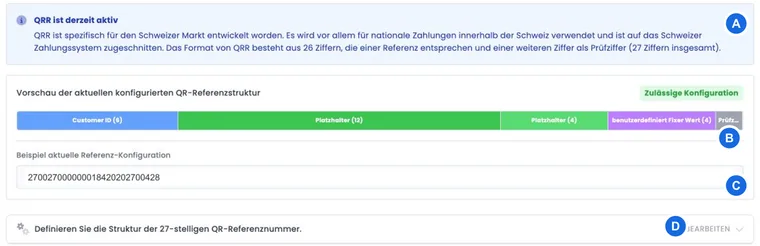
| QRR | edoobox generates a 27-digit Swiss QR reference from the saved structure. | Your account and payment process explicitly use QRR. |
Edit the detailed 27-digit structure under Automated QR reference. Clarify the choice with your bank or accounting department.
IBAN and reference belong together: For QRR, you need a QR-IBAN; for SCOR, a regular IBAN. Do not use the same account value unchecked for both variants. Agree on the account type, currency, and reference with your bank and scan an issued invoice. The current specifications are published by SIX for the QR invoice.
QR invoices in CHF and EUR
The Swiss QR payment section supports CHF and EUR. edoobox copies the invoice’s amount and currency into the payment section; the QR feature does not automatically convert an EUR invoice into CHF. The recipient account requires a valid IBAN with the country code CH or LI. Also check the pairing of QRR with a QR-IBAN or SCOR with a normal IBAN.
- Create an invoice in the currency actually needed.
- On the issued document and during scanning, particularly check EUR or CHF, the amount, recipient account and reference.
- Clarify with your bank whether the saved account processes receipts in this currency as intended. The payer must also be able to use the Swiss QR payment route with their bank.
- Then test allocation of the incoming bank payment to the correct invoice and currency. A technically valid EUR QR invoice alone confirms neither execution nor receipt of payment.
Selecting EUR does not turn a foreign IBAN outside CH/LI into a suitable Swiss QR recipient account. If the bank does not support the payment section, use the bank rejection checklist and agree an appropriate alternative payment route.
Why complete address details matter
The QR record uses the active billing address; if absent, it uses the participant’s details. edoobox only supplies a complete debtor address when the relevant address values are sufficiently populated. Incomplete names, streets or town/city details can therefore mean that the QR payment section is generated without the expected invoice recipient.
Define the name, street, postcode/town or city and country as appropriate required fields in the booking form, and also test a company address. For public-sector clients, also check the routing ID and order number in the chosen electronic invoicing process; these do not belong in the normal QR address line.
Check the QR payment section in Rechnung.pdf
The payment section is generated from account, invoice and address details. After every template change, check:
beneficiary and account;
invoice recipient and address;
amount and currency;
SCOR or QRR reference;
readability and position of the QR payment section on short and multi-page invoices.
Many invoice lines, additional text or displayed partial payments can move the QR payment section to another page. This must be deliberately checked with your PDF template.
Receipt of payment and status
The QR code supplies structured payment data to the bank. It does not send direct payment confirmation to edoobox. Import a CAMT file to allocate bank entries to outstanding invoices, or record the incoming payment manually.
Check not only that the code is scannable, but that the reference, amount and recipient are exactly correct after scanning. Only a successful end-to-end test with your banking process demonstrates that the setup suits your organisation.
Example: SCOR for a simple invoice reference
An organisation selects SCOR, creates a test invoice and checks the generated RF reference, amount and beneficiary after scanning. It then imports a test CAMT file and checks that the reference assigns the payment to the correct invoice.
Example: QRR with a bank-confirmed structure
Accounting needs a 27-digit QRR. It clarifies the first identification block with the bank, retains the invoice number in the dynamic section and has edoobox calculate the check digit. A new invoice is tested using a banking app and CAMT import.
Example: An incomplete company address is found before sending
A test booking is missing the street in its separate billing address. Scanning shows incomplete debtor details. The team makes the necessary fields required in the billing address widget, repeats the booking and only then sends live QR invoices.
QR validation and alternative electronic invoicing
After creation, open the invoice details and use the available QR validation. Correct the reported required-field errors in the billing address or payment details and check the newly generated document again. A successful technical check does not replace comparing the bank account, amount and reference with your accounting records.
The alternative to QR output is a structured electronic invoice using a ZUGFeRD/XRechnung profile available in the account. The current selection and mutual disabling of these two routes are described under Electronic invoices with ZUGFeRD and XRechnung.
If the bank rejects the QR payment section
- Open the affected invoice document and compare the scanned payment section with the invoice amount, currency, beneficiary organisation, bank details and reference. Use the document actually issued, not just today’s global settings.
- Run QR validation in the invoice details. Read the individual required-field messages and correct the specified data source.
- Check the account type and reference type together. Copy a QRR or RF reference in full; a shortened invoice number is not automatically the same payment reference.
- If a document has since been corrected, check that the person is using the valid invoice. Validate the new payment section again before sending it.
- If the bank still rejects technically valid data, clarify with that bank whether it supports the payment route and currency. Agree an alternative payment route if necessary; successful QR validation does not guarantee acceptance by every bank.
Before a second payment attempt, check whether a charge or incoming payment already exists. After a transfer has actually been executed, record receipt using CAMT or against the associated invoice. A successful scan alone does not change the edoobox payment status.