
Group registrations with named participants
In a named collective registration, a contact person records several people in one booking process. Each participant receives their own profile and booked item, while the price, invoice and organisational responsibility remain together in the shared booking.
This variant is appropriate when names and other data must already be known at registration, for example for attendance lists, individual reminders, tickets or certificates.
Distinguish named and open collective registration
Mode | During booking | Suitable for |
|---|---|---|
Named participants | The contact person enters each person’s details directly. | Company courses with a name list, families, schools, certificates. |
Initially, only places and price categories are booked; names follow later. | Allocations whose final occupants are not yet known. |
Global and local requirements
Under Collective registration: Global settings, set the maximum per booking to a value from 1 to 150. The value 0 is currently processed as 1; disable collective registration in the relevant offer if necessary and check the saved limit after reloading.
Open the offer’s Settings and enable Collective registration.
Select Named participants (defined immediately) as the mode.
Check available places, price categories and participant data fields with a test booking.
In the public booking process, available offer places and the remaining global booking limit determine the possible group size; the lower value applies. When an administrator later adds participants to a full offer, an explicit overbooking confirmation may be offered. Reactivation requires available places. The global booking limit remains binding in all these cases.
Start the first person as a contact without attendance
A contact person can attend themselves or merely organise the booking. If parents, HR or a secretariat regularly book for others, select Named participants (defined immediately) – first person as contact person in the offer.
In the Bootstrap-5.3 design, this starts booking without attendance for the contact person. A separate block for an actual participant is prepared. Any first price already selected belongs to that attendance so that the contact does not accidentally occupy an extra place. You must still check later attendance selection changes in the summary.
- Enable collective registration in the offer and select contact-person mode.
- In the Design Manager, configure the participant form for the contact and collective participants.
- Open the public link with one contact and two actual participants.
- Compare the summary, place count and total price: a purely organisational contact does not count as attendance.
- In the booking details, check the contact person and active attendances.
In normal named mode, the person booking can choose their own attendance in the form. If only one place remains, adding another person can result in the first person becoming only a contact. Therefore, always check the final selection. The contact remains the organisational contact and usually receives the invoice and booking confirmation.
Configure form fields for the contact and collective participants
Under Design Manager → Participant form, specify who completes each data field. Bootstrap-5.3 designs provide three variants:
- Contact only: for example the booking organisation’s internal order reference.
- Contact and collective participants: shared master data for all people.
- Collective participants only: for example a child’s school class when a parent merely organises.
First name, last name and email remain intended for the contact and participants in Bootstrap-5.3 designs. These identity fields cannot be used only for collective participants. Other visible fields can be restricted to the intended group of people. Required-field, repeated-value and file-field checks apply where the field is actually displayed.
For an HR booking, ask the contact for the order reference and each employee for their employee number. Check with two people and a non-participating contact that every required field reaches the correct profile. An additional field hidden in the contact view should not write an empty value into existing contact data. The Participant form guide explains the widgets in detail.
Understand the booking process and price
The contact selects a price category or quantity and opens the participant form.
They decide whether they themselves attend.
For every additional person, a participant block with enabled data fields and a price category is added.
edoobox checks the global limit, capacity and required fields.
Completion creates the shared booking, individual attendances and the total price calculated from them.
Different price categories can be used within the same group if they are active in the offer. Changes to people or price categories change the booking total; an existing invoice may require updating or replacement.
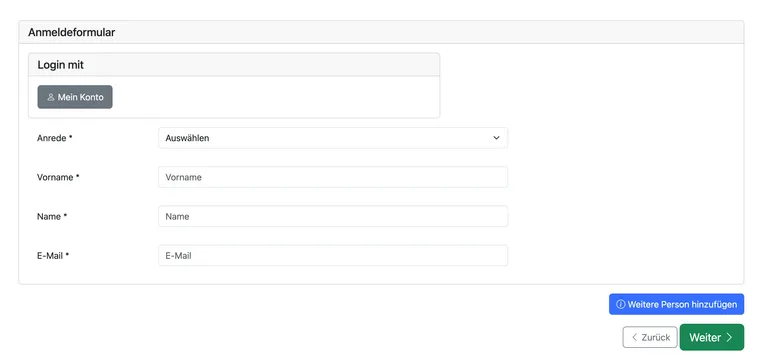
Example participant form: “Add another person” gives each additional person their own form block. The fields displayed depend on your design.
Recurring groups with master participants
After login, master participants can search for existing active profiles within the same edoobox account using the selected identification field and add them to a collective registration. This speeds up booking for recurring company, association or school groups without re-entering all master data.
No masters: simplified profile search is unavailable.
Manual: only profiles with the Master participant switch active may search.
All: every signed-in active profile in the account receives this ability.
The participant form must contain login and the selected identification field. The search returns at most ten active matches starting with the entered value. With Enforce identification, masters can select only existing profiles.
Keep the existing contact and further people separate
A known contact can sign in or adopt their profile using Magic Login with “Continue as …”. The profile data still belongs to this contact person. Enter additional participants in their own form blocks; do not replace contact details with the first participant’s details.
With a shared address, email alone does not determine who participates. Check first names, last names and a suitable custom identification field for each person. Magic Login for the contact does not automatically adopt all other participants. The master feature described above is used to select existing group members. Use an identifier that genuinely distinguishes the people.
Example: an association contact organises the same workshop for three other members. They adopt their existing profile, select no attendance for themselves and add the three people separately. Before completion, they check: three places, three correct names and the contact as organisational contact. A shared contact address is not a reason to merge these different people as duplicates later.
If you cannot continue after the second person
- In the offer actually opened, check whether collective registration is enabled and whether named or open attendances are intended. Compare the global maximum and remaining available places.
- In each visible person block, check required fields, data formats and repeated fields. An additional displayed required field can prevent completion even if the first block is complete.
- In the participant form of the design used, check whether a field appears for the contact, collective participants or both. Additional details such as school class belong to the appropriate person; names and email must not accidentally be copied from another block.
- With enforced identification, a contact signed in as a master must be able to select further people from existing profiles. This setting does not automatically create a profile that does not yet exist.
- Read the form message, then check the contact, actual attendances, prices and invoice recipient in the summary. Selecting another billing address does not replace participant details.
Repeat the check with a new private browser session, a non-participating contact and two fully completed person blocks. If completion remains blocked, record the offer/design route used, affected step and exact message. An account-specific display problem cannot be fixed with invented personal details or by overwriting the contact.
Add participants later in administration
Open the booking details and select Add attendance beside the booked items. In V2, you can select an existing profile, enter a new one or add open attendances.
The action is blocked if group registration is disabled for the offer or the global booking limit has been reached. Check the global limit displayed after reloading and the offer’s available places. When adding participants to a full offer, you may be asked to explicitly confirm overbooking; only confirm after checking the actual capacity. Select a price category for each new entry.
After a change, edoobox reloads the booking, offer and price and, where necessary, marks an existing invoice for updating. Therefore, check the booking total and invoice.
Communication, attendance and documents
The contact usually receives the booking confirmation and invoice. Whether individual participants receive reminders, attendance confirmations or certificates depends on the email template, task, available data and recipient setting.
To generate personal documents reliably, participants need at least the names used for that purpose and, where applicable, their own email address. Check the workflow with a complete test group under Attendance, confirmations and certificates.
Checklist before publication
Set the global booking limit and offer capacity.
Select Named participants mode.
Test a contact with and without their own attendance.
Check required fields, price categories and different group sizes.
Check the booking confirmation, invoice, participant list and personal emails.
Use cases
Example: HR registers five employees
An HR employee is a contact without her own attendance. She enters five employees with names, email addresses and employee numbers. Four receive the standard price and one the trainee price. The invoice and confirmation go to HR; reminders and certificates are sent using the individual data.
Example: A parent books two children
A parent books a holiday course as the contact without participating and enters two children in separate form blocks. Date of birth and an emergency contact are requested in addition to the required identity fields. The organisation checks in advance which reachable email address the form requires for each child and who receives messages. A shared contact address must not lead to the two children’s profiles being merged.
Example: An association uses membership numbers and master access
A manually authorised team leader regularly registers association members. They log in, find active profiles using membership numbers and add four people. New members who do not yet have a profile are recorded separately. This avoids unnecessary duplicates.
Check subscription prices per attendance
If a price category requires a participant subscription, eligibility must match each attendance. A subscription held by the contact does not automatically cover the whole group. Check the subscription restriction on the selected price and use a group with an eligible and an ineligible person for your first test. Book and use subscriptions describes customer access.
Labels in the form widget
The current widget interface labels visibility as Show only for the main participant, Also show for collective participation or Show only for collective participants. “Main participant” here means the first profile block or contact person; this person does not have to attend. The third option is intended for the new Bootstrap-5.3 form. Check the actual field view in the design used.