
Table filters
Table filters help narrow down large lists in edoobox. They are used in offers, bookings, invoices, transactions, rooms, admins, the user overview, promotions, and other tables.
The basic logic is similar everywhere: select values in the filter area, apply them, and edoobox shows only matching entries. If entries are missing, a filter is very often still active. First check filter chips, the search field, date range, status, storage, and URL before reporting missing data.
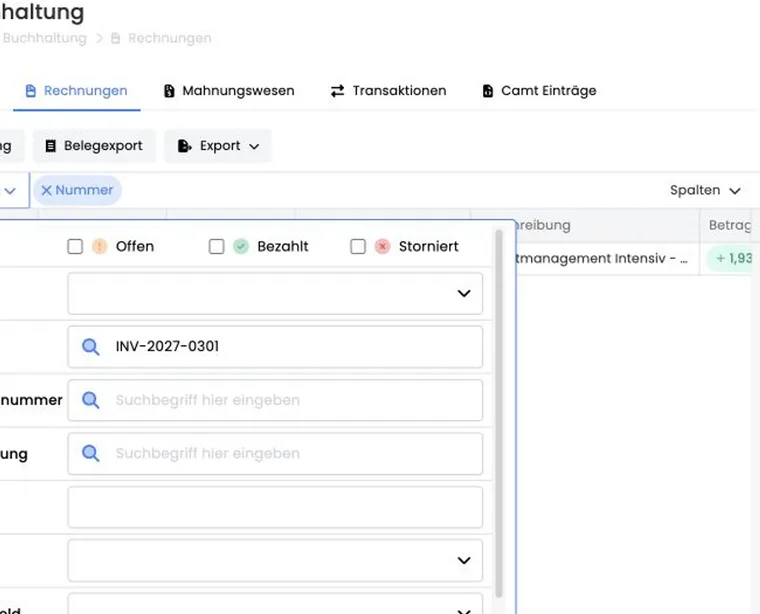
Apply, reset, and URL query
Many filters work in two stages. When you change values in the filter area, those values are initially prepared. Only when you select Apply does edoobox remove empty values, apply the remaining filters, and update the table.
Depending on the table, the filter state is also saved in the URL or page state. Filtered views therefore remain traceable when reloading, navigating back in the browser, or opening a shared link. A URL containing filter state can help investigate a support case, provided it contains no sensitive data.
The URL describes only the filter state, not automatic permission to access data. Another admin opening the same link sees only data they are permitted to access. When sharing filtered links internally, briefly specify the table, date range, and purpose.
Reset clears visible filters and performs the same cleanup. Use it when a list appears empty although you expect data. For table operation basics, see Tables and export options and Simplified search and filtering.
Search fields and data fields
Free-text search fields filter by text, numbers, or part of a name. Typical search terms include email address, last name, booking number, invoice number, offer name, internal code, company, phone number, postal code, or city.
A search filter’s label follows the corresponding table column. This makes it easier to tell whether you are searching for a booking number, invoice description, user email, or offer name.
Custom participant data fields may also be filterable depending on the table, for example membership number, department, or customer group. If a custom field is missing, check its type, visibility, permissions, and whether the table supports custom participant data fields. Participant data fields describes field configuration.
When searching for people by several email domains, do not enter an unchecked comma-separated list in a text search field. For a combined company report, use multiple domain reconciliation and check the domain portion exactly. A matching domain does not confirm an employer.
Standard fields such as first name, last name, email, postal code, city, street, company, phone number, or language may have their own search or selection filters depending on the view. Language filters use the account’s available languages; country filters use stored country data. If a language or country is missing, check global master data and language settings as well as the table.
Use case: Find participants by contact details
Open the user overview, first search by email address or last name, then add a custom data field such as membership number if needed. Remove active filter chips afterwards to return to the full list.
Selection filters for status, storage, and toggles
Status filters narrow tables by offer status, booking status, invoice status, or other status values. Selecting all statuses often has the same practical effect as an unfiltered view. edoobox may then remove the filter to avoid an unnecessarily long URL.
Storage filters distinguish, for example, active, archived, and recycle bin. Categories and offers may also provide options to make archive and recycle bin entries visible in the selection. This expands the selection list but does not automatically display all archived results if other filters exclude them.
Toggle filters such as waitlist, MustPay, cancelled, or active usually have three states: Yes only, No only, or no filter. A deliberately selected No differs from an empty filter. Promotion validity filters distinguish, for example, current, expired, and planned.
For invoices, it is particularly important whether you are searching for outstanding, paid, cancelled, or partially paid. For offers, storage also matters: an archived offer may still have bookings or invoices but will not appear in every active default view.
Offer, category, tags, and customer
The offer filter is often used in booking and invoice tables. Some searches can additionally display archived offers. This helps with older bookings but does not automatically mean that all other filters are ignored.
The category filter narrows offer tables by category. When searching for categories in the archive or recycle bin, also check the actual table’s storage filter afterwards.
Tag filters use the same data source as tag management. Offer tables may limit the number of simultaneously selected tags to keep URLs and filter states manageable. Existing tags can still be removed. For the basics, see Add tags to an offer, Use the tag filter widget, and User profile.
The customer filter uses user or participant selection. It is often hidden in views already specific to a customer because the context already determines the customer.
Date range, amount, currency, and invoices
Date range filters have a start and end date. The start is treated as the beginning of the day and the end as the end of the day so whole days are included. To check just one day, set start and end to the same date.
Invoice, transaction, and payment lists may also offer a date range field. First choose which date to evaluate, for example creation date, payment date, payment deadline, or offer start. Then set the actual date range.
Amount and currency are separate filters. Transaction type may also be relevant for transactions. For accounting reports, deliberately check whether you are using booking date, invoice date, payment receipt, or due date. See Create/edit invoices and cancellation invoices and Manually record and check participant transactions.
Active filter chips
Above the table, edoobox shows active filters as chips. Clicking a chip removes its associated filter. For grouped filters, one chip removes several values together, for example a date range’s start and end dates or multiple storage options.
Chips make the filters currently applied visible. This is especially important when several criteria have been combined or a table was opened through a saved link. Mobile views may be more compact, but the selected filters remain decisive.
With grouped chips, edoobox deliberately removes related values together: a date range chip removes start and end dates, a storage chip may affect active, archived, and recycle bin, and a validity chip may group current, expired, and planned. If values still apply after a chip is removed, check for an additional free-text search or status filter.
Typical places of use
| Table | Common filters |
|---|---|
| Offers | Storage, category, location, status, waitlist, date range, and tags |
| Bookings | Offer, customer, booking number, MustPay, cancellation status, waitlist, and date range |
| Invoices | Status, customer, number, booking number, description, amount, currency, date range field, and date range |
| Transactions | Customer, type, number, amount, currency, and date range |
| User overview | Active/inactive, name, contact fields, country, language, participant data fields, and tags |
| Promotions | Validity, name, code, or campaign status |
Check filters before exports and support investigations
Depending on the table, exports use the current view or selected filters. Before CSV, Excel, or PDF exports, deliberately check date range, status, storage, columns, amount, and currency. Otherwise, past, future, archived, or cancelled records may be missing.
Before exporting for accounting, statistics or communication, read the displayed filter chips and compare them with the intended scope. Click a chip only if you want to remove its filter.
Set filters in a traceable order: first the relevant area, such as offer or category, then status and date range, and finally free-text terms. This makes it easier to see which filter reduces the result count. If a list suddenly becomes empty, remove the most recently applied filters step by step instead of immediately losing all criteria.
Use case: Check outstanding invoices
Admins open the invoice table, set status to outstanding, choose payment deadline as the date range field, and set the intended date range. They then check active filter chips before exporting the filtered list.
Subscription filter in the user overview
In the user overview, you can select one or more subscription templates and also enable Active subscriptions only. These are separate criteria: a selected template narrows the subscription type, while the active option limits results to currently active assignments. Then select Apply.
The filter is offered only with the subscription plugin activated and the appropriate read permission. If unexpectedly few results appear, remove both selected templates and the active option. Check individual validity and periods in the user profile.
Filter custom date fields
- In the user overview, open Filters and select the intended visible custom date field.
- Set the start and end of the date range. For one calendar day, use the same date.
- Select Apply and check the filter chip and a known result.
- Remove the chip or reset the filter before starting another report.
Custom participant fields are offered as text or date filters when configured accordingly and enabled for the table. A date is handled as a range from the start to the end of the day. The field type must be correct; a date saved as text does not gain a date filter this way.
Multiple offers and export scope
For a booking report across offers, open the global booking table. A tab opened within an offer remains restricted to that offer. In the global view, remove the individual offer filter and apply the required date range and status. The archived offers option only expands offer search.
A filtered result count is not an export selection. Afterwards, select and check rows as described in Export all results across several table pages. For specific individual offers instead of the full dataset, create separate runs if needed; the current offer selection does not support an arbitrary multi-selection list.
Analyze by amount or booking value
First define the intended value: booking amount, invoice amount, or individual transaction. The same people may appear with different amounts in these lists, for example for group bookings, partial payments, or cancellations.
- To search invoices, open the global invoice table and display Amount if needed.
- Open Filters, set the intended Amount, Currency, status, and date range, then select Apply.
- Check the amount and filter chips using a known invoice. This amount filter searches for the entered value; it is neither a from/to range nor a “greater than” filter.
- If you need a value range, export the complete required dataset and use a numeric filter in your spreadsheet. Keep different currencies separate.
The transaction table also has an amount filter for individual entries on the payment account. The regular booking table has no corresponding booking value filter. For an offer’s active bookings, use Export 2: All bookings and apply an external numeric filter to its Price column. Waitlist and cancelled bookings are excluded from this fixed export.
A numeric value entered in a text search field does not replace a numeric comparison. In external reports, check decimal separators and number format so alphabetical sorting does not place a smaller amount before a larger one incorrectly.
For the total booking value per offer, the offer list has the optional Revenue column. It helps compare several offers and can be exported. No amount filter or sorting by this column is available there; create a value range externally after a complete export.