
Group registration: global settings
Global collective registration settings determine how many people a booking may contain, how existing profiles are recognised and who can manage other people as a master participant. The individual offer additionally determines whether collective registrations are allowed and whether names are recorded immediately or later.
Both levels must align: the global maximum limits group size; collective registration is enabled or disabled in each individual offer. Check the saved maximum after changes because the current saving process changes an input value of 0 to 1.
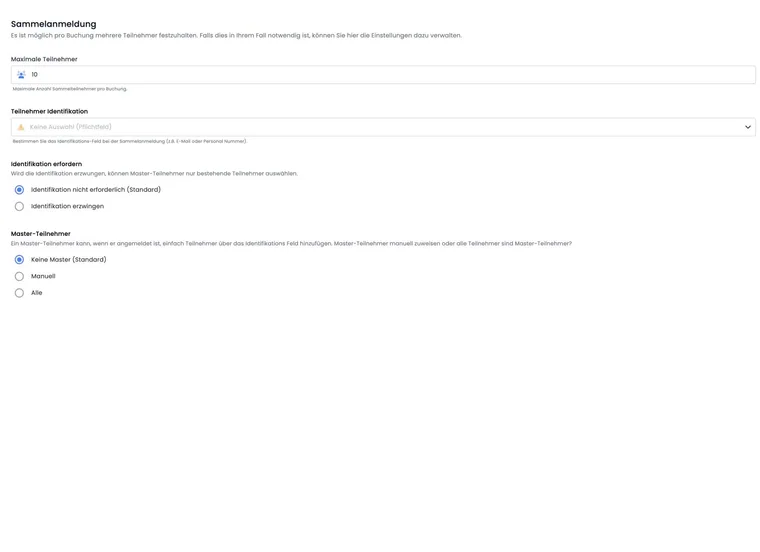
Maximum participants per booking
Open Settings → Account → Collective registration and set Maximum participants. The number limits the active named and open participations in one collective booking. A contact person without their own participation does not occupy a participant place.
The interface accepts whole numbers from 0 to 150. However, the current saving process changes 0 to 1; values above 150 are capped at 150. Reload the settings after a change and check the value adopted. Therefore, do not use 0 as a reliable account-wide off switch. Disable collective registration in the relevant offer if group bookings should not be permitted there.
In the regular booking process, the number that can be added is determined by the remaining booking limit and available offer places; the lower value applies. Existing active participations are counted. When an administrator adds participants to a full offer, an explicit overbooking confirmation may be offered. The global booking limit still applies. A deactivated participation can only be reactivated if both available places and room within this limit remain.
A maximum of two is not a binding two-person package: the value 2 permits at most two active participations in a booking. It does not require a minimum of two or turn a price category into a fixed price for a pair. If an offer must cover exactly two people, record and check two named participations and their place usage. Coordinate the price per person, total amount and public workflow separately; the global maximum also affects other collective offers in your account. Two-person prices and binding quantity rules explains the pricing limitations.
Choose an identification field
A visible participant data field can be used for identification, for example email address, membership number or employee number. Choose a reliably unique and maintained field within your organisation.
With Enforce identification, master participants can select only existing profiles. The default Identification not required option allows a more flexible workflow. Before activation, check that existing profiles contain the selected field completely; otherwise, eligible people cannot be found.
Check a shared email address as identification
In a family or association, the same contact address can belong to several people. It is then insufficiently unique as an enforced identification field. Use a suitable maintained field, such as a personal membership number, and test the master search with two different people sharing the same contact address.
The contact person’s login, the identification field for additional collective participants and duplicate detection rules serve different purposes. One setting does not replace another. If a second person cannot be recorded, use the blocked collective registration checklist.
Selecting Email as the identification field and enabling Enforce identification do not impose an account-wide requirement to use each email address only once. These switches control finding or selecting existing collective participants; they do not require a personal mailbox for each person. A shared family or HR contact address can belong to different people. Plan a suitable personal identifier for unambiguous selection, and check profile recognition with Magic Login separately. A confirmed shared email address does not turn these people into the same profile.
Define master participants
| Option | Effect | Suitable for |
|---|---|---|
| No masters | Normal collective registration without extended participant management. | Simple group bookings managed internally by admins. |
| Manual | Only people specifically designated as masters may select or manage further participants while signed in. | Company or association contacts with defined responsibility. |
| All | All suitable signed-in participants receive the master feature. | Closed groups with equal self-management rights. |
Use All only if the affected profiles should genuinely have access to group data. Align the identification field and login concept accordingly.
Configure three modes at offer level
Open Offer → Settings → Collective registration. Enable the feature and select:
- Named participants (defined immediately) if all people are recorded during booking.
- Named participants (defined immediately) – first person as contact person if the Bootstrap-5.3 process should start with a non-participating contact. A separate block for the first actual participation is prepared.
- Open participations (defined later) if only the quantity is initially known.
For multi-offers, configure shared collective registration on the main offer. Sub-offers do not display this setting but inherit their booking context. Check names and place usage in the summary and booking details.
Test the entire booking route
Test a booking just below and exactly at the global maximum.
Check whether the offer creates named or open participations with the selected mode.
Check identification and master access with an existing and a non-existing profile.
Check the booking confirmation, invoice, participant list and later naming of open places.
Use cases
Example: A company books ten places without names
The global limit is 20 and the offer permits open participations. A company contact books ten places and supplies names later. Before the course starts, administration checks whether every open place has been named.
Example: An association uses membership numbers for identification
An association selects the visible Membership number data field and enforces identification. Manually designated master participants can therefore select only existing member profiles. Missing membership numbers are corrected before launch.
Example: Limit small family bookings
For family courses, the account sets the global limit to five and the offer to named participants. Even with eight places still available, one booking can contain at most five active people. Other families book separately.
Plan contact and participant fields separately
In a Bootstrap-5.3 design, a form field can be intended for the contact person, for the contact person and collective participants, or only for collective participants. First name, last name and email are identity fields and appear for both sides in this design; this assignment is protected. An additional field such as school class or date of birth can appear only for the collective participants actually recorded.
Example: parents are the contact and children attend. Parents enter their contact details; the children’s form additionally asks for school class. After completion, check that no empty participant field has overwritten the contact person’s existing data. Template: Participant form explains the widget setting.
Labels in the form widget
The current widget interface labels visibility as Show only for the main participant, Also show for collective participation or Show only for collective participants. “Main participant” here means the first profile block or contact person; this person does not have to attend. The third option is intended for the new Bootstrap-5.3 form. Check the actual field view in the design used.