
Template: accept or reject requests
The illustrations show an earlier version of the interface. Use the steps in this guide for the available features and options.
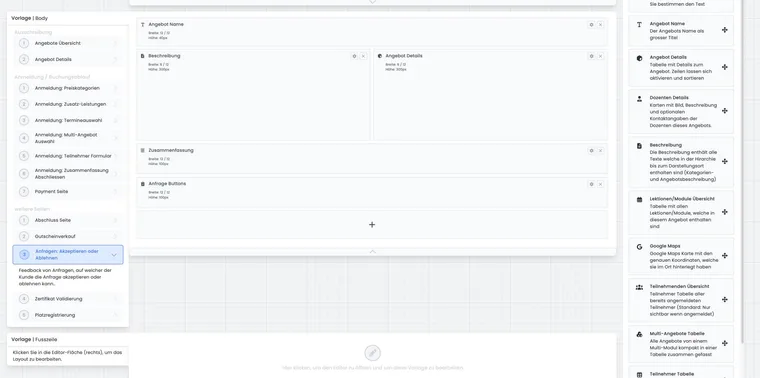
The Enquiries: Accept or reject template is used when people from an enquiry list should accept or reject an offer. It is a decision page: the person should understand which offer is meant, which deadline applies and what happens after acceptance or rejection.
The page resembles the Offer details template, but additionally includes the enquiry button. Therefore show all information needed for an informed decision while avoiding unnecessary distractions.
Purpose of the template
The template typically opens through a link in an enquiry or waiting list email. The person contacted can confirm or decline participation there. edoobox then processes the enquiry accordingly.
The page should contain offer name, date, venue, price, description, important notices and decision buttons. For multilingual offers, texts and text blocks must be maintained in active languages.
Available widgets in the template
| Widget | Task on the decision page | Note |
|---|---|---|
| Enquiry buttons | Shows buttons for acceptance and rejection. | Place prominently, ideally after the key offer data. |
| Offer name | Shows the offer name. | Depending on design, it can appear as normal text or a heading. |
| Offer Details | Shows data such as offer number, available places, date, venue, price or contact. | Select only information important to the decision. |
| Description | Shows category and/or offer descriptions. | Good descriptions reduce queries. |
| Lessons/modules overview | Lists dates, modules, instructor, venue, date or time. | Past dates can be hidden; enable responsive tables for mobile devices. |
| Google Maps | Shows the location of the first date. | Choose suitable marker, zoom and map type. |
| Participant overview | Can show people already registered. | Use only deliberately and clarify data protection internally. |
| Multi-offer table | Shows components of a multi-offer. | Useful only for multi-offers. |
| Participant information (current), Participant table (existing designs) | Shows people in this booking. | Helpful for group bookings so it is clear whom the enquiry concerns. |
| Summary | Lists relevant booking information. | Price can be hidden depending on settings. |
| Text block | Adds custom notices, images or deadlines. | Use for deadlines, the process after acceptance and contact details. |
Position the enquiry button correctly
The enquiry button is this template’s most important widget. It displays acceptance and rejection choices. Place it after a short explanation and key offer details, rather than hidden at the end of a long page.
The current Enquiry buttons widget offers decision labels per language. Substantive meaning comes from the enquiry process itself. Therefore test an enquiry from a participant’s perspective before sending the link in production.
Display offer data clearly
The Offer details widget can show information such as name, number, available places, date, venue, price, contact and other offer data. Tags with values can additionally highlight special information such as language, level or target group.
For ongoing courses, the Lessons/modules overview should ideally show only relevant upcoming dates. If past dates remain visible, ‘Highlight current row’ can improve orientation. A responsive table is important for smartphones.
Google Maps shows the venue of the first date. Use a clear zoom value, enable the marker and check display on mobile devices. Further information on venues: Venues.
Participant lists and data protection
The participant overview can show who is already registered. Use this widget only when substantively sensible and data protection has been clarified. Show as little personal data as possible, such as first name only or first name plus an initial.
Custom participant data fields can also be shown, but should be used only if the information is intended for every visitor to this page. Check Participant data fields and your internal data protection rules.
Please note: A participant list on this page is visible to anyone allowed to open the enquiry link. Do not use it for sensitive data.
Multi-offers and group bookings
For multi-offers, the multi-offer table shows included offer components. The person contacted can then see which modules or programme parts the enquiry concerns.
For group bookings, the participant table helps by showing which people in the booking are affected. In Participant information, select data fields, order, display and labels. Limit output to data required for the decision.
Use a text block for deadlines and process
A text block suits clear notices: By when must the enquiry be answered? What happens after acceptance? Does payment become due afterwards? Whom can the person contact with questions?
Maintain text blocks in every active system language. If the page opens in an iframe, also check that text block and buttons remain clearly visible in the embedded layout.
Example: Offer a place from the waiting list
A person from the waiting list receives an enquiry email for a course place that became available. The page shows date, venue, price, course description and a 48-hour deadline. Accept and reject buttons sit directly below. After acceptance, the booking is processed further.
Check before sending
Open the template in Design Manager and check desktop and mobile views.
Test enquiry link, acceptance and rejection with a demo person.
Check that price, venue, date, deadline and contact details are correct.
Review participant lists and data fields for data protection.
Check the associated enquiry list email template.
Practical check before sending
Always check the decision page with an actual test enquiry. The person must recognise which offer is affected, by when they should respond, whether the enquiry was accepted or rejected and what follows. For multi-offers, group bookings or external approval, additionally test whether displayed participant and offer data match the enquiry.
Example: Workshop enquiry with a response deadline
An invited person sees workshop, date and response deadline and can clearly accept or reject. After the action, the team checks that the new status is visible and reopening does not produce a contradictory duplicate response.
Example: Group booking without unnecessary personal data
A company contact answers an enquiry for several employees. The page shows only names and offer data needed for the decision. Additional profile or payment information is not output in a freely shareable response view.
Configure Participant information and Enquiry buttons
The current enquiry template offers the Participant information widget. It shows active, named people in this specific booking. Choose Cards, List or Table, define data fields and order, and maintain labels per language. Unassigned group places are not yet named participants.
Do not confuse this widget with the offer’s general Participant overview, which shows people already registered for the offer. For deciding on a specific enquiry, the narrower booking display is generally appropriate.
Use Enquiry buttons for acceptance and rejection. Labels can be adjusted per language. After a text change, check both responses using an actual test enquiry, including reopening the already answered link.
Narrow down missing people or actions
To check, use a valid decision link to a specific enquiry. Normal offer preview lacks this booking context. In the current Participant information widget, choose cards, list or table and desired data fields, order and labels per language. Without selected fields or assigned named people, output may remain empty; unnamed places are not output as completed people here.
Check Enquiry buttons with an open process and after a decision already made. If no action remains possible, first check enquiry and booking status instead of adding a second normal registration button. An offer’s public participant overview is a different component and may show a larger group of people.