
Import participant data
The import wizard transfers existing participant data into edoobox through a CSV file. You can import people only into the user overview or book them directly into an offer.
Prepare the import carefully. An import can create many profiles, bookings, waiting-list places, request-list entries or emails. Errors therefore immediately have a broad impact.
Video tutorials
These videos complement this guide. The spoken language is indicated for each video.
Preview images are loaded directly from this website. Playing a video connects to YouTube, only for the video you select.
Import Manager in edoobox — English version
An English overview of importing participants from CSV files, mapping fields and creating bookings or list entries.
For precise duplicate handling, follow the current guide.
Prepare the CSV file
The first row contains unique column headings.
Mandatory fields such as first name, surname and email address are complete.
Custom participant data fields exist and are active before import.
Date, number, country and language values use consistent formats.
The file is correctly saved as UTF-8 so that umlauts and accents appear properly.
Before exporting the CSV, pay particular attention to phone numbers, postal codes and custom identifiers. Leading zeros and plus signs must be preserved. Format these columns as text in your spreadsheet and, after exporting, compare the original value, CSV and import preview; field mapping cannot restore a digit that has already been lost.
If information is needed only for one offer, check before importing whether an additional question is more suitable than a global participant data field.
Start the import wizard and select a file
Open the user overview or customer table and select Import. The import wizard opens as a guided window with four steps: file selection, settings, data mapping, and confirmation and import.

In the first step, upload the CSV file using the grey area. Save the file as UTF-8 and use unique column headings in its first row.
Upload the CSV file. The wizard reads the first row as column headings and then shows settings and mapping. Therefore use descriptive, unique column headings. Empty rows are skipped; the preview helps identify incorrectly read columns or special characters early.
If special characters display incorrectly, cancel the import and save the source file again. Do not use later bulk corrections as a substitute for a clean CSV file; incorrectly read names, places or languages would otherwise spread through profiles, bookings, emails and exports.
Customer table import destination
Importing into the customer table creates or updates people in the user overview without directly creating a booking. Decide beforehand whether to create new profiles or supplement or replace existing master data.
The actual handling of existing people depends on the selected duplicate mode. Check it using the following table; “ignore” here does not mean existing people are reliably skipped.
Clean up duplicate CSV rows before uploading. The wizard does not replace source file quality checks.
Offer import destination
For an offer import, also select the offer, price category and destination within the offer. Depending on the process, people can be imported as regular bookings, waiting-list entries or request-list entries.
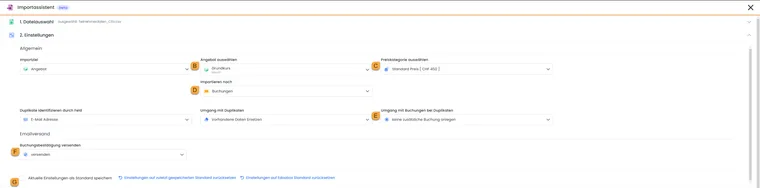
Example of an offer import: check the target offer, price category, booking type and email delivery before importing. The displayed values are examples, not general recommendations.
- B
- Select the offer into which participants should be imported.
- C
- Set the appropriate price category in the selected offer.
- D
- Choose the import destination within the offer: booking, waiting list or request list.
- E
- Specify whether an additional booking may be created when duplicates are detected.
- F
- Deliberately enable or disable sending the booking confirmation.
- G
- If required, save the verified settings as defaults for later imports.
Booking: People are booked directly into the participant list.
Waiting list: People are placed on the offer's waiting list.
Request list: People enter the offer's request process.
Offer imports also require deciding how bookings are handled when duplicates are found: do not create an additional booking, or deliberately create another booking. This setting is independent of whether personal data is merged or replaced.
Before an offer import, check the price category, offer status, booking type, email delivery, additional questions, additional services, waiting list, request list, MustPay and payment logic.
Register an existing group for a follow-up course
If the same people attend another course, they need new bookings in the follow-up course. Their previous participation and documents should remain intact. Use existing person profiles; rebooking replaces the previous booking and is not the appropriate workflow for this purpose.
- Prepare the new target offer with its dates, places, price categories and message texts. If copying an offer, check the new course delivery completely. Copying an offer does not promise that existing people and bookings have already been copied too.
- From the previous course, select only the people who should actually attend the follow-up course. Use the export options to prepare a CSV with one row per person. Assign each row the person's actual existing edoobox User ID; a booking or invoice number is not a substitute. First name, surname and email remain required for data mapping.
- Open Import, select the new target offer, correct price category and regular Booking. Split a group with different prices into appropriate import files or runs.
- Select Identify duplicates by field → User ID and, for example, Merge data so maintained existing values are retained. Explicitly map the User ID column. Email-only matching is ambiguous when several people share a contact address.
- Normally select Do not create an additional booking. This check concerns participants already present in the target offer: a booking in the previous course therefore does not prevent a first booking in the follow-up course. When restarting an import, check the target data instead of registering successful rows again.
- First perform a small trial import with email delivery disabled. Check the same person profile in both courses, new booking number, target dates, price, invoice and participant count. The previous booking must retain its intended status. Enable confirmations only for the agreed mailing.
- Then import the remaining intended people and reconcile their new bookings with the original list. Check failed rows individually.
The standard import creates bookings for each imported individual. It does not copy a shared group booking with the same contact person, group invoice, additional answers or previous payments. If the follow-up course should again be managed as one group booking, plan a new named group registration using the existing people and check its combined billing separately.
Example: an association group attends the advanced course
A group has completed the basic course. The team selects interested people, prepares their existing User IDs and imports them into the advanced course using the new price category. The profile assignment remains intact; the basic and advanced courses have separate bookings. Previous payments are not simply carried over as payment again for the new course.
Plan migration from another system
Separate the migration of people from the migration of existing registrations and financial data. The Customer table import destination creates or updates master data. The Offer import destination creates new bookings or list entries using the selected offer and its price category.
The standard wizard's data mapping maps participant fields. It does not provide complete migration of historical booking numbers, original booking times, invoice numbers and payments already posted in an external system. Putting this information in a CSV column does not create a corresponding edoobox invoice or payment. Clarify more extensive migration with support in advance as a separate scope.
- List person master data, future registrations, past participation, invoices and payments separately.
- Prepare the required offers, price categories and participant data fields.
- Group offer imports by the selected target offer and price category. A CSV column containing an external course name does not automatically select a different target offer for every row.
- First import a small sample with one new and one existing person. Check profiles, bookings, price, delivery and duplicate handling.
- Reconcile the results with the source before importing the remaining records. Retain necessary historical documents outside this person import in a traceable way.
Example: migrate registrations for two upcoming courses
An organisation first imports person master data into the customer table. It then prepares both offers and performs an agreed import with duplicate detection per offer and price category. Booking confirmations remain disabled during the sample. Paid external invoices do not become edoobox payments through these imports alone.
Duplicates and additional bookings
The wizard offers Email address or User ID as the matching key. The User ID identifies the existing edoobox profile and is not imported as a new person ID. A custom field such as personnel number is not an additional freely selectable matching key.
| Mode | Behavior | Suitable check |
|---|---|---|
| Ignore duplicates | The search for existing people is skipped. Rows are processed as new profiles; additional profiles can be created even for people already present. | Use only for deliberately new records. Do not use it as “skip existing profiles”. |
| Replace existing data | Matched profiles are updated with the mapped import values. | First check the mapped columns and the effects of empty values. |
| Merge data | Non-empty existing values are retained. Import values can fill previously empty fields. | Compare one populated and one empty field using a small trial import. |
For the Offer destination with duplicate detection enabled, also choose whether another booking may be created for people already in the offer. This booking decision is separate from updating master data. In “Ignore duplicates” mode, it does not protect against newly created duplicate profiles.
- First prepare a few records: a new person, an existing person with populated fields and an existing person with an empty field.
- Before starting, check the matching key, mode, mapping and preview.
- Afterwards, compare profiles, booking counts and any emails with the expected result.
- Only then import the remaining rows. Do not repeat successful rows without checking.
You can review profiles already created separately using the duplicate wizard. Note its limitation for memberships and passes.
Import when individual email addresses are missing
The standard import expects first name, surname and email to be mapped. Choosing User ID as the matching key does not remove this mapping requirement. Check the mandatory fields marked in the wizard and the preview; successfully importing one file does not imply a general guarantee for arbitrary empty or undeliverable email values.
Do not invent addresses or assign the same contact address to every row without checking: duplicate detection by email could treat different people as one existing profile. For a group, first clarify the responsible contact person and named group registration. If selling only a number of unassigned places, read Group registration without participant data. For manual entry, the field checks described there apply.
Booking confirmation by email
During offer imports, edoobox can send booking confirmations. Enable delivery only after checking the offer, email templates, prices, dates and recipient data.
If delivery is enabled, imported participants receive the appropriate booking confirmation. First check Email system in edoobox and Send booking confirmations manually.
Data mapping and preview
In data mapping, connect each CSV column to an edoobox field. The wizard recognises some columns automatically; unrecognised columns can be mapped manually or deliberately ignored.
Map each target field only once. Mandatory fields must be set, otherwise the import cannot be properly confirmed. If no participant data field is selected, the corresponding CSV column is ignored and not imported.
After mapping changes, recalculate the preview using Update confirmation and import. The import start remains disabled while the preview is outdated. The preview helps identify faulty rows early. Check email address, name, country, language, salutation, status and custom data fields in particular.
Confirmation, data protection and special values
Before starting, edoobox displays a summary. Confirm the import only after clarifying its purpose, data source, data protection basis and consent. Confirmation also serves to explicitly accept privacy and usage terms. Do not import purchased third-party lists without a sound legal basis.
| Field | Rule |
|---|---|
| Salutation | If the value does not clearly identify Ms or Mr, a neutral salutation is used. Titles such as Dr. or Prof. do not replace a salutation. |
| Country | Use recognised country names and check the preview. For a new profile, a missing or unrecognised value may be replaced by the account country; an empty preview field does not guarantee an empty saved value. |
| Language | Full language names and abbreviations such as FR may be recognised. If a new profile has no valid language, the default registration language is used. Check the saved language after importing. |
| Status | Unknown status values are not adopted blindly; check the preview. |
After clicking Start import, edoobox processes the data. Start the import only once and wait for the progress indicator.
Progress, cancellation and errors
For larger imports, edoobox processes data in batches. The interface works in batches of 50 and displays imported, ongoing and failed records. The preview's first column shows the status, such as ready, imported, failed or cancelled.
Cancelling does not retroactively stop completed batches; processing ends after the current step. An import is fully successful only if no failed records exist and the process was not cancelled.
For errors, check the status column, mandatory fields, duplicate rule, target offer, price category, booking type and email settings. Correct the CSV and reimport the faulty rows instead of starting the same faulty import repeatedly.
Save default settings
If you regularly import CSV files with the same structure, save the settings and mappings as defaults. edoobox remembers stable field references so renamed data fields can still be recognised.
Save defaults only after a successful import. If the import was cancelled or contains faulty records, investigate the cause before adopting the mapping as default. Only a fully successful run provides a good template for future CSV files.
If the file structure changes, check the mapping again regardless. A saved mapping helps but does not replace checking the actual meaning and accuracy.
Example: import existing customers only into the customer table
Prepare a CSV file with first name, surname and email. Select only the customer table as the destination, email address matching and Merge data mode if populated existing values should be retained and empty fields filled. Ignore duplicates mode does not search for existing profiles and may create additional profiles. After mapping the data, check the preview and start the import after the privacy confirmation.
Example: book participants directly into an offer
An organisation receives a CSV list for a company course. It selects the offer as destination, sets the correct price category, imports people as bookings and enables email delivery only after checking the booking confirmation. After importing, it checks bookings, the outbox and possible duplicates.
Check subscriptions and duplicate searches after importing
A participant import does not create a participant subscription merely through a membership number. Check existing subscription assignments and passes under Memberships in the relevant profile. After importing, use the duplicate search if needed to compare profiles created separately.
The duplicate decision during CSV import and the merge wizard's central rules are separate steps. When reimporting, particularly check whether the person already exists and whether an additional booking is intended.