
edoobox integrations
edoobox can be integrated into your existing website and workflows in several ways. Depending on the objective, use a link, iFrame, WordPress plugin, REST API, tracking, exports, Entry App or social media and SEO features. This page helps you choose the appropriate integration type and find the right detailed guide.
Which integration type fits?
| Goal | Suitable starting point |
|---|---|
| Display the booking process on a website | Link or iFrame from Preview / Share |
| WordPress with shortcodes and direct paths | WordPress plugin with a dedicated WordPress API permission |
| Regularly pass data to spreadsheets | Table export or scheduled export |
| Connect individual standard processes without development | Zapier with a prepared Zapier permission |
| Build custom bidirectional business logic | REST API and, if required, webhooks |
| Measure the booking journey and completions | Google Tag Manager / GA4 with a consent approach |
Before setup, define which system is authoritative in a conflict. Offers, bookings, payments and participation should not be written to simultaneously in multiple systems without control.
Website integration and Preview Share
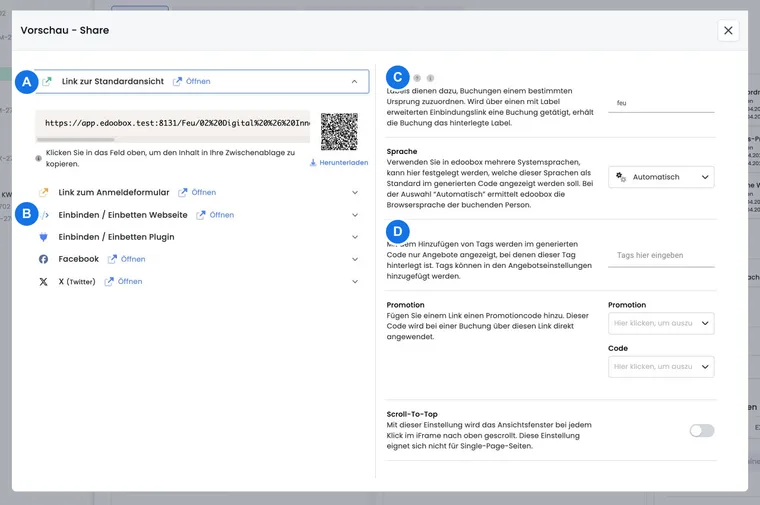
For most customers, website integration is the most important starting point. Share offers through a link, embed them directly in your website as an iFrame or review the preview internally before publishing an offer.
Integration into the website and preview-share
edoobox API
The edoobox API lets you create, read, modify or delete data in edoobox. This is useful when bookings, participants, invoices or offer data should be connected automatically with other systems.
Start with edoobox API: getting started to prepare authentication, endpoints and initial technical tests.
Integration with the WordPress plugin
A plugin is available for WordPress. The edoobox iFrame can also be embedded directly if you prefer to work without a plugin or need more control over placement.
Integration using the WordPress plugin and Embed an iFrame in a WordPress website
Embed an iFrame in Joomla, TYPO3, Wix and Jimdo
The iFrame makes your offers seamlessly bookable on existing websites. Separate guides are available for various CMS and website builders:
- Embed an iFrame in a Joomla website
- Embed an iFrame in a TYPO3 website
- Embed an iFrame in a Wix website
- Embed an iFrame in a Jimdo website
Entry App and on-site processes
The edoobox Entry App simplifies on-site attendance checks. It is particularly helpful for trainers, front office staff, instructors and admins who need to scan tickets or check attendance.
Entry App for iOS and Android and Access control with tickets
Subdomain, metadata and tracking
The subdomain and meta function lets you use an edoobox subdomain and save verification codes for Meta or Google. This matters when using conversion events, Google Search Console or social media verification.
For marketing and analytics processes, Google Tag Manager / Google Analytics and OpenGraph Protocol and Social Media SEO Meta Tags are also available.
Tables and export options
edoobox offers various tables, filters and export options for reports and handovers to other systems. You can also build custom exports using the API if required.
Tables and export options, Import edoobox transactions into an external accounting system and Export participant data to a newsletter system
Connect external systems and automations
The External integrations overview explains native connections, API, data handover and centralised sign-in. For a specific workflow, open the appropriate guide:
Use cases
Example: connect website, tracking and accounting
An event organiser embeds the “Courses” category in the website using an iFrame, measures bookings with Google Analytics, verifies the subdomain in Google Search Console and exports invoices monthly for accounting. Each area uses the appropriate integration guide.
Example: pass bookings to a CRM
A training provider displays offers on its own website using the WordPress plugin. New bookings are passed to the CRM through a verified API or Zapier connection. Contacts and follow-up tasks are created in the CRM; edoobox remains the system of record for offers, bookings, payments and participation.
Example: custom integration with webhook and API
An organisation needs to report bookings to an internal specialist system. An edoobox webhook notifies it about the change; the specialist system then retrieves the complete record using an API key with minimal permissions. The unique resource ID prevents duplicate processing, and errors are handled later in a dedicated queue.
Plugin Manager, accounting and internal automations
In the Plugin Manager, review and activate available extensions, including their requirements and displayed terms. New workflows include subscriptions/multi-use passes, automations, Bexio and access systems.
- Connect Bexio and choose invoice creation
- Map customer and accounting values
- Reconcile payments and investigate errors
- Create internal automation rules
- Check automation executions
- Server-side Tracking V2 with Google, Microsoft Ads or OpenAI Ads
First choose the functional workflow. Enabling a plugin, connecting an external account and checking the production operation are successive steps.
Start setup in the correct order
- Choose the task: public integration, internal rule workflow, accounting or data interface.
- Check account enablement and admin permissions; activate any required plugin in the Plugin Manager.
- Configure the connection and its functional mappings. Tracking V2 additionally requires website context and consent.
- Check a complete case from the trigger through to the result in the target system.
- Assign a responsible person and an error workflow before using the process in production.
For marketing measurement, start with Tracking V2; the previous GTM guide is intended for existing accounts without Google V2 enabled.