
Create a tile view for categories
The illustrations show an earlier version of the interface. Use the steps in this guide for the available features and options.
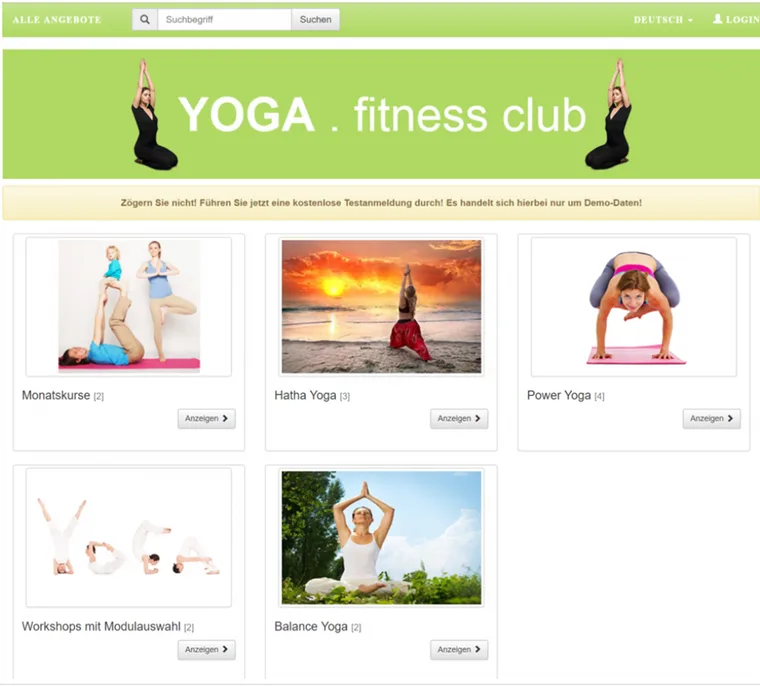
This is how an entry page using category images can look: each tile leads to that category's offers. The example comes from the publicly labelled yoga demonstration account.

The Category tiles widget gives visitors a visual selection of categories at the current level. Each tile uses the category image, category name and number of offers found within it. Clicking opens the selected category.
The widget is not a freely assembled promotional gallery. Tile content, order and destination come from your actual category structure. Therefore maintain categories first and the layout afterwards.
Prepare categories for the tile view
Every main category has a unique, short name.
Offers are assigned to the appropriate category.
A suitable category image is saved for each visible category.
The contained offers' status and visibility have been checked.
If an image is missing or cannot load, the image area may be omitted in the public widget. Therefore check the actual preview, not just category management.
Insert the widget in the Design Manager
Open the Design Manager and select the design for entering your offer overview.
Edit the Offer overview template.
Insert the Category tiles widget where required.
Save or publish the design and open Preview / Share.
Set width, buttons and empty categories
| Setting | Effect |
|---|---|
| “Normal view” width | 3/12, 4/12, 6/12 or 12/12 determine how many tiles fit side by side in wide views. |
| “Tablet view” width | Controls the same grid widths for medium-sized views independently of normal view. |
| Button | Enabled displays a separate “Show” button. Disabled makes the whole tile a link instead. |
| Show empty | Enabled also displays categories with no offers found. Disabled hides such categories. |
A width of 3/12 corresponds to up to four tiles per row in the respective view, 4/12 to three, 6/12 to two and 12/12 to one tile. The actual space available also depends on the surrounding design and screen width.
General settings determine how much space the entire widget receives on the page. In the specific settings, “Normal view” width and “Tablet view” width determine the width of each tile within the widget. Adjust both levels together.
- Open your design's offer overview and select Category tiles.
- Set the tile widths for normal and tablet views.
- Decide whether the Show button and empty categories should be visible.
- Save and open a category with subcategories and one without results.
For the actual offer output, add an offer list, table or offer tiles. Category tiles do not replace a subscription catalogue; use the dedicated subscription widgets for subscriptions.
When two designs are useful
Two designs are not technically mandatory but are often the clearest solution:
Entry design: Displays only or mainly category tiles at the top level.
Category design: Is assigned to main categories and displays their offers as a list, table, calendar or offer tiles.
Using the same widget mix in entry and category designs may show categories and offers simultaneously depending on the level. Therefore check each level separately. For nested categories and inherited designs, also follow Tile view for categories and subcategories.
Test the display completely
Open the top-level offer overview and check names, images, counts and order.
Click every tile and check that it opens the correct category.
Test an empty category with “Show empty” both enabled and disabled.
Enable and disable the button, checking keyboard operation and the clickable area each time.
Check normal, tablet and narrow mobile views.
Example: academy with three subject areas
An academy shows “Leadership”, “Communication” and “Digital” as three tiles at 4/12 width. After selection, a second design opens the area's offers as a session list.
Example: hide an empty seasonal category
The “Summer 2027” category is prepared but contains no visible offers yet. Until publication, the administrator disables “Show empty”. Once the first offer is released, the category automatically appears in the tile view.
Example: a readable course selection on mobile
A yoga school uses 3/12 on wide views and 6/12 on tablets. It also tests the narrow preview, where tiles wrap beneath each other, and shortens long category names before embedding the page.
If a category is missing or appears empty
Check the category hierarchy, publicly visible offers and the empty-category option. The widget shows direct categories at the current level; a category image does not replace public offer approval. Open the tile and check whether the next level contains offer output or further subcategories. For an incorrect layout, also check that level's design assignment.