
Embed an iFrame in a WordPress website
You can integrate edoobox into WordPress using either the edoobox WordPress plugin or an iFrame. This guide describes the iFrame option. It is suitable for displaying a specific category, individual offer or simple offer overview directly in a WordPress page.
For the plugin option, use the separate guide Integration using the WordPress plugin.
Prepare the WordPress page
In WordPress, open the page where the edoobox offers should appear.
Create a new page if necessary, such as Book courses.
In the WordPress editor, insert a Custom HTML block.
Copy the iFrame code in edoobox
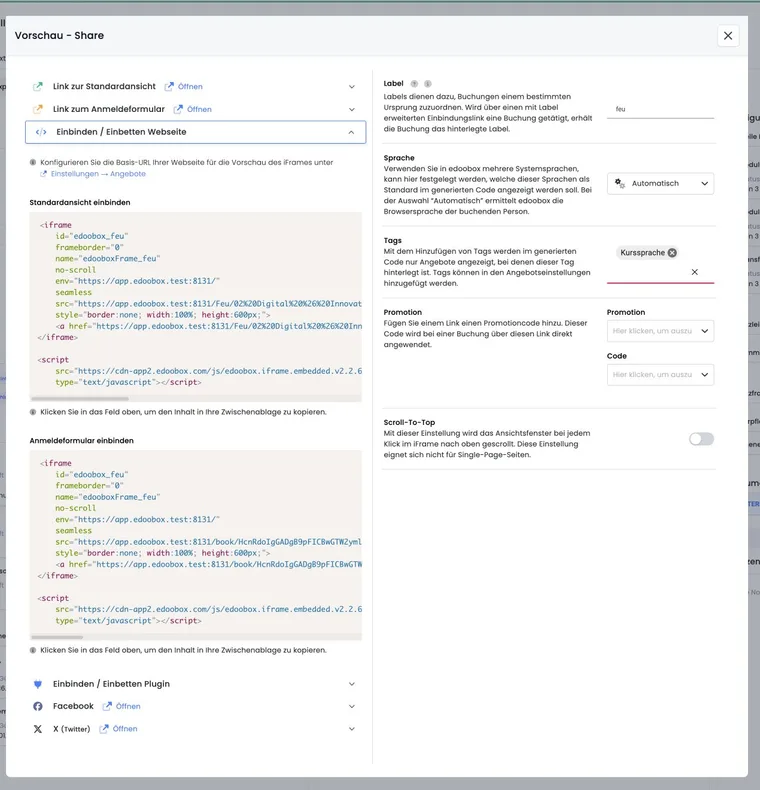
In edoobox, open the root directory, category or individual offer. Select Preview / Share, open Embed and copy the iFrame code.
Deliberately choose the right entry point: the root directory shows a broad overview, a category shows only selected offers, and an offer link goes directly to a specific offer.
Insert the code in WordPress
Insert the iFrame code in the HTML block and update the WordPress page. Then check the published page in the browser. Check height, width, scrolling behaviour and the smartphone display.
If no offers appear, check in edoobox that offers are published and the period, category and status match the display.
Configure links and embedding deliberately
Always copy the link or iFrame code generated by Preview / Share. An address from the browser bar may contain a temporary state and is not intended as a permanent embed link. For an individual offer, you can choose the standard view or direct registration form; categories and the root directory focus on the overview.
In the Share dialog, you can further tailor the generated code to its purpose:
- Label: Identifies a booking's source, for example
wordpress-kurse. Use distinct labels for multiple integrations. - Language: Starts automatically or in a selected active booking language.
- Tags: Opens the embedded view with a suitable offer selection already applied.
- Promotion: Passes a selected promotion code directly through the link. Share such links only with the intended audience.
- Scroll-to-top: Returns the surrounding page to the start of the embedded view when changing steps.
If the Share dialog shows no correct link to your website, first save the base URL of the page containing the iFrame under Settings > Offers.
Check the display and entire booking journey
Insert the complete generated code in an HTML or embed element. It contains the iFrame and the edoobox script for embedded display. If only the inner link is copied or WordPress removes script components, height and navigation may behave differently from the preview.
After every change, check desktop and smartphone displays and the complete workflow: open the offer, complete the form, accept the terms, open the payment page and display the completion page. Also check that the language, tag filters, promotion and label are applied as intended.
Example: seminar overview in WordPress
A provider creates a Seminars page in WordPress. In edoobox, they copy the iFrame code for the Further training category and insert it in the HTML block. Visitors then see only current further training offers and can book directly.
Example: multilingual campaign page in WordPress
An organisation creates a separate WordPress page for a spring campaign. In the Share dialog, it selects French, the Outdoor tag, a time-limited promotion code and the fruehling-wordpress label. After insertion, it tests a complete booking on smartphone and desktop and checks in edoobox that the source can be clearly identified.
Account for HTML permissions and the current editor view
The current WordPress documentation describes separate HTML, CSS and JavaScript sections in the HTML block. Script functionality requires the unfiltered_html permission. Without it, iFrame or script components may be removed on saving. Have the responsible WordPress administrator perform the integration and check the published page after saving.
Related guides
Check HTML code after saving
Use the Custom HTML block and check the saved HTML code again afterwards. See WordPress: Custom HTML. If your installation removes iFrame or script elements, ask the website administrator to confirm the permitted embedding method.
Direct link and Tracking V2
The current edoobox code adds a direct link to the booking portal as a fallback if the embedded view is not displayed. Include this link with the generated code and check it on the published website.
For Tracking V2, your website also needs the connection between the iFrame, website context and consent. A fully visible booking form does not confirm successful tracking setup.