
Venues
Locations and rooms determine where offers take place, which capacities are available, and which persons are informed about appointments. First record the location as a site and then the rooms that belong to this location.
You later select the location and room for each session. Depending on the templates and widgets used, this information can appear in the booking process, emails, tickets, Termin.ics files, attendance lists and calendar views. Check the output wherever your participants need it.
Management of locations
You can find the location management in the app menu under Locations. The view is only visible to authorized admins. If the menu item is missing, check the admin rights.
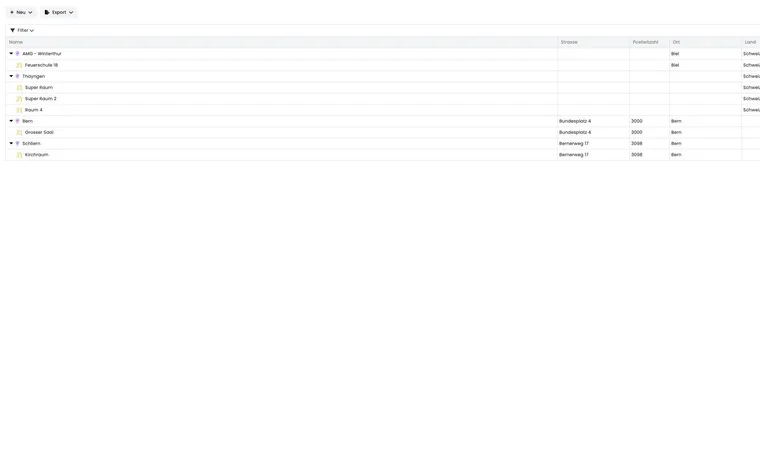
The overview is structured as a tree table. Locations appear as main entries in the list, rooms appear indented below with a room icon. A click on a row opens the appropriate edit dialog: for a location, the location edit; for a room, the room edit.
| Element | Typical details | Important for |
|---|---|---|
| Location | Name, abbreviation, address, country, status, map position | Booking process, map, email, Termin.ics, export |
| Room | Room name, number of seats, status, assigned location | Appointments, capacity, utilization, room planning |
Locations and rooms in the table
The standard columns show name, street, postal code, city, country, and status. The status is visually distinguished, for example active or inactive. Use filters to search by name, city, postal code, street, country, or status.
Active filters can remain in the URL. This allows the same filtered view to be reloaded or shared internally. The table can be exported as CSV or Excel. Rooms inherit the address data, country, abbreviation, and coordinates of their assigned location in the export. Therefore, correct address data at the location, not multiple times at individual rooms.
Create and position a location
Via New > New location you create a site. Required fields are typically name, abbreviation, and country. Additionally, you maintain street, postal code, city, status, and map position. The country comes from the global country list.
By default, automatic positioning is active. edoobox then calculates coordinates from the address data. If the automatic position is not correct, deactivate it and set latitude/longitude manually or move the map marker via drag-and-drop.
Practical example: Correct a location on a campus
A training center is located on a campus, but the postal address points to the main building. Open the location, deactivate automatic positioning, and set the marker to the actual entrance. This keeps the address correct while the map leads to the right door.
Save a new location and modify existing details
For a new location, enter at least Name, abbreviation, and country and then select Save. A location becomes available in the selection for rooms and appointments only after it has been successfully saved. When opening the form, wait until the country selection has loaded.
For an already saved location, edoobox field changes are applied directly. Wait for the save process to complete and check the map position after changing an address. With automatic positioning, the coordinates are reloaded based on the updated address.
Create rooms and maintain capacity
Via New > New room you create a room. A room requires a name, number of seats, location, and status. The number of seats must be a positive whole number or 0. When creating, edoobox pre-selects a location if none is set yet.
A saved room’s location cannot be changed later. The field is locked for existing rooms. If a room was created at the wrong site, recreate it at the correct location and update the affected sessions.
Practical example: Create rooms and check utilization
Record a seminar center with multiple rooms
First create the location Seminar Center Zurich with a complete address and abbreviation. Then create the rooms Room A with 20 seats and Room B with 12 seats. In the appointments, select the common location and the appropriate room.
Check room conflicts before the start of the month
Open the room, switch to utilization, and select the month view. Check dense time slots and export the month as an Excel file if necessary. If a room is overloaded, adjust affected appointments or choose another room at the same location.
Save and check a room
- Open Locations → New → New Room.
- Enter a name with at least two characters, select the location, and enter the number of seats as a whole number starting from 0.
- Set the active status and select Save.
- Open an appointment and select the location and this room. Check the name and assignment in the appointment short view.
For an existing room, use the Save action after making changes. The selection of the assigned location is then locked. The room capacity is a planning figure; additionally check the bookable seats in the offer or in the selected registration type.
Notification rules per location
Saved locations have the area Notifications. There you create rules that send emails to a recipient list. Use your own email templates for this; system templates are not selectable there.
A rule requires a name, at least one valid email address, template, and time rule. Invalid email addresses are not accepted when saving. Up to five notification rules are possible per location. Save a new location first; then you can add the rules. Typical time rules are a certain number of days before the appointment or a weekly sending on a specific day of the week and at a specific time. Check the time, time zone, and template with a test appointment before using the rule for productive locations.
Practical example: Notify the facilities team before sessions
First create a custom email template containing room, session and offer. Then open the location, go to Notifications and create a rule called Prepare room. Enter the facilities team as recipient and choose, for example, three days before the session at 8 AM.
Utilization of individual locations and rooms
For saved locations and rooms, Utilization opens a calendar. There you can see which appointments occupy the location or room in the selected period. Depending on the view, day, week, month, and year are available.
The appointment short view shows start, end, offer, location, room, and occupancy in relation to the maximum number of participants. The utilization can be exported as CSV or Excel for a period, for example for internal planning or room billing.
Locations in the booking process and in emails
Location and room can appear in offer details, booking confirmation, reminder, ticket, Termin.ics and attendance lists. After making changes, test a booking to ensure that the address, room name, and map display are correct everywhere.
If participants cannot see the location, check the appointment assignment, the status of the location and room, the Design Manager widget, and the email or PDF template being used.