
Template: Registration 1 to 4
The illustrations show an earlier version of the interface. Use the steps in this guide for the available features and options.
Registration does not consist of the same pages for every offer. edoobox activates price categories, additional services, date selection and multi-offer only when offer configuration requires the respective step. Participant form and summary remain the fixed core steps.
Therefore design every optional template completely, but expect some offers to skip them. Order follows booking logic and cannot be freely rearranged in Design Manager.
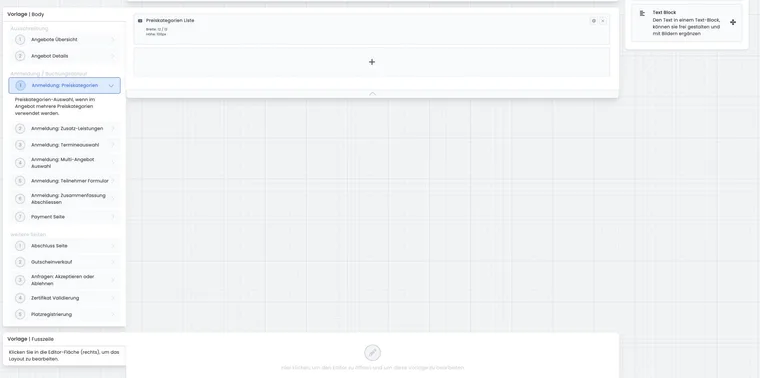
Understand the dynamic process
| Step | When does it become active? | What must be visible? |
|---|---|---|
| Price category | When more than one price category exists. The step also appears for a group registration that first requests the number of people. | Price category selection with name, price and clear selection. |
| Additional services | When at least one bookable service is assigned to the offer. | Services, mandatory/optional logic, quantity and price. |
| Dates or lessons | When lesson booking or free date selection is active. | Bookable dates, availability and understandable selection. |
| Participant form | Always. | Required participant data, questions, login and billing address according to configuration. |
| Multi-offer | When the offer is configured as a multi-offer or congress. | Sub-offers and their selection rules. |
| Summary | Always. | Selected people, prices, services, dates, legal texts and completion action. |
Do not replace a core widget with text
Each optional template needs the widget that actually saves selection. A text block can explain the step but cannot record a price category, service, lesson or multi-offer selection.
If a required core widget is missing, the page may look correct even though a substantively necessary selection is impossible or unclear. Therefore compare an adapted template with a working design copy.
Present price categories clearly
The price category step appears with several active categories or the group registration intended for it. Label, price, currency and any conditions must be understandable before selection.
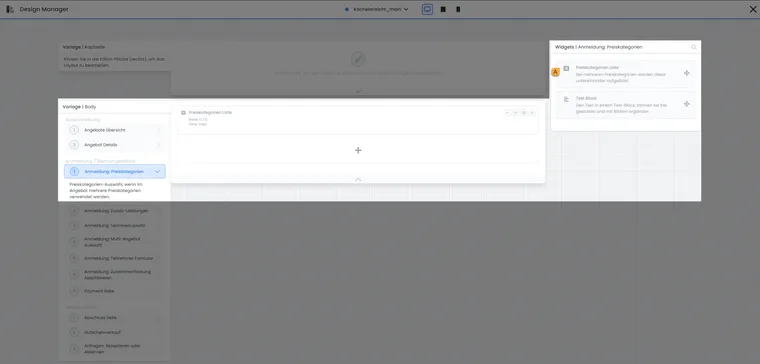
The price selection field belongs in the Registration: Price categories template. A text block adds notices but does not replace price selection.
- A
- Provide price categories for selection
With only one price category, edoobox normally skips this step and uses the available category. Therefore do not place important general information exclusively on this optional page.
Explain additional services that affect price
The services step becomes active only when bookable services are assigned to the offer. Clearly distinguish mandatory service, optional service, quantity and price. Explain delivery scope or collection in a short text block rather than an overloaded label.
Additional questions are not automatically the same as additional services. A question records an answer; a service can change booking price and ordered quantity.
Test date selection against availability
For lesson bookings, the person selects individual dates. Check available and fully booked dates, minimum or maximum counts, price changes and navigation back to selection. A date must not merely look selected; it must appear in the summary.
Also test when no places remain between selection and completion. The page needs understandable feedback instead of a seemingly successful Next button.
Structure multi-offers clearly
For multi-offers, sub-offer selection follows the participant form. Use clear titles, times and prices to distinguish parallel workshops or congress modules. Avoid placing important information only in images.
The multi-offer step is skipped entirely if the offer is not managed as a congress or multi-offer.
Use text blocks selectively
A text block can contain short notices, images or links in every active language. Use it for explanations belonging exactly to this step, such as ‘Course materials are optional’ or ‘Select at least two lessons’.
Notices applying to every booking belong instead in offer details, participant form or summary. Otherwise they are missing for offers that skip the optional page.
Test every actually possible path
one price category without additional services;
several price categories with optional and mandatory services;
lesson booking with available and fully booked dates;
group registration with person-count selection;
multi-offer with several sub-offers;
back navigation and repeated changes to every selection;
desktop, tablet and mobile in every active language.
Example: A simple course skips optional steps
A course has exactly one price category, no additional service and no free date selection. Booking starts directly with the participant form and then leads to the summary. General course conditions are therefore not placed on an optional price category page.
Example: Two prices and an optional course folder
A seminar offers a regular price and learner price plus an optional course folder. edoobox shows price category first, followed by the additional service. In the summary, the booker checks price, selected folder and participant data together.
Example: Congress with workshop selection
After the participant form, a congress shows bookable workshops. Titles include room and time so parallel modules can be distinguished. The test additionally checks that a normal individual offer does not display this multi-offer step.
Account for calendar selection and subscription prices
For offers with free date selection, you can use Date calendar alongside the date list in date selection. Configurable options include available places, display of fully booked dates, and minimum and maximum selected date counts. A maximum of 0 means no additional upper limit from this widget option. A positive maximum must not be smaller than the minimum; edoobox adjusts conflicting limits in the editor.
Check an offer with several selectable dates: below the minimum, within the permitted range and above a configured maximum. Displaying a fully booked date creates no additional capacity.
A price category can now require a valid participant subscription. Configure this substantive restriction in Price categories. Test registration both without a suitable subscription and with an eligible person. The summary can additionally contain subscription selection.
Narrow down a missing selection step
If a template is not opened, first check offer configuration: number of price categories, group registration with person count first, existing additional services, free date selection and multi-offer. Merely designing a template does not activate an additional step. For restricted subscription prices, also check the specific person and valid subscription instead of recreating the restriction through text or visibility.
Check the return route after an invalid selection and the total amount in the summary. The additional shopping cart route follows completion design options; optional selection pages remain dependent on the actual booking process required.