
Design custom attendance lists
A custom attendance list consists of two components: the PDF template determines design, background, margins and filename. The table template determines columns, sessions, participant data and blank signature fields.
Deliberately separate these tasks. This lets the same table be used in several PDF designs, while new stationery does not require recreating the column logic.
Video tutorials
These videos complement this guide. The spoken language is indicated for each video.
Preview images are loaded directly from this website. Playing a video connects to YouTube, only for the video you select.
Custom attendance lists in your edoobox account
Create custom attendance lists with your own columns and selected participant data, ready for printing.
The current guide distinguishes PDF design, table templates and appointment references. Use it for today’s options and to check the printout.
Open the PDF template and table template
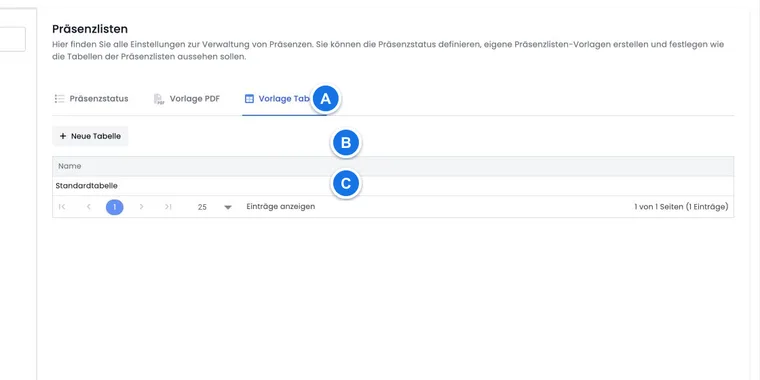
Open Global settings → Attendance lists.
Select Table template to define the required columns.
Then select PDF template to assemble content, the table and design.
Activate only templates that should be selectable for production use in the print menu.
Design the PDF template
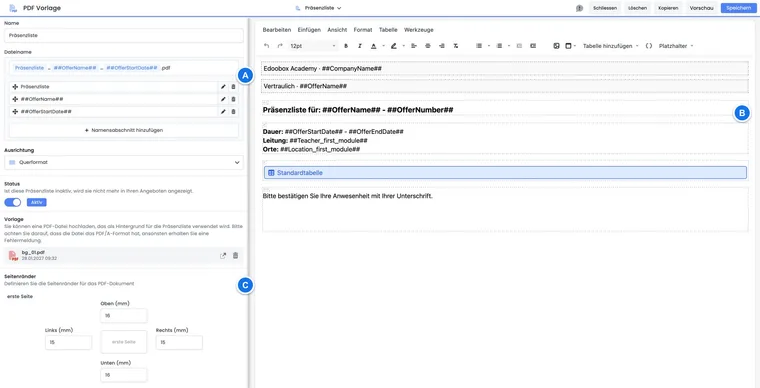
A PDF template provides the following settings:
Name: Internal template label.
Filename: Name of the generated PDF file; the
.pdfextension is included. The default combines attendance list, offer name and start date.Orientation: Portrait or landscape.
Status: Only active templates are offered for production printing.
Background template: An uploaded PDF can serve as stationery or a form background.
Editor: Text, tables, placeholders, custom CSS code and PDF headers and footers.
Margins: Top, right, bottom and left can be set for the first page. For subsequent pages, top and bottom are set separately; left and right follow the first page's values.
PDF attachments: Additional PDFs are appended to the attendance list as extra pages.
Use Preview after every major layout change. Copy a working template before fundamentally changing stationery, margins or CSS.
Backgrounds and attachments have different purposes: A background designs the actual attendance pages. A PDF attachment is inserted as an additional page after the generated list, for example for privacy or safety information.
Build the table template
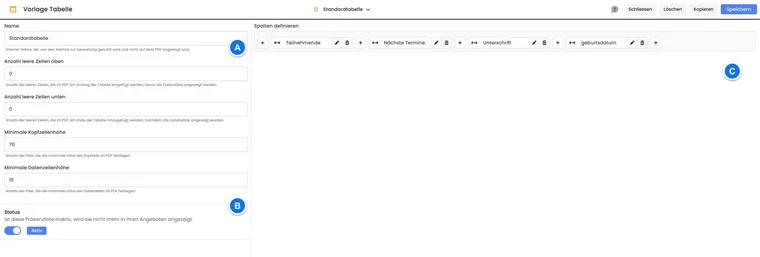
The table template contains an internal name, active status, empty rows above and below the data, minimum header and data row heights, and freely combinable columns.
The default table illustrates the established basic principle:
| Column | Standard content | Purpose |
|---|---|---|
| Participants | ##UserFullName## | Person's name. |
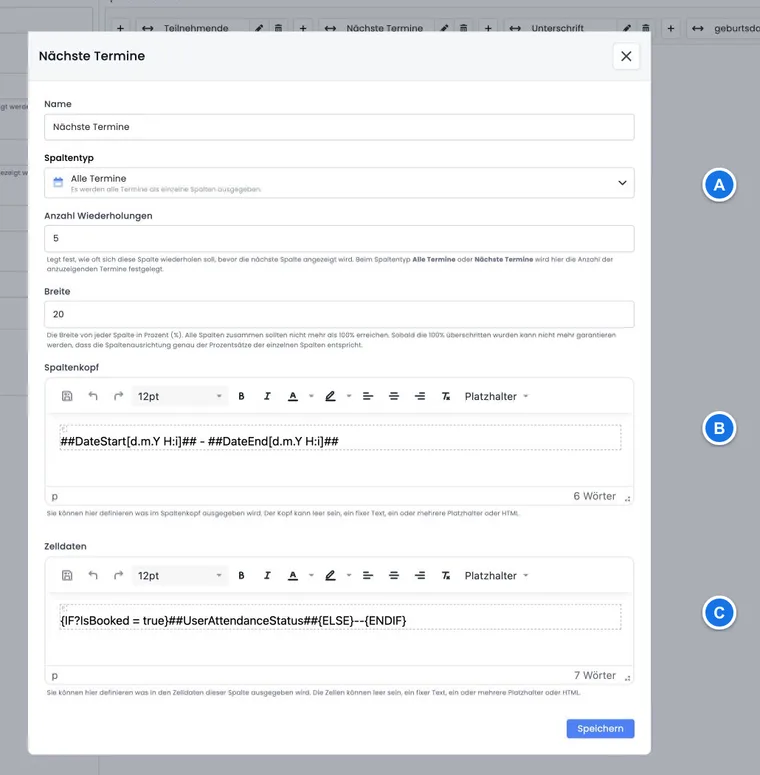
| Upcoming sessions | Header: ##DateStart[d.m.Y H:i]## - ##DateEnd[d.m.Y H:i]##Row: {IF?IsBooked = true}##UserAttendanceStatus##{ELSE}--{ENDIF} | Up to five upcoming sessions with status; lessons not booked appear as a dash. |
| Signature | empty | Blank field for an on-site signature. |
Number of entries can generate a session column multiple times. Width and minimum row height should suit the paper orientation. Extra empty rows help accommodate spontaneous guests but do not replace later entry in edoobox.
Use placeholders safely
Insert placeholders through the editor's selection. This ensures you use the exact spelling available in that template type.
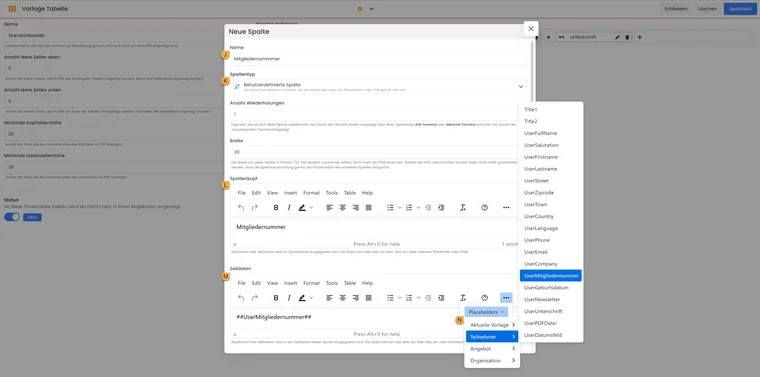
Example of a custom column: the column header contains a fixed label and the cell data contains the placeholder for the required participant data field. Use the placeholder from your own selection.
- J
- Internal column name.
- K
- “Custom column” column type.
- L
- Column header label.
- M
- Cell data with the required participant data field.
- N
- Select the appropriate participant placeholder in the editor.
PDF content: Can contain offer, organisation and table placeholders and the status legend
##PresencelistStatusLegend##.Table header: In particular, uses
DateStartandDateEndwith the required date format.Table row: Uses participant data,
##UserAttendanceStatus##and conditions such asIsBooked.Filename: Can contain
##OfferName##and##OfferStartDate##, for example.
Custom data fields have account-specific placeholders. Always use the entry from the current placeholder selection and do not invent a presumed field name.
Insert the table into the PDF
First save and activate the table template.
Open the PDF template and position the cursor where needed.
Insert the table through the editor's table menu. Internally, it is maintained as a separate table placeholder.
Add the title, offer data, legend, header or footer.
Save and check the PDF preview with a demonstration offer containing several sessions and booking situations.
Print a single lesson or the entire offer
Before printing, decide whether you need a standard attendance list for a specific booked lesson or a custom PDF list for the offer. The two entry points provide different selection options.
| Output | Session and participant context |
|---|---|
| Standard attendance list with lesson booking enabled | You can select one session or all sessions. For an individual session, the participants booked into that session are included. |
| Standard attendance list without lesson booking | Printing relates to the entire offer. Opening it from a session card does not turn it into a separately filtered lesson list. |
| Custom active PDF template | Printing opens the template in the offer context. The table template determines the session columns. With lesson booking, the output includes bookings for the sessions shown; this template selection dialog does not offer a free choice of an individual lesson. |
- Open the offer and Attendance → Printouts → Attendance list.
- If template selection appears, select Standard attendance list for a specific lesson output.
- With lesson booking enabled, select the required session instead of all sessions.
- On the printout, check the date, time and people booked for that session. If nothing opens, check whether the browser blocked the new window.
A session column is not a session selection: Setting the number of entries to one in a custom table template limits the output columns. It does not select any arbitrary session you want. Check the data actually printed; offer placeholders such as ##OfferStartDate## and ##OfferEndDate## remain offer information. Session columns output their respective values using ##DateStart[d.m.Y H:i]## and ##DateEnd[d.m.Y H:i]##.
Example: A course has six individually bookable lessons. For the fifth lesson, the instructor needs an attendance list containing only those booked into it. They select the standard attendance list and fifth session. For a branded complete archive, the administrator then opens a custom PDF template and checks its configured session columns separately. This does not trigger a certificate or automatic delivery per module; those are governed by the rules for evidence and offer end.
Test the template before use
short and very long offer names;
portrait and landscape with multiple pages;
long names and account-specific data fields;
lesson bookings with unbooked sessions;
empty attendance statuses and custom status names;
backgrounds, headers, footers and appended PDF pages.
Example: branded attendance list on stationery
An academy uploads its single-page stationery as a PDF background, sets suitable margins and inserts the offer name, start date, status legend and participant table. The privacy page is added after the list as a PDF attachment, not a background.
Example: signature list with reserve rows
A public event requires names, organisations and signatures. The table template has taller data rows and ten empty rows at the end. Spontaneous guests are still added as participants afterwards so that digital attendance remains complete.
Example: lesson booking with unbooked sessions
A language course allows individual lesson bookings. The session columns use the standard condition {IF?IsBooked = true}##UserAttendanceStatus##{ELSE}--{ENDIF}. The printout therefore clearly shows whether an empty status still needs recording or the person did not book the session at all.
If a long list spans several pages, check the margins for the first and subsequent pages separately. Reduce session columns or use landscape if needed. A complete, legible printout may comprise several pages. For a print/password notice, also check the difference between PDF editing protection and a protected original.
Check the person and booked participation in the printout
Also check the preview with a group booking, a non-participating contact person and someone with multiple bookings. Rows should show the actual booked participation. A contact-only person must not thereby receive an additional attendance place.
Add the required names to open places before creating personal evidence and pay particular attention to session statuses for lesson bookings. The template does not replace correcting an incorrect participation assignment.
Rotate text in headers and data cells by 90 degrees
- Open Global settings → Attendance lists → Table template and the required template.
- Open the relevant column for editing.
- In Column header, enable Rotate text upwards by 90° if required.
- For rotated data-cell values, enable the same option separately under Cell data. Headers and data cells can be configured independently.
- Adjust column width and header/data row heights, and check the PDF preview with long labels and multiple pages.
Example: rotate only the header of a narrow session column to fit the date and time. Attendance values in data cells remain horizontally readable. Check graphics and nested content separately; this option aligns text.