
API integrations: PDF, Dinaco, Microsoft Graph, templates, and files
Set up native integrations and plugins
To set up, start with the respective customer function: Bexio is enabled via the Plugin Manager and connected under Integrations → Accounting. Automations have their own rule area. In the Integrations area, you will also find DINACO and access control systems.
Use the following technical relationships for context. Specific steps appear on the linked subpages. An email account for Microsoft sending, a SAML login and a Microsoft Ads tracking destination are separate connections with their own settings.
edoobox has several integration areas in addition to the public API. These connect visible functions such as PDF generation, Dinaco access, Microsoft Graph, templates, file storage, exports, SAML and external helper queries with the data of your account.
This page provides orientation for admins and technical contacts. It complements the detailed guides by showing how functions relate and where to read further for setup or troubleshooting.
Overview and scope
The public API is suitable for external clients, individual exports and own integrations. Internal integration layers are used by edoobox when documents are created, files are read, templates are rendered, tickets are synchronized or external services are called.
Dinaco: sends ticket, section, permission and merge data to the access control.
PDF and Post: renders PDFs, generates RF references, embeds payment data and sends letters.
Microsoft Graph: sends emails through a connected Microsoft account.
Templates: processes email and PDF templates with placeholders, conditions and loops.
Files and Exports: manages storage, signed URLs and table exports.
SAML and helper queries: supports SSO, IP helper data and VAT checks.
Dinaco ticketing and access data
The Dinaco integration connects edoobox with external access control. Event connections, sections, permissions and tickets ensure that booking data can be processed in the access solution.
Key details include the client ID, secret, event ID, section, permission, barcode, contact information and ticket status. Permissions contain criteria, start, end and area references; sections describe admission areas. Depending on the process, tickets can be valid, new, cancelled or blocked. Always check the booking, ticket status and Dinaco synchronization together.
Access tokens are not created anew on every click, but are cached for a short time. If credentials have been changed, an error may therefore remain visible for a short time. Test after changes with a single booking or a single ticket.
If Dinaco does not synchronize as expected, first check credentials, event connection, synchronization period, sections, manual synchronization and whether the affected tickets are valid and publicly relevant at all. The operation in the interface is under Dinaco integration and Ticketing, access scan, Dinaco and attendance control.
Application example: Manually synchronize a Dinaco event
After storing the client ID and secret, the administration creates an event connection. If sections or access data change at short notice, it opens the synchronization for this event and starts the reconciliation manually, instead of waiting for the next background run.
PDF, invoices, QR/RF references and letter sending
PDF outputs involve templates, fonts, images, attachments, invoice data, barcodes, QR/RF references, ZUGFeRD data, signatures and optionally letter sending. This means that an apparent PDF problem can have various causes: template, placeholder, image size, file storage, language, invoice or signature.
edoobox can use PDF templates as backgrounds, render HTML at fixed positions, embed images and generate invoices, tickets, booking PDFs, cancellation invoices, reminders or confirmations according to the process. RF payment references are normalized and checked; QR invoices also require correct invoice and payment data.
For PDF templates, image quality and image size are important. Images are embedded for the PDF; empty, unreachable or too large images may be missing in the PDF. Therefore, use clean template images, check logos and backgrounds in the PDF preview and test multilingual special characters.
edoobox supports different fonts and international character sets so that languages with special characters, Asian characters or symbols can be better represented in PDFs. If a PDF looks wrong, check the language, font, background PDF and embedded images in addition to the placeholder.
For letter sending, a finished PDF is handed over to a shipping service, processed there and later reported back with status information. Read Own PDF attachments and templates, QR invoices and Letter sending of the invoice.
Application example: Send an invoice as PDF and letter
An invoice is rendered as PDF, images are embedded and an RF reference is generated. If letter sending is active, edoobox hands over the PDF content to the shipping service, stores the external shipment ID and updates the sending status later.
Microsoft Graph: email delivery
Microsoft Graph is used to send email through a connected Microsoft account. Check the connection, intended sender and granted sending permissions. For each message, also check the recipients, CC, Reply-To, HTML content and attachments.
A message accepted by Microsoft means Graph has accepted the sending request. Check the outbox, error messages, provider notices and, if needed, the Microsoft mailbox to find out whether it was delivered or rejected later.
Graph responses distinguish accepted messages, temporary errors, provider or authentication errors, and permanent payload problems. This classification matters for the outbox and subsequent delivery attempts.
Set up the connection using Connect a Microsoft account for sending email. Then test a single message with the intended sender and check both the outbox and receipt. A successful sign-in alone does not confirm successful delivery.
Template rendering and placeholders
Templates for emails and PDFs are processed in several steps. First, loops over repeatable data are processed, then conditions are checked and finally placeholders are replaced. This makes complex templates possible, for example lists of booked services, conditional notes, ticket barcodes or promotion-related texts.
PDF and mail templates additionally depend on the subscription, activated languages, own PDF backgrounds, file names per language and existing data. Not every template knows all placeholders; a placeholder can work in an invoice but remain empty in a reminder email.
The order is important: A placeholder in a condition or loop must match the data available for this template. Therefore check All placeholders for emails and PDFs and Email templates with IF and EACH.
Application example: Template with condition and loop
An email template contains a list of booked services and a discount note only for certain tags. edoobox first renders each service, then checks the condition and finally replaces names, date and other placeholders.
Files, exports, SAML and helper queries
Files can be in different storages depending on the environment. edoobox reads objects, generates signed URLs for upload or download and deletes files if the process requires it. For admins, this is visible via documents, templates, uploads or the Secure File Manager.
Signed URLs are time-limited. If a download link expires or an upload no longer works, reload the file from the interface instead of passing on old links. This is especially important for protected course materials, email attachments and temporary exports.
Table exports can generate CSV, XLSX, ODS or other formats. For very large amounts of data, a CSV may be more sensible than an extensive Excel file; large exports can be processed differently automatically. The professional basics are under Tables and export options.
SAML supports SSO flows with metadata, NameID formats, login scopes and IdP responses. External helper queries can support IP or VAT information and are partially cached. The SAML setup is under Single Sign On via SAML in edoobox enable.
Public API or internal integration?
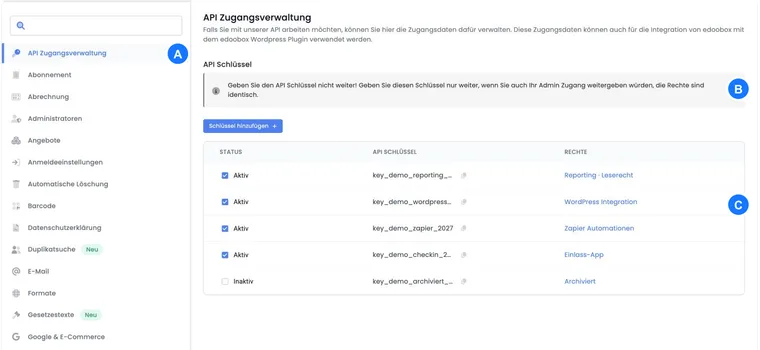
If an external system should read or write data, the public API is the right way. For this, create API keys with clear permissions and document which integration uses these keys.
Internal integration paths are not intended as a stable interface for customer systems. They do explain, however, why a visible function has multiple prerequisites. An example: An invoice sent via Microsoft can simultaneously involve email template, PDF rendering, file attachment, Microsoft token and outgoing mail.
For external projects, technical contacts should therefore always first check: Is there a documented API function? Is there an existing edoobox integration? Or is it an internal function that must not be called directly?
Connect own offer data and event receivers
An API offer website reads offer data, separate text resources and the share links provided by edoobox. Its own cache is part of the website integration; it does not reserve places. Your own offer website and course planner explains complete lists, language versions and stale data.
For images, use the actually returned image.url and image.url300 values. Preview images, public source files and social media snippets are processed differently depending on the image path. A self-added size suffix is therefore not a general API contract. Image URLs and original proportions explains the documented scope.
Suitable events can trigger a targeted retrieval. The Webhook guide explains the setup via /v2/webhook with required permission, target address, topics and HMAC check. Payment provider, scanner and general integration webhooks are separate connections. The setup does not imply guaranteed delivery of every professional status change.
Separate setup and tests cleanly
Do not test integrations directly with productive mass actions. Use a test offer, a test booking, a test invoice or a small selection of data sets. This allows you to detect errors without affecting many participants, invoices or emails.
For Microsoft, first test authentication and a single email. For PDF, check a template with real demo data. For Dinaco, test an event connection and a ticket. For SAML, test a single admin person with defined attributes.
Operating rules, error patterns and caches
Integrations work with different caches and retry rules. Dinaco tokens, PDF templates, helper queries, letter sending tokens or external OAuth tokens are not fetched anew on every click. This means that a change may be visible with a short delay.
Errors are visible differently depending on the integration: Dinaco reports synchronization errors, Microsoft Graph provides HTTP and JSON errors, PDF rendering can fail on images or templates, letter sending can provide external status messages, SAML can hang on attributes or metadata.
When troubleshooting, always name the specific path: mail sending, PDF rendering, letter sending, file storage, SAML login, API access, helper query or Dinaco ticketing. The more precise the path, the faster support or technical staff can check the right logs and status messages.
Checklist before setup
Which function needs to be integrated?
Which permissions, keys, providers or accounts are required?
Are templates, placeholders and languages fully maintained?
Who is responsible for external systems such as Microsoft, Dinaco, SAML IdP or letter sending?
How is it tested: demo offer, test booking, test email, test ticket or test invoice?
Which logs, evidence or status messages does support need in case of errors?
Related guides
- edoobox API
- edoobox API first steps
- External integrations
- Connect Microsoft account for email sending
- Dinaco integration
- Ticketing, access scan, Dinaco and attendance control
- Own PDF attachments and templates
- All placeholders for emails and PDFs
- QR invoices
- Letter sending of the invoice
- Internal and external documents and files
- Enable Single Sign On via SAML in edoobox
Server-side tracking V2
The new Tracking-V2 integration manages Google Analytics, Microsoft Ads and ChatGPT / OpenAI Ads per account. It supplements browser events with server-side sending of purchases, payments and reversals. For embedding, the current website context and consent are required; see iFrame and consent.