
Overview of the user interface
The edoobox user interface is designed as a work environment for offers, participants, bookings, invoices, and settings. If you know the offer tree, main navigation, search, and app menu, you can reach the appropriate data record without detours.
Which areas and actions are visible depends on your admin rights, the subscription, and the functions activated in the account.
Video tutorials
These videos complement this guide. The spoken language is indicated for each video.
Preview images are loaded directly from this website. Playing a video connects to YouTube, only for the video you select.
Overview of your edoobox account interface
Get an initial overview of the edoobox interface. Use the video for orientation and follow the guide for today’s menus and workspaces.
Recorded in an earlier V2 interface in 2023. Current menu names, positions and available areas can vary depending on admin permissions, subscription and plugins.
edoobox update: offer tree, editor and File Manager
Overview of the offer tree, editor and File Manager features in the edoobox update from March 2025.
Historical update overview from March 2025. Current menus, features and workflows are described in this guide and the linked detail pages.
Basic structure of the interface
The interface consists of four interconnected areas:
Side navigation: Offer tree, archive, trash, and dashboard.
Main navigation: Work tabs, path navigation, and global actions.
Main area: Dashboards, tables, settings, and detail views.
Dialogs and side windows: New data records, security prompts, and context-specific edits.
Data records such as offer, participant, booking, or invoice open the appropriate work context. Context-specific edits can appear in a side window. Supported resources open as a work tab or popover depending on your personal setting; this also applies when called via the global search. Details are under Dialogs and side editing windows.
Offer tree, archive, and trash
In the Offers tab, you see active categories and offers. Archive contains archived content, the Trash deleted content. Each tab has its own search; therefore, search in the appropriate area if an offer does not appear in the active tree.
The offer tree can be sorted manually or by date and additionally filtered by date. With date sorting or an active date filter, offers cannot be moved to keep the displayed order unambiguous; categories can still be moved. Switch to Manual for free restructuring and to the filter All.
The width of the side navigation can be changed at the divider. A double click switches between a narrow and a fixed width. On smaller screens, the navigation is opened via the burger symbol.
Work tabs and path navigation
Resources opened as tabs appear at the top in the tab bar. On wide screens, you can switch directly between them. If not all tabs fit, you find the remaining ones in the arrow menu; there, individual tabs or all tabs can be closed.
The path navigation shows in which object you are working. This is especially important when similarly named offers or data records from multiple accounts are open simultaneously.
Global search and app menu
Via the search symbol or the key combination Alt + K, you open the global search. It is intended for account-wide search for resources; the search in the offer tree and table filters limit the currently open view instead.
The app menu bundles the most important areas. It has its own search field and filters entries by name and stored search terms.
| Area | Typical tasks |
|---|---|
| Core | Open offers, participants, and calendar. |
| Accounting | Manage bookings, invoices, dunning, transactions, CAMT entries, promotions, and vouchers. |
| Other areas | Open the Design Manager, settings, billing, administrators, outbox and venues. |
| Additional functions | Use ticketing, request lists, additional questions and additional services where enabled. |
Plus menu, notifications, and profile
In the plus menu, you create, depending on your rights, among other things, offers, categories, bookings, invoices, transactions, participants, admins, emails, promotions, additional questions, additional services, or notes. The menu is intended for quick new creations; for a data record in the right context, the context menu of the offer tree is often the clearest entry point.
The bell indicates account- or security-relevant messages, for example, necessary two-factor authentication, email system messages, or account notices. Open such messages promptly, as they may affect dispatch, security, or operation.
In the profile menu, you open your admin profile, send a support ID to support, add another account, switch between logged-in accounts, or log out. Cross-account work is described under Multi-sessions in edoobox.
Tables, dashboards, and detail pages
Dashboards provide a compact overview, tables serve for comparing, filtering, and exporting, detail pages for editing individual resources. Open a table for mass checks and the associated detail view for a specific case.
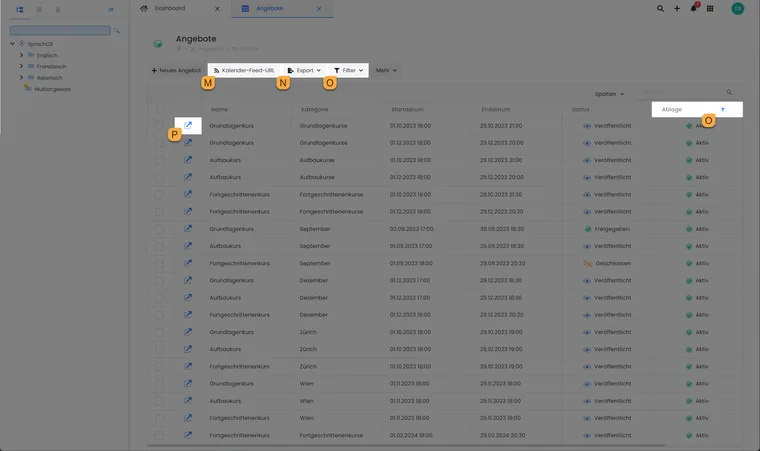
The marked table actions help with navigating, filtering, and reusing offer data.
- M
- Generate a calendar feed URL to subscribe to events in an external calendar.
- N
- Reuse the displayed table via the export menu.
- O
- Filter records; use the Storage column to include the archive and trash.
- P
- Open the linked offer in a work tab.
Further basics are found under Tables and export options, Table filters, Table tools, and Offer dashboard.
edoobox stores multiple user preferences per admin, not globally for the entire account. These include, depending on the work area, the last selected calendar view, table display, import mapping, offer tree sorting, or payment method for an account payment. Therefore, two admins in the same account can see different views without account data being changed.
Use cases
Application example: Resolve a support case without detours
A participant asks about their invoice. Support opens the global search, finds the profile, and opens the booking and invoice from there. The booking and invoice are opened in the appropriate work contexts via their links. This allows details to be checked without searching for the same person again.
Application example: Organize the offer tree for the new season
An offer manager first filters by the upcoming period. For the actual restructuring, they set the date filter to All and the sorting to Manual. Now they move categories and offers to the intended places and subsequently check the date view.
Application example: Work in the right account
An admin manages multiple organizations. Before a price change, they check the active account in the profile menu and the specific offer in the path navigation. Only then do they save the adjustment. This ensures you edit the offer of the intended account.
If a function is not visible
Missing menu items are often not a display error. Check admin rights, subscription, activated account functions, the status of the resource, and the open area. Therefore, always compare role, account, resource, and specific work step in a support case.
Find plugins and participant subscriptions
In the app menu, the area for Subscriptions and Passes appears when the plugin is active and you have the appropriate permissions. There, you manage the templates that you offer to participants. You can additionally find the assignments for an individual person in their user profile. The first steps are described in Participant Subscriptions.
The Plugin Manager bundles the available extensions and their activation in the account. Check the scope of functionality there, and then check the admin rights if an expected area is missing.