
Notes and TODOs
Notes are internal information that can be attached directly to resources. They are suitable for questions, special requirements, internal decisions or brief history entries about users, bookings, offers, categories or administrators.
TODOs are notes with a completion status. They keep outstanding points visible to the team without necessarily creating a separate task.
Distinguish notes, TODOs and tasks
A note records information in an internal context. A task schedules an action, such as sending an email later or carrying out recurring work. A TODO sits between them: it is a note with an outstanding completion status.
Use notes for history and context, TODOs for small operational points and tasks for scheduled, recurring or communication processes.
Notes view and tabs
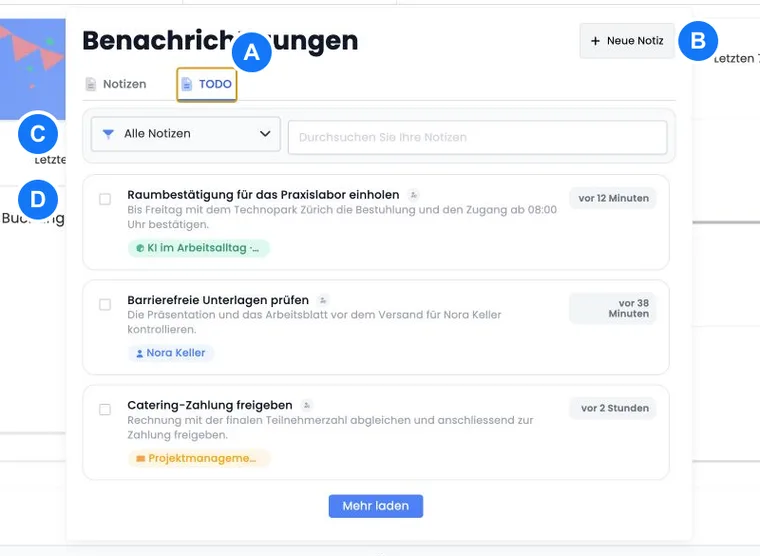
Open the central view using the bell icon in the top navigation. It has Notes and TODO tabs. Notes shows normal notes and system notices. TODO shows notes marked as TODOs.
The list loads the newest entries first and can be expanded. You can search by subject, message, ID, creation time or linked resources. This helps you find notices again even if they are attached in several places.
Example: use the TODO list as a work queue
Open the bell icon and switch to the TODO tab. It displays outstanding TODO notes sorted by creation time. When an item is complete, select its checkbox or open the note and save it as complete.
Understand the time display and date an event
The short notes list shows time relative to creation, such as a number of hours or days. This changes over time. It does not automatically indicate when a conversation or event described in the note occurred.
If your team needs to date an event precisely later, explicitly record its date and time in the subject or message. Add the relevant time zone when multiple time zones are involved. Distinguish the event time from a later addition: for example, write Callback on 17.10.2026, 09:15 – billing address clarified and add later outcomes with their own date.
Attach the note to the affected person and booking or invoice. The history remains findable even when the relative age display has changed. A manually entered date records your statement; it does not replace an immutable technical creation record.
Create and attach a note
Create notes from the plus menu, the bell view or directly from a details view. During creation, select what to attach the note to: administrator, user, booking, invoice, category or offer.
A note requires a subject. The message is optional but should clearly record the context. Choose short, searchable subjects such as ‘Callback about invoice’ or ‘Provide materials later’.
If you select no resource, edoobox attaches the note to the administrator currently signed in. If you create a note directly in a details view, edoobox uses that context. You can attach additional resources so the same note appears in several places.
Example: attach a customer note to a person and booking
Open the user profile and create a note. Also add the affected booking. The note then appears in both the user profile and booking details.
Create, complete and save a TODO
When creating a note, select the TODO marker if it should become an outstanding item. TODOs appear in a separate tab. Open an existing TODO note and use Complete & Save to record text changes and completion together.
After completion, the history remains traceable as a normal note. Before closing it, briefly add what was done so other administrators can understand the history later.
Example: record and complete a question as a TODO
Record a callback as a TODO
In the user profile, create a note with the subject ‘Callback about invoice’, mark it as a TODO and also attach the outstanding booking. After the callback, add the outcome and mark the TODO as complete.
Record an outstanding question
A participant reports an unclear billing address. The administration creates a TODO note in the user profile with the subject ‘Clarify billing address’ and attaches it to the person. After the callback, it adds the information, saves the new address and marks the TODO as complete.
System notes and warnings
edoobox can show system notices in the notes view. These include notices about account credit, the privacy agreement, two-factor authentication, no-reply email reputation or automatically disabled email providers.
These notices differ from manual notes. Clicking often takes you directly to the relevant settings page. Check system notices promptly as they can affect email delivery, security or account operation.
Manual administrator notes can be opened, edited and managed as TODOs. System notes can be viewed but cannot be edited like manual notes.
Resource badges, icons and navigation
Notes show attached resources as badges or brief labels. Different icons and colours may appear depending on the first resource, such as user, offer, booking, category or administrator.
Use these badges to switch quickly to the relevant context. If a note concerns several resources, such as a person and booking, attach both. The note can then be found in both places later.
For more on linked objects, see Resources and object links.
Notes in details views
Notes appear both centrally and in details views. They are particularly useful in the user profile, booking details, offer details and category details.
Use these links deliberately: attach an invoice note directly to the invoice and also to the booking or person, while a room occupancy note is more likely to belong to the offer or category. Existing notes may remain visible for traceability in deleted or archived contexts, while new notes may be restricted.
Good practice for internal notes
Write factually so other administrators can understand the note later.
Avoid sensitive data that should not be visible to all authorised administrators.
Use clear subjects to make searching reliable.
Attach the correct resource so the note appears where it is needed.
Complete TODOs as soon as the item is resolved.