
BitPay
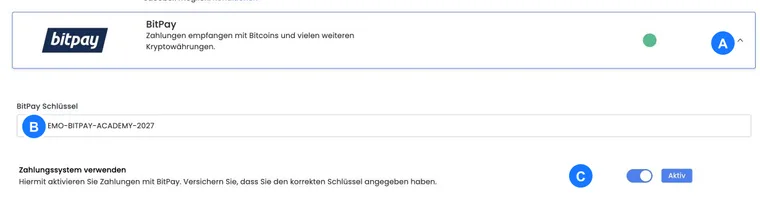

With BitPay, you can offer participants cryptocurrency payments, such as Bitcoin. Enable this method only if your organization deliberately intends to accept and account for cryptocurrency payments.
BitPay is an external payment platform. Connecting it to edoobox requires an active BitPay Business account and a token from the BitPay merchant area.
Prerequisites
An active BitPay Business account has been set up.
You can access the BitPay merchant area and create tokens there.
You have the necessary edoobox permissions for Settings > Payment systems.
Your organization has agreed how cryptocurrency payments, fees, payouts and refunds will be recorded in the accounts.
Create a token in BitPay
Sign in to the BitPay merchant area. Open API token management in the merchant dashboard and create a POS token intended for e-commerce. Labels in the provider portal may change; the official BitPay guide to API tokens describes the required token type.
Assign a clear label, for example edoobox. Leave additional authentication for this token disabled, as edoobox uses the key directly in the payment system settings.
Save and enable BitPay in edoobox
Copy the generated token. In edoobox, open Settings > Payment systems and select BitPay. Paste the token into the BitPay key field and save the setting.
Then enable the use of BitPay. Check that BitPay appears as a payment method during booking. Central payment method management is described under Payment systems for participant payments.
Test BitPay before going live
Complete a test booking before going live. Check that BitPay appears during booking, the redirect works, the booking receives the expected status after payment and the confirmation email is triggered correctly.
Also agree how your team handles abandoned payments, refunds and accounting evidence. Cryptocurrency payments may have special requirements depending on the provider, exchange rate and processing time.
Operation and security
Treat the BitPay token as an access credential. Do not share it by email and store it only in the designated field in edoobox. If a token may have been compromised, create a new token in the BitPay merchant area and replace it in edoobox.
If you no longer want to offer BitPay, disable the payment method in edoobox and then check the booking process. Existing bookings and payments should be finalized in the accounts before changing workflows.
Practical example: Enable BitPay for an international event
An event organizer wants to offer cryptocurrency payments to international participants. The team first sets up a BitPay Business account, creates a token labelled “edoobox”, stores it in the payment systems and then completes a test booking. BitPay is advertised in the public booking process only after a successful test.
Missing display or rejected activation
If BitPay is entirely absent from the payment systems, it may be disabled in the edoobox environment being used. If the section exists, the key field requires a value; when enabling it, the interface checks the required information. Wait for saving to finish and check the activation status again. A saved key alone does not confirm a successful payment.
Repayments are not among the directly supported Stripe/PayPal V2/Saferpay refunds. Resolve a BitPay case in the merchant account and reconcile the resulting movement of funds with the booking and invoice.