
Use tags with values
Tags with values describe offers more precisely than a simple tag. Kurssprache:Englisch, Niveau:B2, or Standort:Zürich create comparable attributes for filters, tables, detail pages, conditions, and templates.
The name identifies the property and the value its specific form. Consistent spelling is essential because name and value together form a unique tag.
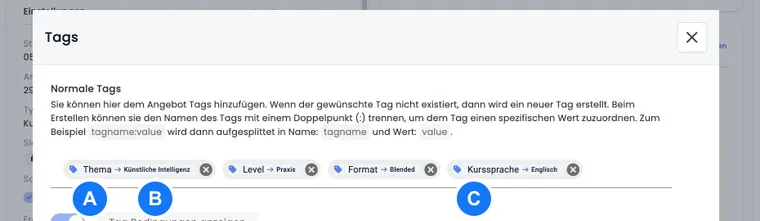
Syntax and input behavior
Enter a new tag as Tagname:Wert. edoobox splits at the first colon: for Format:Online:Live, the name is “Format” and the value is “Online:Live”. Without a colon, a tag without a value is created.
During selection, the V2 interface searches case-insensitively for an existing name/value combination. If it finds no exact combination, a new tag is created. Before confirming, check whether the spelling and value should actually be new.
Assign a tag value to an offer
Open the offer and its Tags area.
Select an existing combination or enter
Name:Wert.Assign the tag as a regular tag, positive condition, or negative condition.
Then check the public preview and all filters that use this tag.
The assignment type is independent of the value: Niveau:B2 can be a visible offer attribute or a positive prerequisite. Regular tags provide attributes; positive and negative assignments control conditions.
Values in positive and negative conditions
If you select a tag with a value for a condition, both name and value must match. The positive condition Zertifikat:gültig is therefore not satisfied by Zertifikat:abgelaufen.
A condition without a value checks only the name and accepts any value under that name. Use this deliberately: Zertifikat means “any Zertifikat tag”, while Zertifikat:gültig requires a specific state. For the other rules on effective person tags and offer dates, see Use tags as conditions.
Display values in the overview and offer details
In the Design Manager, offer widgets can output tag values as an additional table column or detail row. A clear label such as “Teaching language” is easier for participants to understand than the internal tag name.
For tables, plan only a few columns relevant to the booking decision. On small screens, language, level, or format should remain readable without displacing the offer name and booking action.
Build tag filters with values
The tag filter widget supports up to ten groups. Group related values together, for example “Language” with German, English, and French, or “Delivery” with In person, Online, and Hybrid.
A filter value is held internally as Tagname/Wert. Nevertheless, create public links through Preview/Share or widget configuration so spaces, accented characters, and special characters are encoded correctly. After renaming, check the widget, embedding, and saved direct links.
Use tag values in emails and PDFs
The placeholder ##Tag[Kurssprache]## outputs the values of the specified offer tag. If several values share the same name, they are output separated by commas. By contrast, ##OfferTags## and ##UserTags## are lists of tag names and are unsuitable for displaying an individual value. In the offer context, OfferTags also contains names of positive and negative tag conditions. The link placeholder ##OfferURLTagFilter##, however, uses only regular offer tags.
Test the placeholder in the exact email or PDF template used. Available data depends on the template context.
Quality checks when making changes
Check whether all offers in the same group use the intended tag name.
Search for existing values before creating new ones to avoid unintended variants.
Check the overview, detail page, filter, share link, conditions and templates.
Do not change a value to replace a historical status if old bookings still supply this tag as an effective person tag.
Use cases
Example: Compare and filter languages
Three course runs receive Kurssprache:Deutsch, Kurssprache:Englisch and Kurssprache:Französisch. The offer overview displays a ‘Language’ column, the tag filter groups the same values and the confirmation uses ##Tag[Kurssprache]##.
Example: Book only with a valid certificate
Depending on the check, people receive Zertifikat:gültig or Zertifikat:abgelaufen. The recertification offer explicitly requires exactly Zertifikat:gültig. A general condition without a value would be too imprecise here, because it would also accept ‘abgelaufen’.
Example: Location-specific message
Each offer receives a location value such as Standort:Bern. The booking confirmation says ‘Your venue: ##Tag[Standort]##’. This allows a shared template to be used while each offer supplies the correct location.
Check capitalisation in existing tags
The input selector searches existing name/value combinations without regard to case. However, the subsequent condition check compares the stored names and values exactly. For prerequisites, therefore, use the existing combination from the selector instead of creating parallel tags with similar spellings.
Example: A combination Niveau:B2 stored separately in the past is not automatically the same prerequisite as niveau:b2. Before making a correction, check the affected offers, person assignments, filters and conditions.