
Google Tag Manager / Google Analytics
Choose a tracking version
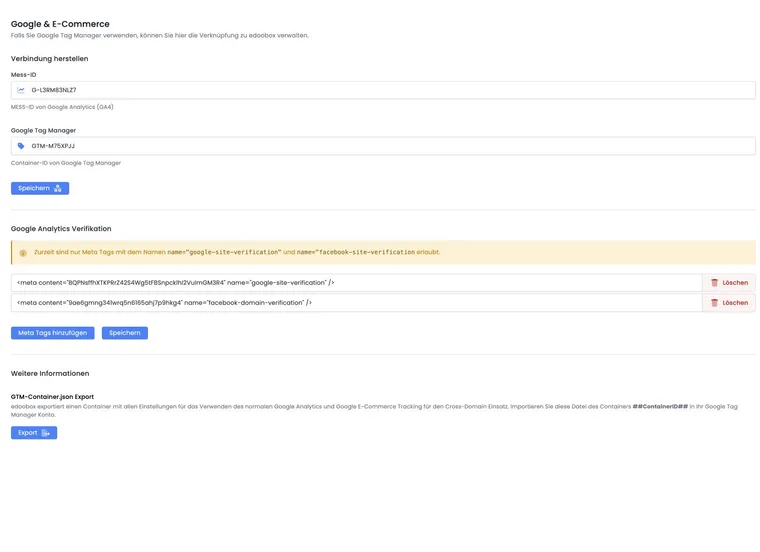
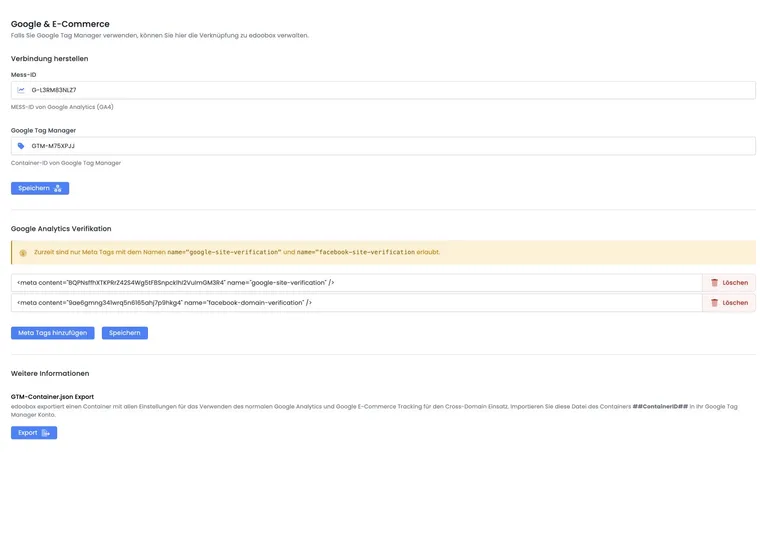
Under Settings → Google & E-Commerce, the existing Google integration and the new server-side Tracking V2 configuration are available. This guide describes the existing Google/GTM integration while Google V2 is not enabled for the account.
For the new integration, start with Set up Tracking V2. Separate pages explain Website, iFrame and consent and Events and troubleshooting. V2 supports separate destinations for Google Analytics, Microsoft Ads and ChatGPT / OpenAI Ads.
When migrating, previous edoobox purchase triggers for the same account must be disabled. The previous purchase events described below must not be sent as purchases in addition to the V2 server events.
Google Analytics 4 and Google Tag Manager let you analyse how visitors move from your website into the edoobox booking process and which bookings result.
Since tracking involves your website, edoobox integration, cookie banner, Google Analytics and Google Tag Manager working together, test the setup carefully and completely. Even small differences in the domain, measurement ID, container ID or consent rule can lead to incomplete data.
Understand e-commerce tracking and cross-domain tracking
When edoobox is embedded in your website, visitors often move between your domain and edoobox domains or subdomains. Cross-domain tracking ensures these transitions are not counted as new, independent visits.
The prepared Tag Manager setup is configured for these transitions. Edit imported tags, triggers and variables only if you know precisely how this affects cross-domain tracking, e-commerce events and consent.
Prerequisites
A Google Analytics 4 account with a web data stream for your website.
A Google Tag Manager account with a container for your website.
Access to the edoobox settings for Google Analytics and Google Tag Manager.
A clear decision about which domains host the booking process: your own website, an edoobox domain or a subdomain.
A cookie banner or consent approach if tracking may only start after consent.
Prepare the Google Analytics data stream
In Google Analytics, create or open your website's web data stream. For cross-domain tracking to work, enter the domains involved in the tag settings, for example your website domain and app2.edoobox.com, edoobox.com or your edoobox subdomain.
Then copy the data stream's measurement ID. It usually begins with G-.
Enter the Google Analytics measurement ID in edoobox
Enter the measurement ID in the Google or tracking settings in edoobox. Save the setting and check that the ID was applied correctly.
If you use a subdomain for edoobox, also check Subdomain and meta function so that tracking, previews and metadata align.
Create a Google Tag Manager account and container
Create an account and web container for your website in Google Tag Manager or use an existing container. Copy the container ID. It typically begins with GTM-.
Enter the Google Tag Manager container ID in edoobox
Enter the container ID in edoobox and save. If edoobox can export the prepared GTM container, then export the JSON file from edoobox.
Import the JSON file into Google Tag Manager
In Google Tag Manager, open Admin and import the JSON file exported from edoobox into the intended container. Select the appropriate account and container, review the proposed changes and confirm the import.
Then check the container as described in the next section. Publish only after a successful preview.
Check and publish the container
After importing the JSON, review the proposed tags, triggers and variables before publishing the container. Pay particular attention to whether the measurement ID, container ID, domains and consent rules match the website.
Publish the container only after testing in preview mode. Without publication, the changes remain a draft in Google Tag Manager and do not become active on the website.
Available edoobox events
edoobox can send e-commerce and booking process events to Google Analytics. Typical events include:
view_item_list: An offer or category overview is displayed. The list name corresponds to the category path.view_item: An offer detail page is opened.view_edoobox_*: Booking process steps, such as price categories, additional services, participant form, multi-offer, sessions or summary.purchase: A normal booking was completed.purchase_mustpay: A booking was completed with MustPay status.purchase_waitinglist: A booking was completed as a waiting-list registration.
In Google Tag Manager preview mode and Google Analytics DebugView, check whether the expected events arrive during a test booking.
Interpret booking process events more precisely
The edoobox events help trace the journey from a category to a booking. The distinction between views in the booking process and actual completion events is particularly important.
Event | Meaning |
|---|---|
| An offer or category overview was displayed. The list name typically corresponds to the category path. |
| An offer detail page was opened. |
| Visited steps such as price category, additional services, sessions, participant form, multi-offer and summary. These events do not yet represent booking completion. |
| Normal booking completed. |
| Booking has MustPay status. |
| Booking was completed on the waiting list. |
If a completion event is missing, first check consent, cross-domain settings, container publication and whether the test booking actually reached the confirmation page.
Account for cookie banners and consent
If tracking may only start after consent, connect the GTM trigger to your cookie banner. One possible pattern is a variable such as edCookieApproved, which is set to true only after consent. The existing edoobox event trigger then fires only when this variable is active.
The specific consent setup depends on your website and cookie banner. Agree it with your data protection lead or website agency and test both acceptance and rejection.
Important notes
Mention Google Tag Manager, Google Analytics and other integrated services in your privacy policy or legal notice if required for your website.
For security reasons, payment, login and forgotten-password pages are not tracked in the same way as normal offer pages.
Other services such as Google Ads, Facebook Pixel, LinkedIn Pixel or Bing Ads can be integrated through Tag Manager but must be checked separately.
If the embedded view remains stuck loading, first check the direct edoobox link, complete embed code and blocked scripts. Also check the tracking configuration; a loading notice alone does not prove a GTM error.
Testing and troubleshooting
Open the website with GTM preview mode and start a demonstration booking.
In Google Analytics DebugView, check whether page views and booking events appear.
Test consent acceptance and rejection in the cookie banner.
Check that your website domain and the edoobox domain are configured as participating domains in the data stream.
For a persistent loading indicator, compare the direct link with the embedded view and check browser errors and blocked scripts; then check the container and consent.
Debug checks after publication
After publishing the container, check a demonstration booking in GTM preview mode and GA4 DebugView. Check whether consent was accepted, domains are linked correctly and booking completion produces exactly the expected purchase event.
Use cases
Example: analyse a campaign through to booking
A course provider advertises a seminar. They check the journey from view_item_list through view_item and the form steps to purchase. Waiting lists and MustPay are analysed separately using purchase_waitinglist and purchase_mustpay.
Example: identify abandonment between additional services and the form
Many people reach view_edoobox_deliverables, but substantially fewer reach the participant form. The team then checks mandatory additional services, descriptions and pricing logic. A change is assessed only after repeating the consent and funnel tests.
Example: test consent and cross-domain tracking before going live
An organisation performs two test bookings: one with analytics consent accepted and one with it rejected. It checks the _gl handover between the website and booking domain, GTM preview mode and GA4 DebugView. Only the intended consent behaviour is approved.
Switch from the previous setup to Tracking V2 in a controlled way
Keep analytics funnels and actual business purchases in view as separate tasks. When switching to Google V2, server-side purchase delivery replaces the previous edoobox purchase tags for the same account. An additional browser purchase event for the same completion would report the conversion twice. The website container, consent and V2 helper must be prepared before switching; afterwards, check a new controlled booking.
Related guides
Official Google import help
For JSON imports in Tag Manager, select Admin → Import container, check the import type and read the changes preview. See Google: export and import containers. Fully overwriting replaces existing tags; therefore check the impact on other website measurements.