
Create a tile view for categories and subcategories
The illustrations show an earlier version of the interface. Use the steps in this guide for the available features and options.
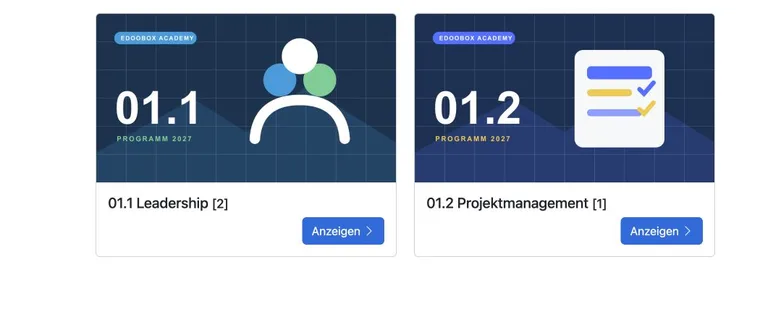
The Category tiles widget guides visitors visually through a nested offer structure. A main category can first show topics and a subcategory then levels or locations, for example. The actual offers become visible only at the appropriate level.
For subcategories, edoobox provides a deliberate choice: they can inherit the parent category's design or receive their own. This assignment depends on the global Design for subcategories setting.
Plan the category structure first
Create main categories and subcategories under Offers and categories. Use each level for a clear decision, for example:
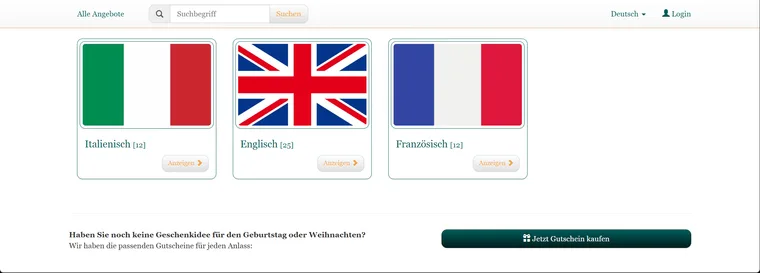
Example of the first level: language categories form the starting point. The selected category determines which subcategories appear next.
Level 1: language
Level 2: language level
Level 3: specific courses
Too many levels lengthen the journey to booking. A subcategory should form its own level only if it groups several meaningful offers or further subcategories.
Enable designs for subcategories
Open Settings → Offers → General.
Enable Design for subcategories. The feature is disabled by default.
Then open the required subcategory and go to its settings.
If the global feature is disabled, edoobox prevents editing a subcategory's design and displays a corresponding notice.
Configure category tiles in the design
In the Design Manager, edit the Offer overview template and add the Category tiles widget. The widget offers these settings:
“Normal view” width: Determines how many tiles fit beside each other on larger screens.
“Tablet view” width: Controls tile width for medium-sized views.
Button: Shows or hides the “Show” button.
Show empty: Determines whether categories without visible content also appear as tiles.
A category image is maintained separately in category settings. A design defines presentation; the category image provides the tile's specific visual content.
Assign or inherit a design
Open the main category's settings and choose the required tile design under Design.
Open the subcategory and edit its Design field too.
Choose either a specific design or Parent category design.
Repeat the assignment for other subcategories.
Inheritance is useful if all levels should look the same. A separate subcategory design is useful if the second level needs an offer list, calendar or another display instead of further categories.
Check navigation in the preview
Click through every main category and subcategory completely.
Check desktop, tablet and mobile views.
Check names, images, order and back navigation.
Disable Show empty unless empty categories are deliberately being announced.
Check that published offers are actually within the expected subcategory.
Example: consistent language-school navigation
A language school displays German, English and French as main tiles. The A1, A2 and B1 subcategories each inherit the parent category's design. Navigation therefore remains consistent at both levels and can be maintained centrally through one design.
Example: a separate display at the second level
A sports centre displays sports as tiles. After clicking “Swimming”, a compact offer list should appear directly instead of another wall of tiles. The subcategory therefore receives its own design with an offer list, while the main category uses the tile widget.
Example: prepare an upcoming category
A new “Summer holidays” category already exists but has no published offers yet. During preparation, “Show empty” remains off. The category appears automatically in public tile navigation only once the offers are visible.
Check the tile view in the main category actually embedded, a subcategory with further categories and a final level with offers. A subcategory's custom design may output different widgets, form fields and styles from the default design.
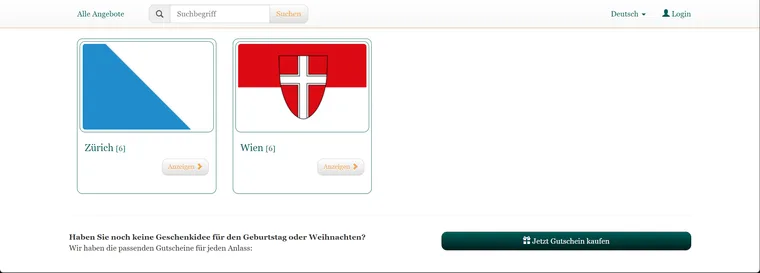
Example of the second level: after choosing a language, locations appear as subcategories. Another click leads to the intended offer display.
If a level contains only offers, an offer list, offer table, calendar or offer tile widget must display the results. Show empty applies to category tiles and does not make hidden or unbookable offers bookable.
An overview of all templates, including the new subscription pages, is in Templates and widget catalogue.
Correct inheritance and empty destination pages
The global Design for subcategories option is under Settings → Offers → General. Without enablement, subcategories can inherit the parent level's design. After a change, check the effective assignment along the category path; merely saving a layout in the Design Manager does not change the category tree.
A level consisting only of category tiles needs a different display at the end of the path: add an offer list, table or tiles there. Check the return route and direct links to intermediate levels. For empty results, check categories without visible offers and the option to display them anyway.