
Manage API keys and access rights
An API key gives an external application access to your edoobox account. Its capabilities match the assigned permission. Treat it with the same care as an admin login and create a separate key for each purpose.
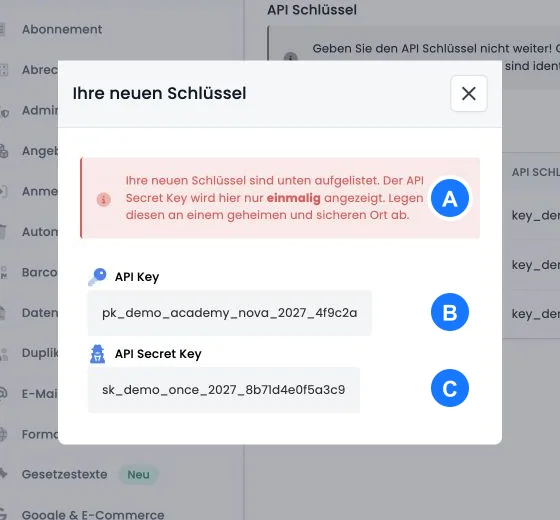
A new access consists of Public Key and Secret Key. The secret key is displayed only once after creation. Without a securely stored secret, the same access cannot be fully reconstructed later.
Define purpose and permission in advance
Document application, responsible person, environment and required actions before creation. A pure export does not need write permission; a WordPress integration or Zapier automation should receive its intended permission.
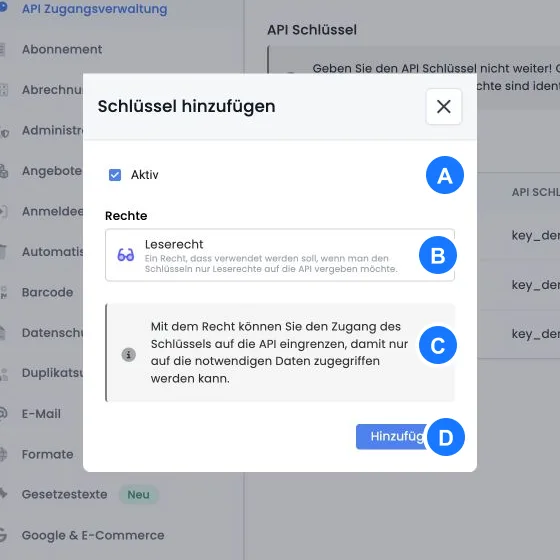
The V2 interface offers existing individual permissions and, if not yet set up, prepared options for Read permission, WordPress permission and Zapier permission. With such a selection, edoobox creates the appropriate permission and links it to the key.
Create key
Open Settings → API Access management as Superadmin and select Add key.
Decide whether the access should be Active immediately, and select exactly one permission.
Confirm with Add. Copy the public and secret key immediately to the intended secret or password manager.
Close the dialog only after the secure storage has been checked. Do not send the secret unencrypted via email or chat.
Check existing accesses
The API table allows you to copy the public key and switch an access to active or inactive. If the originally assigned right has been deleted, the table shows no more rights. This key is then not correctly ready for use; do not blindly assign a different right without checking the integration purpose.
Perform a review at least quarterly:
Is the application still in use, and is a responsible person known?
Does the right still match the actual data access?
Does the key belong to the correct environment, for example test or production?
Are there outdated, duplicate, or undocumented accesses?
Renew keys without unnecessary downtime
Create a new key with the same minimal right and securely store the new secret.
Store the public and secret key in the target system and test a read-only or non-critical request.
Monitor the production workflow. Only then deactivate the old key.
Update your internal documentation with the date and the responsible person.
Systematically isolate errors
| Symptom | Check |
|---|---|
| Authentication fails | Check the public and secret key, swapped values, whitespace, environment, and active status. |
| Access denied | Compare the assigned right with the required resource; note no more rights. |
| Reading works, writing does not | Read permission is deliberately limited. Create a narrowly scoped write permission only when it is actually needed. |
| Integration stops after a change | Check whether both new key values are stored in the target system and whether its processes have been reloaded. |
Use cases
Use case: Read-only reporting
An internal dashboard reads offers and bookings but does not modify any data. For this purpose, it receives its own active key with read access. The key is documented separately from WordPress and Zapier and can be deactivated independently.
Use case: Separate WordPress and Zapier
The website uses a key with WordPress permission, while an invoice automation uses a second key with Zapier permission. If the automation is discontinued, its key can be deactivated without interrupting the website integration.
Use case: Suspected exposed secret
A secret was accidentally visible in an internal note. The team immediately deactivates the affected access, creates a replacement key and stores it securely in the destination system. It then tests the connection and checks failed or pending processing steps before retrying them in a controlled way. The old secret is not reused.
Align the rights profile with operations
To create one, you need super admin rights and access to Settings → API Access Management. The dialog contains status and rights selection. A descriptive key name is not a separate input field there; therefore, record the purpose, responsibility, and environment in your internal access list based on the public key.
For existing keys, the overview shows the status, public key, and the linked rights profile. Use the link to the rights profile to check its content. If the scope or purpose is to be significantly changed, create a separate access with the intended right and carry out the transition in a controlled manner.