
Safely create a promotional campaign
A promotional campaign links one or more codes with a clear discount rule. To ensure a code is neither too broad nor valid for too long, define the target group, target offers, period, value, number of redemptions, and test cases in advance.
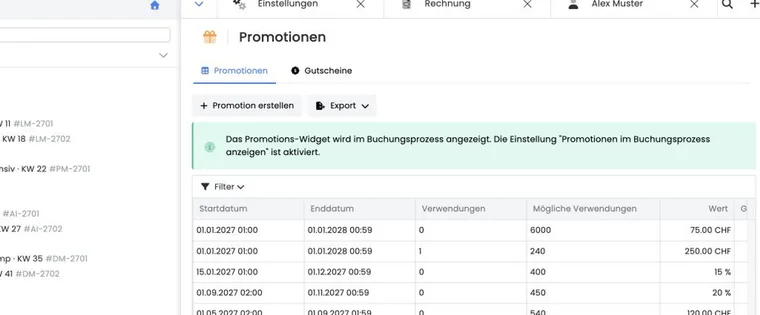
To create a promotion, you need admin permissions above read-only or instructor level. Open Promotions, select Create promotion and complete the four steps: General, Settlement, Value and validity and Codes.
Video tutorials
These videos complement this guide. The spoken language is indicated for each video.
Preview images are loaded directly from this website. Playing a video connects to YouTube, only for the video you select.
How voucher campaigns work in edoobox
Prepare a voucher campaign in four steps, including its period, scope, discount value, codes and redemption conditions.
The maximum redemptions per code and a personal restriction are different settings. The current guide explains this distinction and the remaining balance options.
Prepare before creating
Define the discount purpose and responsible person.
Determine the exact category or offers.
Choose a shared code or unique individual codes.
Calculate the maximum redemptions per code and total number of codes.
Define positive and negative test cases including invoice.
Additionally, ensure that Promotions in the booking process are enabled and the code field is present in the used Design.
Step 1: Name, period, and validity scope
The name serves internal administration. Use purpose, year, and channel, for example Summer Academy 2027 Partner. Start and end include date and time; outside this window, the code is rejected.
The validity scope is mandatory. You can select the account level, categories, or individual offers. A category acts hierarchically on its underlying offers. If the promotion is created directly from an offer, this offer is already pre-selected.
Step 2: Choose settlement
Settlement | Effect | Settings |
|---|---|---|
Reduction of offer price | Reduces the price categories of the offer; additional services remain outside this base. | Amount or percentage up to 100 percent and maximum redemptions per code. |
Settlement with booking total | Applies an amount as a partial payment toward the applicable booking total. | Amount only; intended for sold or external value codes. |
If you select percentage for a total settlement, edoobox corrects the settlement type to offer price. Check value, minimum booking value, and invoice output again after each change.
Set remaining value for settlement with booking total
For Settlement with booking total and a fixed amount, select under Remaining value of a promo code what happens with an unused amount: Remaining value expires, credit the full promo code value to the user account, or create a new promo code for the remaining value. This selection is not intended for pure offer price discounts and percentage discounts.
Example: A CHF 100 voucher code is used for a CHF 80 booking. Depending on the setting, the remaining CHF 20 expires, remains as a positive participant balance or is issued as a new code. In user account mode, the full code value is credited and the current booking is paid from that credit. The original code still follows its usage limit.
The complete setup, invoice check, and email check is explained in Vouchers: Remaining values and credits.
Step 3: Value and redemption conditions
Currency: must be present in the booking. It is locked in V2 editing after creation.
Minimum booking value: is checked on the base calculated for the settlement type.
Booking type: all, normal bookings only, request list only, or waitlist only including MustPay.
Allowed email or domain: compares the complete email address or the part after the @ with the email of the main participant.
Positive customer tags: all selected conditions must match.
Negative customer tags: a single match prevents redemption.
Invalid domain or email entries are removed when saving. Use only the domain name without protocol or path, for example beispiel.ch, and test the spelling with a realistic demo address.
Which tags count for redemption
Tag conditions require a logged-in participant. Simply entering a known email address is not sufficient. edoobox currently considers:
tags set directly on the participant profile,
tags from offers for which the profile has a booking outside the waiting list,
tags from the associated SAML configuration.
Multiple positive tags act as an AND condition. A value like Mitglied: aktiv must exactly match the condition. Offer tags remain valid in the current check even after the offer ends, as long as the underlying booking and tag assignment exist.
Step 4: Create or import codes
The code text is at most ten characters long when creating and may contain letters, digits, hyphens, and underscores. The generated codes themselves are at most 15 characters long and must be unique across the entire edoobox account.
Exactly one code: With a quantity of 1 and a filled-in code text, exactly this text is created as the code upon first creation, for example
SOMMER27.Multiple codes: The code text becomes the prefix; edoobox adds random characters up to a total length of 15 characters.
Without code text: edoobox generates completely random codes.
Quantity: A maximum of 500 codes are possible per generation.
Manual import: Starts the promotion initially without generated codes. Then import a CSV file with one code per line, check the preview, and select only the desired lines.
Code count and usage limit are separate: 50 generated codes with a limit of 1 allow at most one redemption per code. A single code with a limit of 50 can, however, be used a total of 50 times, even repeatedly by the same person. The setting in step Settlement is not a limit per person.
If each eligible person should benefit once, generate or import enough unique codes, set the limit per code to 1 and distribute one code to each person. Check recipient restrictions separately: codes can be shared, and a common domain or tag condition does not enforce one use per person. To restrict redemption to a specific email address, use an appropriately restricted campaign. For details and the distinction from a reusable monetary value, see Overall limit and once per person.
What edoobox checks during an online redemption
Code exists in the account and is active.
Current time is between start and end.
Maximum usages have not yet been reached, including pending code reservations.
Login and positive or negative tags match.
Booking type and email/domain rule match.
The offer is within the hierarchical validity scope.
Currency and minimum booking value match.
During a pending booking, edoobox reserves the code until the end of the booking timer, alternatively approximately ten minutes. This can cause a code to temporarily appear as already used, even though the other booking is not yet completed.
Test a promotion with a test matrix
Valid code in the correct offer and period.
Wrong offer, wrong currency, and too small a booking value.
Normal booking, waitlist and request list, according to the rule.
Allowed and not allowed domain.
Logged-in profile with positive tags, without required tag, and with blocking tag.
Booking total, invoice, Booking.pdf, confirmation and outbox.
Use cases
Application example: A shared 20 percent code
The campaign Summer 2027 Newsletter applies to the Summer Courses category, normal bookings, and a 20 percent offer price reduction. The code FRUEH20 may be used 100 times. Additional services remain un-reduced and are explicitly checked in the invoice test.
Application example: Alumni with tag value, but without block
Positive condition is Alumni: ja, negative condition Rabatt-Sperre. A former participant has the Alumni tag from a previous booking outside the waiting list and is logged in. A second profile with the Alumni tag and a block is rejected. This tests both the AND and the exclusion logic.
Application example: 250 partner codes with domain
A company receives 250 codes with prefix ACME-, each redeemable once, only for acme.example and normal bookings of CHF 200 or more. A test with a private email, waiting list, and CHF 199 must fail; the valid company case must correctly output the discount and invoice.
Combine promotions with memberships and passes
A promotion code and a membership or pass benefit are not simply added for the same person and price position. edoobox compares the applicable monetary benefits and uses the larger one. In case of equal positive benefit, the promotion wins. A limited pass usage can be preserved thereby, provided the pass is not simultaneously used as an access requirement.
Example: The offer costs CHF 100. A member price gives a CHF 20 benefit, while the promotion gives CHF 10. The applicable CHF 20 benefit is deducted, rather than a combined CHF 30. For group bookings, check each person; for additional services, check the calculation basis. Different currencies are not converted for this comparison.
A redemption code for a membership or pass may appear in the same input field, but is not a freely configurable voucher. The setup and usage is explained in Passes and redemption codes.
Check the conditions of a remaining value separately
Participant credit and a new code for the remaining value inherit the original code’s restrictions differently. Credit becomes a separate balance without the original offer restriction or expiry. A new code receives its own promotion with a minimum booking value of 0; customer tag conditions are not copied automatically. For restricted campaigns, check the restrictions actually created. For the complete process, see Vouchers: remaining values and credit.