
Template: Registration summary and payment
The illustrations show an earlier version of the interface. Use the steps in this guide for the available features and options.
The Registration: Summary / Complete template lets participants review their booking before the completion action. They check their details and confirm the required legal texts. Depending on the design and booking rules, the next step leads to direct completion, the shopping cart or payment.
The subsequent Payment page appears depending on offer, MustPay rule and global settings. For payable processes it appears after the summary; in other cases it is skipped.
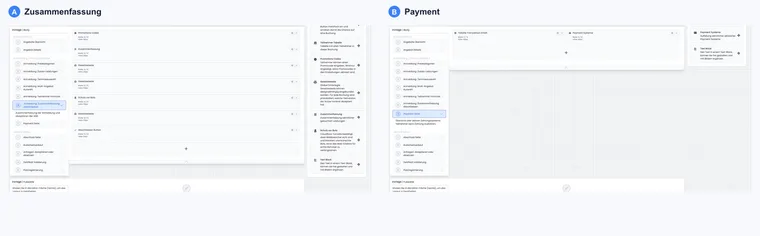
Purpose of the summary
The summary shows the booking’s key details before the booker clicks Complete. This allows participants to recheck names, prices, dates, additional services, additional questions and legal notices.
If mandatory fields are missing or incorrect, edoobox can return to the appropriate step so required information can be corrected.
Understand completion logic
The summary prepares the completion action. Depending on booking view, the process then completes directly or first opens the cart. If mandatory fields or validations are missing, edoobox returns the booker to the affected step. Therefore place the Complete button where it is logically reachable after review.
The participant table shows people in this booking. For normal bookings this is usually one person; for group bookings, several. Displayed core data is deliberately standardised and is not intended as a freely customisable report.
Summary widgets
Complete button: Starts the completion action configured in the design. Depending on the settings, it continues directly or opens the shopping cart first. The position can be set to the left or right according to the design.
Participant table: Shows recorded people. Several participants are visible for group bookings. Which data appears, such as first or last name, is largely predefined in the widget rather than freely configurable as columns.
Promotion codes: Allows entry of a voucher or promotion code if promotions are active in the account and design. The widget itself has few settings; substantive logic comes from promotion campaigns.
Legal texts: Includes globally maintained legal texts with intended confirmations. Use this widget for new designs.
Withdrawal information (older widget): May display legal withdrawal information in existing designs. Configure new confirmations in the Legal texts widget.
Privacy policy (older widget): May occur in existing designs. Configure new confirmations in the Legal texts widget.
Summary: Outputs booking data, prices and selected options. In the current widget, choose visible sections and their order, such as dates, prices, participants and total amount.
Bot protection: Supports protection against automated bookings, such as Cloudflare Turnstile.
Text block: Adds fixed notices, such as contact or payment information. Text and images should be maintained in every active system language and tested in the iframe.
Check promotions and legal widgets
Promotion codes work only if the global promotion feature is active, suitable campaigns exist and the widget is placed in the design. Details are provided under Promotion campaigns and vouchers.
Terms and conditions, withdrawal and privacy must substantively suit your organisation. Check this content under Legal texts and Legal settings. Legal widgets obtain their texts there; only limited substantive adjustments are possible within the widget itself.
In new designs, include terms and conditions, withdrawal information and privacy policy using one Legal texts widget each with the appropriate published text. Enable mandatory confirmation per widget if required for the intended process. Separate older widgets may still exist in established designs; the current insertion selection no longer offers them.
Maintain texts themselves in legal texts or global settings. Bot protection reduces automated form submissions and should be tested especially for heavily promoted public offers.
Configure selection, confirmation requirements and languages using Include and document legal texts in booking. For additional withdrawal confirmation when an offer starts soon, the cancellation condition group and its legal text must also align; follow Withdrawal for participants. Check a dynamically appended cancellation table and the published text version separately.
Payment page widgets
Transaction content table: Shows payable items and amounts.
Payment systems: Shows enabled payment methods such as credit card, PayPal, invoice or other providers. In Bootstrap 5.3, you can specifically choose and order payment systems visible in the design; older Bootstrap designs tend to show all payment methods enabled in the account.
Text block: Adds notices about payment, support, invoicing or security.
Which payment methods appear depends on active payment systems, offer rules and MustPay settings. For PayPal Checkout, whether PayPal may automatically show available payment methods or you restrict visible methods yourself can also matter.
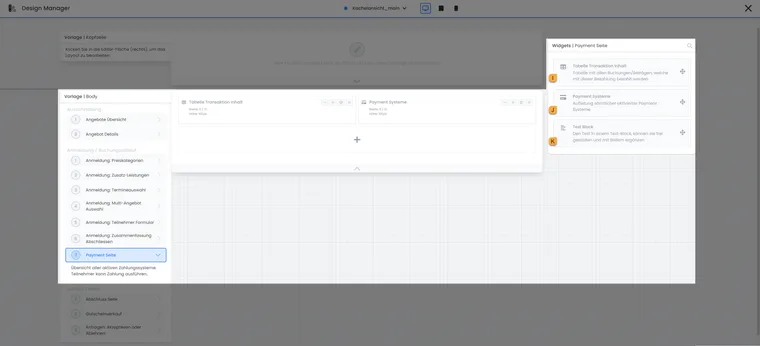
Example payment page: booking amount and payment methods are displayed by dedicated widgets. Substantive payment logic is defined in offer and registration settings.
- I
- Show booking items and payable amount
- J
- Offer connected payment methods
- K
- Output supplementary payment notices
The payment page automatically appears after the summary if the offer uses MustPay. Global registration settings can additionally specify that the payment page appears after every booking completion, even if an individual offer has not explicitly enabled MustPay.
Payment page in detail
The payment page shows payment options and transaction information when booking requires it. The Transaction content table widget explains which items are being paid for. The Payment systems widget shows payment methods enabled and available for this booking.
A text block on the payment page suits short notices about invoices, payment deadlines, MustPay or support contacts. Keep it concise so payment is not unnecessarily interrupted.
Select payment methods for an offer section
In Bootstrap 5.3, select and sort payment methods shown in the design within the Payment systems widget. Providers must additionally be active in the account and available for the specific payment process. A design selection neither connects a provider nor changes a MustPay rule.
- Under Settings → Payment systems, check the required active providers.
- Open the custom design actually used by the affected offers. If only one offer section should differ, check its design assignment or appropriate embedding link.
- Select the Payment page, open Payment systems and adjust selection and order. For a payable process, leave at least one actually permitted route available.
- Save the change and start a new booking through the real website or offer link. Also check the direct public offer link if used.
- Check offered payment routes, completion page, invoice, transactions and confirmation. Repeat with relevant currencies and MustPay settings.
Example: Invoice for a dedicated offer section
The account has invoicing and an online provider active. A dedicated offer section uses its own Bootstrap 5.3 design whose payment widget contains only invoicing. The team checks with a new demo booking whether invoice is selectable under applicable completion rules. Other offers retain their intended selection in the respective design used.
A copied design takes effect only through the assignment actually used or link opened. If an expected payment method is missing, therefore check account connection, design selection and specific booking rules together. For payment on site only, do not merely remove the widget.
MustPay, countdown and completion
With MustPay, payment must be completed before booking becomes definitive. A countdown can prevent places being blocked too long. Details are provided under MustPay and countdown.
Test the payment page with successful payment, aborted payment, invoice and a non-payable offer. Afterwards check the completion page, email and documents.
Example: Booking with a voucher and credit card
A customer checks participants on the summary, redeems a promotion code, accepts terms and conditions and privacy policy, and clicks Complete. The payment page then appears with the reduced amount and credit card payment. After successful payment, she reaches the completion page.
Practical check for summary and payment
The summary is the final review page before completion. Check price, participants, additional services, legal texts, vouchers and payment method there. On the payment page, also test how MustPay, countdown, invoicing, Stripe, PayPal or other payment methods behave in actual booking.
Example: Clearly distinguish invoice and card
An offer allows invoice and credit card. The summary shows total price and legal texts; only the payment page shows available payment methods. The test checks both routes through to the completion page and verifies that no payment method is merely visual.
Example: Promotion with mandatory confirmation
A promotion reduces the price only after a valid code. The summary shows old and new amounts and a mandatory legal text. An invalid code and an unconfirmed legal text are also tested before releasing the completion action.
Configure the current summary and subscription selection
Use the current Summary widget in new designs. It can show offer, dates, price categories, additional services, lessons, multi-offers, participants, promotions, VAT and total amount. Order, visibility of individual sections, empty states, image display and labels per language can be configured. As a right sticky sidebar, it can sit beside content from tablet width upwards; smartphone appearance and long texts must remain readable.
With the subscription plugin active and Bootstrap 5.3, Subscription selection is available in this template. Decide whether the person may change selection and whether validity and remaining uses are visible. Check the total after selecting a suitable subscription and entering a code. Applicable benefit and combination rules are explained under Book and use subscriptions.
For new legal text confirmations, use Legal texts. Older separate Terms and conditions, Withdrawal information and Privacy policy widgets may occur in existing designs but are no longer offered in the current insertion selection. Edit content under Legal texts and check the confirmation actually required before completion.
Purchasing a new subscription uses its own checkout template. Subscription selection in a course booking instead uses an existing subscription. For individual purchase and shared cart, check the different subscription legal texts and confirmation evidence.
Align button text, cart and payment
Open the Complete button. Choose automatic, booking, cart, payment or custom text per language as its label, and align button position. The label does not change the actual action. Offer shopping cart can show an additional cart button in the classic process; in the design booking view with memberships, the cart becomes the primary completion route.
List bookings have their own completion; the cart is not offered here as the primary action for waiting list and enquiry list entries. Read Shopping cart and completion action and check the process with paid, free and still-open MustPay bookings.
In the Payment systems widget, select and sort active payment methods. With PayPal, automatic funding source selection controls which individual options still appear. A visible payment method in the design replaces neither account setup nor eligibility for the current booking.