
Automatic profile recognition (Magic Login)
The illustrations show an earlier version of the interface. Use the steps in this guide for the available features and options.
Magic Login recognizes an already known participant during the booking and links the process with the existing profile. Displayed profile data can thus be transferred to the form without the person having to enter a password first.
The recognition is not based solely on a freely entered email address. edoobox first requires a successful email code validation and then searches in the current edoobox account for the combination of a confirmed, normalized email address and a matching first name.
When Magic Login is useful
Many people book repeatedly and should not have to re-enter existing profile data every time.
New bookings should land on the existing participant profile rather than on a duplicate as much as possible.
Access to the email inbox should be checked with a verification code before existing profile details are used.
Magic Login does not replace complete data maintenance or subsequent duplicate search. Different spellings of the first name, changed email addresses, or existing duplicates can prevent automatic assignment or lead to the last matching profile.
Prerequisites in the participant form
Open the template Participant Form in Design Manager.
Edit the form field that is linked to the participant data field Email.
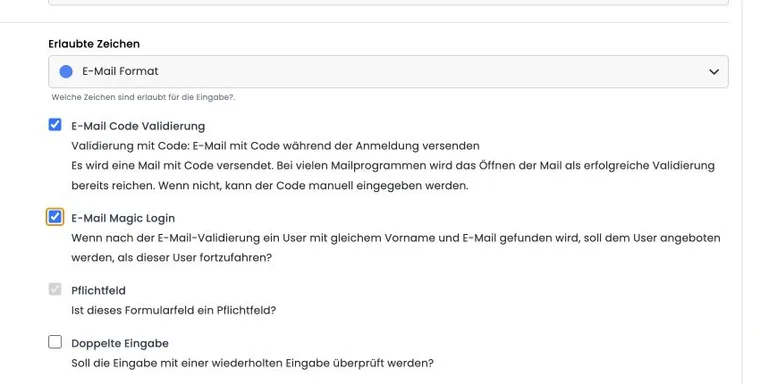
Select the email format for the allowed characters or validation.
Activate Email Code Validation.
Then activate Email Magic Login. Without code validation, this option remains locked.
Save the widget settings and, if necessary, the layout draft afterwards.
The first name must be available in the same booking form before detection. Without a confirmed e-mail, without a first name, or if the person is already logged in, edoobox does not start a new Magic Login search.
After verification, edoobox offers the matching person’s profile for use. The person making the booking confirms this action; simply entering a known email address is not sufficient. Matching takes place within the current edoobox account using the verified email address and existing first name. Email addresses are normalized during processing, for example by removing leading and trailing spaces and converting them to lowercase.
Check separately for a matching first name, a different first name at the same address, and a still unknown address. If multiple people share a mailbox, the first name of the intended person must not be replaced by a general company contact.
For a separate subscription purchase, the email field in the subscription checkout has its own login process. Its setup is described in Design subscriptions and the customer area.
Process for the booking person
The person enters their first name and e-mail address.
edoobox sends the intended confirmation code to this address.
After successful confirmation, edoobox searches the current account for a profile with the same e-mail and the same first name.
If a match is found, the booking process displays the intended profile identification.
After confirmation, the booking process is linked to the parent user account, and the profile fields visible in the form are imported.
The person checks the imported details and updates them if necessary before completion.
Only visible form fields are populated: Magic Login fills the fields intended for this form using the account or organization profile. Data fields that are not displayed are not suddenly added to the form.
“Continue as …”: Deliberately use an existing profile
“Email successfully verified!” initially confirms the address. If a matching profile is found, Continue as … also appears with the recognized person’s name. Only this action uses the existing profile in the current booking process. The code alone does not perform this step.
| Situation | Procedure | Check |
|---|---|---|
| The same person books another course. | The person checks the suggested name and selects Continue as …. | The new booking belongs to the existing profile; the address and other imported fields are correct. |
| An organization contact books for other people. | The contact may import their own profile. The actual participants are recorded in separate blocks of the Group registration. | The contact only participates if this is selected; each additional person has their own details. |
| Another person uses the same mailbox. | The person uses their own first name and does not select a suggested profile belonging to someone else. If another person is already logged in, reopen the appropriate booking process without that person’s login session. | The contact person and participation belong to the intended person; a shared mailbox is not treated as a shared identity. |
Do not simply change the name and date of birth to another person after a profile import. Use a separate participation or a separate booking process for that person. If a second profile remains despite confirmation, compare it in the Duplicate assistant before merging it.
Example: A contact person registers two employees again. They confirm their own recognized profile and remain the contact person without participation. The two employees are listed separately in the summary. This reuses the existing contact address without rewriting the contact profile into an employee's profile.
How the profile matching works
The matching uses the confirmed, normalized e-mail address and the first name entered in the form. It only searches within the current edoobox account. If there are multiple matching profiles, the most recently created matching entry is used.
Spelling matters: “Anna” and “Anne”, an additional first name, or a different e-mail address are not a reliable match. Explain to participants to write existing details as consistently as possible, and clean up known duplicates before large booking actions.
Data protection and security
Activate Magic Login only together with e-mail code validation.
Display only data in the form that is required for the specific booking.
Do not use particularly sensitive profile data as a convenient pre-fill field if it is not strictly necessary.
Test which data is visible before and after detection.
Check existing duplicates, because multiple identical profiles make assignment more difficult.
Test matrix before activation
known profile with exactly matching first name and e-mail;
known e-mail with a different first name;
new e-mail address without a profile;
wrong and correct e-mail code;
already logged-in person;
profile with incomplete or outdated data;
group registration with multiple people.
Use case: Recurring participant is recognized
Anna uses the same email address and first name as for her previous booking. After she enters the code, edoobox displays her matching profile. Anna checks the suggested name and selects “Continue as …”. Only then are the address and language copied into the visible fields. She checks the details and completes the new booking using her existing profile.
Use case: Changed first name prevents assignment
The profile says “Alexander”, but “Alex” is entered in the form. Despite the confirmed e-mail, no reliable match is created via e-mail plus first name. The administration does not blindly correct the profile, but compares the process later with the existing profiles.
Use case: Company booking with multiple people
The main contact is recognized via Magic Login. For additional employees, the respective personal fields are recorded separately. The team checks in the test that the main contact's profile data is not accidentally transferred to all group participants.
If no profile recognition appears
Check the e-mail field in the design actually used: E-mail code validation must be active before Magic Login can be enabled. The entered e-mail address and first name must match the existing profile in the relevant edoobox account. If there are multiple matches, the most recently created matching profile is used; clean up unwanted duplicates in the administration.
If Force login is active in the login widget, non-logged-in people are redirected to login before the participant form. They do not first reach the Magic Login fields. Therefore, check an entry with and without an existing login. After changing the e-mail address, the associated verification is required again.