
Legal texts in the booking process and supporting evidence
A published text is embedded in the course booking process using the Legal texts widget. This guide covers the correct design template, mandatory confirmation and version evidence in booking details. For subscriptions, also use the guide to subscription legal texts and confirmations.
Prepare the text and design
Create and publish the required text under Settings → Legal texts. Maintain names, content and confirmation labels for every booking language used. Integration requires editing permissions in the Design Manager; checking evidence requires access to booking details and text versions.
Identify the design actually used. An offer may use a separate design through its category; changing the account's default design does not then automatically affect every booking page. The basics are explained in Design Manager and Design the booking process with the Design Manager.
Set up the Legal texts widget
- Open the relevant design in the Design Manager.
- Select the Registration summary template.
- Add the Legal texts widget or open the existing widget.
- Under Linked legal text, select the prepared entry.
- Enable Must the legal text be accepted before the booking can be completed? if confirmation is required.
- Check the widget's visibility and device settings in the design used.
- Add further widgets for other required texts, for example separate terms and conditions and privacy information.
The checkbox label comes from the published language version of the text. It is not replaced by the widget title or a custom display name. Use one clear integration per text and avoid duplicate confirmations for the same entry.
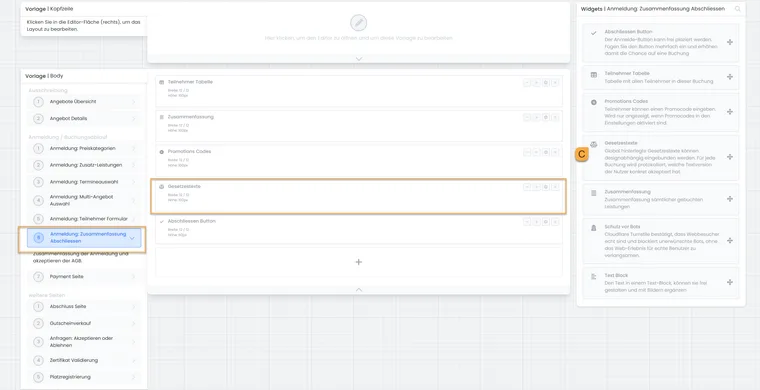
Embed the Legal texts widget in the template actually used for booking completion.
- C
- Legal texts widget for the booking summary.
Check the version and language on the public page
Open the offer's actual booking link and proceed to the summary. Check the text name, full content and the Version, Date and Language shown below the text.
In the course widget, edoobox looks for the highest published version in the current booking language. If none exists, the first configured account language may be used. An older published version in that language does not thereby become a translation into the missing language. Create and publish the correct language version if necessary.
Without a suitable published version, a notice appears stating that no legal text is linked or no published version exists. Check both the widget selection and the status of the required language.
Check mandatory and additional confirmations
In the intended test booking workflow, first try to complete the booking without ticking the mandatory field. The process must request the required confirmation. After explicit confirmation, the booking must reach the intended next step. A text integrated as optional must not create an additional completion requirement through its mandatory switch.
If a cancellation group is linked to the same legal text and requires an additional withdrawal confirmation, another mandatory field with its own label appears. Check both fields separately. General text confirmation does not replace this additional field.
For a group booking, the person making the booking confirms during the booking process. The entry in that booking does not document separate consent by each additionally registered person. Consider your organisational requirements together with the workflow actually chosen.
Save the text as a PDF
- In the public text, click PDF.
- In the browser's print dialog, select a printer or Save as PDF.
- Check the displayed text and version details before printing or saving.
The action creates the print view from the text currently displayed. The saved printout does not confirm a booking or consent. For the version reference saved for a completed booking, open the evidence in booking details.
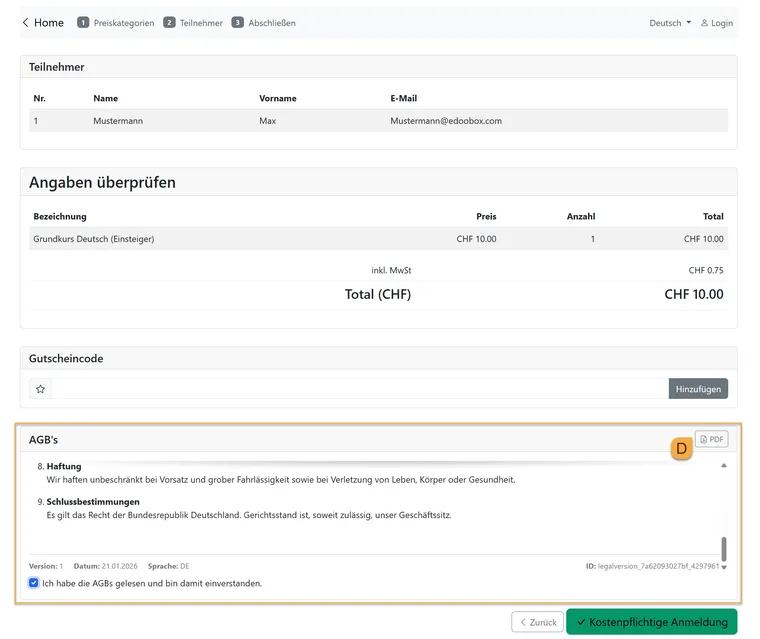
The public summary shows the text with its version, date, language and confirmation field. Check these details in the actual booking design.
- D
- PDF action for the displayed legal text.
Open the saved version in booking details
- Open the completed booking in booking details.
- In the summary, go to Information → Legal texts.
- For each entry, check Accepted or Not accepted and the mandatory-field marker.
- Open an accepted entry and compare the version number, language and content with the expected version.
- Open an older booking if needed: after a version change, its saved text must still show the earlier version.
The Published or Archived status describes the text version relative to newer versions in the same language. It does not describe the booking as active or cancelled. An optional, unconfirmed text may appear without an assigned accepted version.
Interpret the evidence details correctly
| Entry | What it describes |
|---|---|
| Version number and language | The assigned published text version. |
| Date beside the version | The publication date of that text version; not a separate consent timestamp. |
| Finalised by | The administrator who published the version, not the person making the booking. |
| Accepted and mandatory field | The saved confirmation state and requirement in the booking process. |
| No texts from the new generation | This booking contains no corresponding entries. This is not evidence about every earlier or external workflow. |
This list shows neither a separate consent timestamp nor an IP address for the individual confirmation. Existing older bookings and bookings created through other workflows do not receive retroactive confirmation from a new widget or text version.
Also check cancellation rules and subscription evidence
The cancellation table attached to a legal text comes from the group assigned to the offer. The finalised text version alone does not automatically contain the rules valid at that time. For cancellation questions, also check the booking's saved cancellation terms and their history.
Direct sales of participant subscriptions, the shared shopping cart, administrative assignments and renewals use different confirmation and storage workflows. Use Legal texts and confirmations for subscriptions.
Migrate older designs to the new text management
- Compare the previously displayed terms and conditions, privacy and withdrawal texts with the entries under Settings → Legal texts.
- Check any existing imported texts and language versions. Create or correct missing content using Publish a new version.
- In the design actually used, add the new Legal texts widgets with the appropriate selection and mandatory status.
- Check the display and completion in all languages, designs and devices used.
- Remove duplicate old integrations only once the new workflow is correct, then check the summary again.
- Check the new version reference in booking details. Retain any required previous documents and texts.
The presence of imported texts does not automatically migrate every existing design. Changing a version does not fill missing entries in older bookings either.
If the display or evidence is missing
| Problem | Check |
|---|---|
| No text visible in the booking | The actual design, appropriate template, widget visibility, linked text and published language version. |
| Text present, but completion possible without the checkbox | The mandatory switch for that specific widget and the actual booking workflow. |
| An older booking shows the previous version after the change | This is a historical version reference. For new workflows, reopen the public page and check a new booking. |
| Version list empty in booking details | Whether the booking actually went through the new widget workflow; do not assume retroactive consent for old or administrative workflows. |
| Entry present, but content cannot be opened | Check read permissions for settings, loading errors and whether the legal text used is retained; do not delete a required text. |
Related guides
The relationship with cancellation rules, withdrawal, refunds and data protection is explained in Legal texts, cancellation and evidence.