
Set up attendance status and calculate attendance
Attendance statuses turn presence at each appointment into meaningful values. They control what is visible in the attendance list, how edoobox calculates attendance in percentages and hours, and which values later appear in an attendance confirmation or certificate.
Configure the statuses before recording attendance for live offers. A later change to a percentage value also affects newly generated analyses of statuses already recorded.
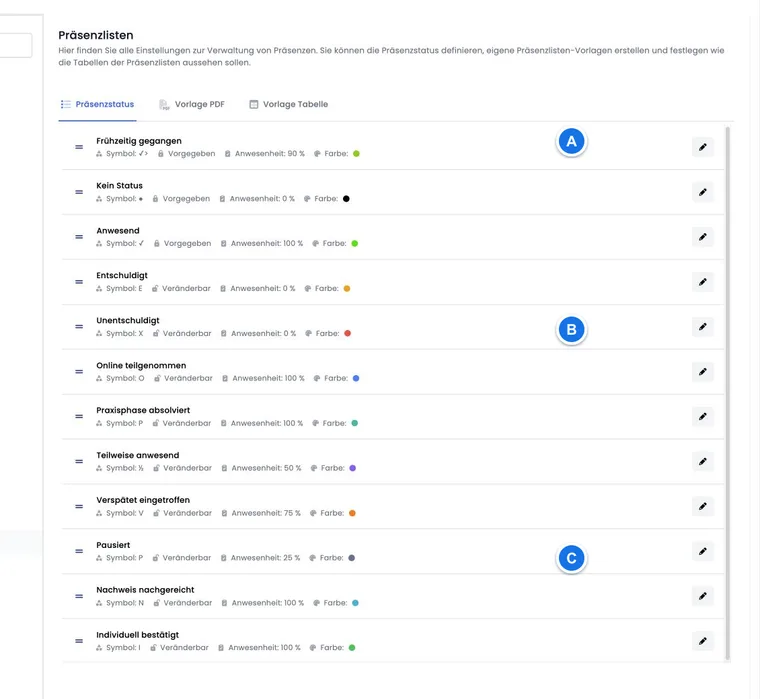
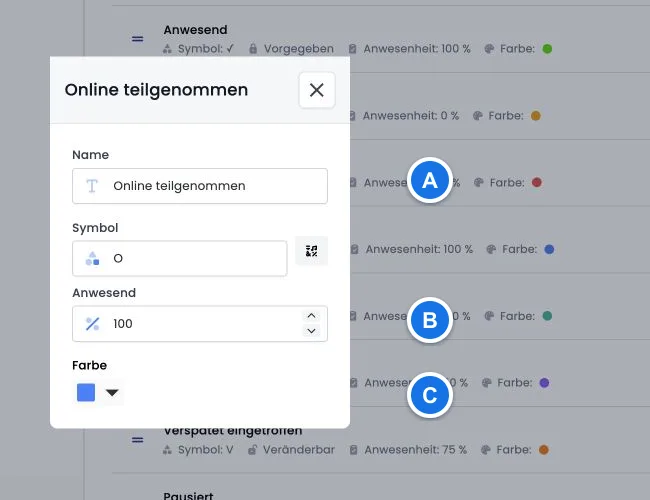
Open and categorise attendance statuses
Open the global settings.
Select Attendance lists and then the Attendance statuses tab.
Check the name, icon, percentage and colour of the statuses used.
If necessary, drag editable entries into a clearer order.
The first three status IDs, No status, Present and Left early, are protected. Their names, icons, percentages and colours cannot be changed in the current interface. Further statuses such as Excused, Unexcused or custom entries are editable.
Order and status ID are different: moving a status only changes its visible order. Its technical number and therefore a placeholder such as ##VisitingTimesNumber3## stay the same.
Set meaningful percentages
The percentage describes how strongly a status counts towards attendance. Typical rules are 100 percent for full attendance, a reduced value for leaving early, and 0 percent for an excused or unexcused absence. Values from 0 to 100 are permitted.
Only use custom statuses if they can be assigned unambiguously in everyday work. A status such as “Partially present” without a clear internal rule leads different instructors to produce inconsistent certificates.
Changes can alter historical results: an attendance entry saves the selected status. If its percentage is changed later, a confirmation or analysis generated afterwards uses the current percentage. Document significant changes and test them with a demo offer first.
Distinguish percentages from hours attended
edoobox calculates two different values:
Attendance percentage: each appointment contributes the percentage of its assigned status. The total is divided by the number of all offer appointments. An appointment without a recorded status contributes 0 percent.
Time attended: each appointment’s duration is multiplied by the percentage of its status. This value is therefore weighted by appointment duration.
A two-hour and a one-hour appointment count as two equally weighted appointments in the percentage display. For hours attended, the two-hour appointment counts twice as much. Even with free appointment selection, the percentage calculation remains based on all offer appointments. Someone who books and fully attends three out of ten appointments reaches 30 percent. Align thresholds and certificate wording with this model.
Distinguish exemptions, absences and booked lessons
An attendance status describes the recorded attendance value for an appointment. A status named “Exempt” does not automatically remove the appointment from the booking scope or the certificate’s calculation basis.
- First check the specific booking: does the lesson belong to this attendance, or was it never booked under free appointment selection?
- If the person is booked for the lesson, record the appropriate status in the attendance table. Use a suitable status already defined, or deliberately edit an existing editable entry under Settings → Attendance lists → Attendance statuses.
- Check its percentage and meaning. A value of 0 does not count as attendance; a value of 100 counts as full attendance for both the percentage and time attended. Do not choose a value merely to reach a certificate threshold.
- Calculate the record using all offer appointments and check the confirmation and certificate thresholds. This status configuration does not remove an unbooked lesson from the denominator of the offer percentage either.
Example: a person attends four out of five appointments and is excused from the fifth. Four entries of 100 percent and one of 0 give an offer percentage of 80 percent. The label “Exempt” alone does not change this to 100 percent. If completion should substantively be based only on an individually defined subset, establish a suitable offer and certification process; attendance statuses do not provide for automatically excluding individual exempt appointments from this percentage.
Do not change a global status value for a single exception. The new value also applies to later analyses of other attendances with the same status. A printout for an unbooked lesson still uses the IsBooked distinction, as explained under Table template.
Placeholders for confirmation and certificate
| Placeholder | Output |
|---|---|
##VisitingTimesPercent## | Overall attendance as a percentage. |
##VisitingTimesHourMinute## | Weighted time attended in decimal hours, despite the name “HourMinute”. |
##OfferTotalTime## | Total offer duration in decimal hours. |
##DateNow## | Current date when the document or email is generated. |
##VisitingTimesNumber0## to ##VisitingTimesNumber7## | Unweighted duration assigned to the respective status ID, in decimal hours. |
The number in VisitingTimesNumber is the fixed status ID, not its position in the sorted list. A value of 1.5 means 1 hour and 30 minutes. These templates have no corresponding predefined VisitingTimesNumber placeholder for status IDs above 7.
Use placeholders through the selection menu of the relevant email template or PDF template. All placeholders for emails and PDFs provides a complete overview.
Quality check before use
In a demo offer, record a status for every appointment.
Manually verify the expected percentages and hours once.
Generate an attendance confirmation and certificate as a test.
In particular, check decimal hours, status numbers and thresholds.
Inform instructors of the shared meaning of each status.
Example: Confirmation from 80 percent attendance
A course has five equally weighted appointments. “Present” counts as 100 percent and “Excused” as 0 percent. A person attends four appointments and is excused from one: 400 divided by 5 gives 80 percent. They therefore reach a confirmation threshold set to 80 percent.
Example: Percentage and hours provide different perspectives
An offer contains a two-hour appointment and a one-hour appointment. The person attends the two-hour appointment and is absent from the one-hour appointment. Attendance is 50 percent of appointments, but weighted time attended is 2 out of a total of 3 hours. The certificate therefore labels both values clearly.
Example: A custom “Completed online later” status
A provider opens an existing editable status and names it “Completed online later” with 100 percent. Editing saves the existing entry; there is no additional action here for freely creating further statuses. The team checks the fixed status ID and only uses a VisitingTimesNumber placeholder for predefined IDs from 0 to 7. ##VisitingTimesPercent## and ##VisitingTimesHourMinute## remain the appropriate values for the overall analysis.