
Getting started
A good start with edoobox does not mean setting up every feature immediately. First build a complete, small workflow: admin access, organisation, one offer, one test booking, one email and, if needed, an invoice or payment.
Only apply the pattern to other offers once this journey from the public offer page to the participant profile works correctly. This helps you identify language, price, legal text, email or visibility errors early.
Make a few decisions before setting up
Who is responsible for the account, offers, emails and payments?
Which default language, currency and time zone apply?
Which legal texts and payment methods are actually needed for the first workflow?
Which neutral email address and person will you use for test bookings?
If several employees are involved, create personal admin accounts with suitable permissions. A shared admin account makes later checks more difficult.
1. Check the account, organisation and access
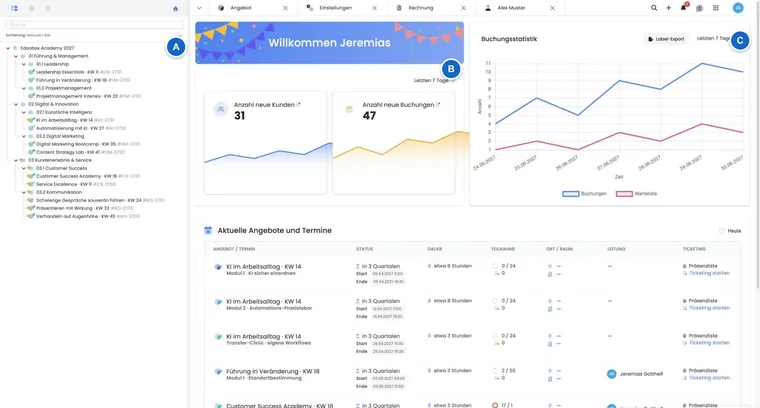
Find your way around using the user interface overview.
Check the organisation, billing address, language, formats and time zone under Set up my new edoobox account.
Set up admins and user permissions if required.
Check the sender and delivery in the email system.
Save the required legal texts and configure only the intended payment systems.
2. Build a manageable offer workflow
Create a category and an initial offer within it. Add the name, description, at least one date, venue, price and intended status. Create a new offer in 7 steps guides you through the sequence.
Deliberately keep the offer from general publication while setting it up. Use Preview / Share to open the public process in a controlled way. Check the status, registration deadline, capacity, waiting list, prices and language in particular.
3. Test the entire booking journey
Open the preview in a private browser window so that your admin session does not affect the customer test.
Make a booking with clearly identifiable test data.
Check the form fields, price calculation, additional questions, legal texts and completion page.
Check the confirmation in the outbox, along with the recipient, links and attachments.
Then open the participant profile, booking, invoice and transactions. The status must match the chosen test workflow.
Cancel or clean up the test booking according to your internal policy so that reports are not distorted.
For a real online payment, use only a controlled amount and clarify beforehand how refunds and provider fees will be handled. A test booking without checking the flow of funds is incomplete for a payment process.
4. Approve before publication
The offer has the correct status and the intended booking link works.
Desktop and mobile views display text, images and the form without overlapping.
All active languages contain the offer text, additional text and email content.
The price, VAT, payment method, invoice and cancellation terms together produce the intended workflow.
The confirmation email, sender, links, PDF and ICS attachments have been checked with an actual test booking.
The team knows where to check new bookings, waiting lists, failed emails and outstanding payments.
Example: in-person seminar with an invoice
A training provider first creates the location, seminar, date and an invoice price. A test participant then books in a private window. The administrator checks the confirmation, participant profile, invoice and outstanding balance before publishing the public link on the website.
Example: webinar with an access link
For a webinar, the Teams link is maintained as additional offer text and used in the confirmation and reminder email. The test also covers the time zone, ICS attachment and the case where someone initially joins the waiting list.
Example: a team with separate roles
The course organiser gives course support permissions for offers and bookings, and accounting permissions for invoices and payments. Both test their part of the workflow using personal admin accounts; only then is the offer approved.
Set up advanced workflows after the first test offer
Extend the verified booking workflow to suit your organisation:
- Plugin Manager: check available extensions and terms.
- Participant subscriptions: set up plans and passes and test membership prices both with and without eligibility.
- Passkeys and two-factor authentication: secure personal admin accounts.
- Automations: first check the event, conditions and actions using test data.
- Export Manager: prepare recurring reports as a custom CSV definition.
Check account enablement and the required plugin before configuring the detailed feature. Renewing a plan, renewing a plugin and paying for your edoobox account are separate workflows.