
Schedule tasks and emails reliably
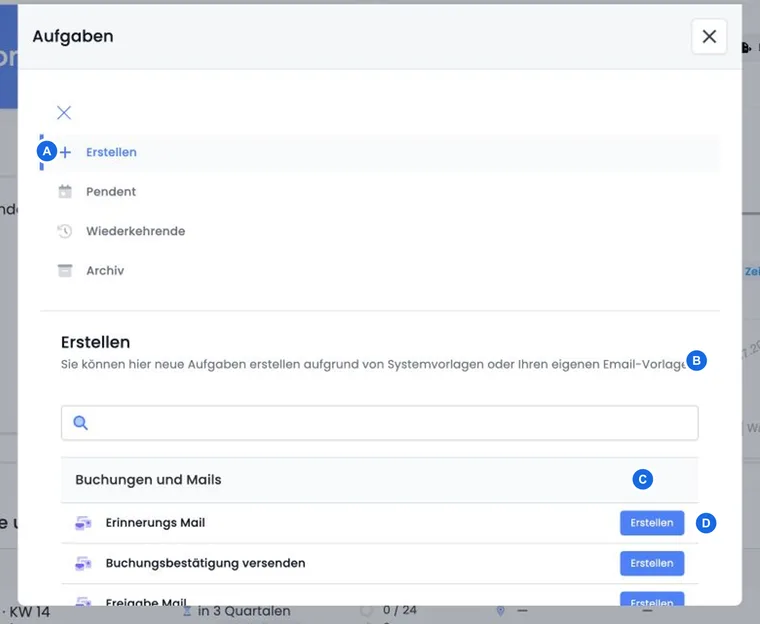
With tasks, you can have edoobox perform an action for an offer at a specified time. This includes emails, financial actions, and file tasks. The benefit is that recurring manual work can be planned while still allowing you to check recipients, template, and time before sending.
A task is always linked to exactly one offer. It is addressed either to a fixed selection of participants or to all matching bookings of the offer. Which persons are actually processed also depends on the selected task type.
Which tasks are available
Group | Tasks in edoobox V2 | Typical purpose |
|---|---|---|
Bookings and emails | Reminder email, booking confirmation, release email, cancellation email, attendance confirmation | Inform participants before or after the event. |
Financial tasks and emails | Payment reminder, invoice email, create invoice | Process outstanding amounts or invoice processes. |
Files and tasks | Create certificate collection file | Generate documents for multiple persons in the background. |
Custom templates | Account-specific templates of type email | Send individual information or follow-ups. |
The displayed selection depends on the available system and custom email templates. If a custom template is missing, check its type and account assignment under Edit email templates.
Distinguish between create invoice, invoice email, and reminder
| Task type | Actual action | Post-check |
|---|---|---|
| Create invoice | Creates matching invoices for transactions in the offer that are still billable. This task type does not send an invoice email by itself. | Check the newly created documents, line items, amount, recipient, and due date in the invoice. |
| Invoice email | Searches for existing open invoices in the selected offer and person context and passes them to the email dispatch. It does not replace the prior creation of missing invoices. | Check the correct document and actual recipients with attachments in the outbox. Already paid or canceled documents are not the open target set of this task. |
| Payment reminder | Uses the payment reminder process for the selected persons or the offer. | First assign bank deposits and check outstanding amounts; afterwards, check the generated message. |
A task name such as “Send invoices” does not change the selected task type. An explanatory text in a note is also not proof of dispatch.
Example: Check documents before dispatch
The team first plans Create invoice for a fixed demo selection. After processing, it opens the new documents and checks the invoice recipient and due date. Only then does it plan Invoice email or send the individual document manually. It does not set the two tasks to the same time because the second one requires existing invoices.
For a booking confirmation, an invoice dispatch may already be part of the normal completion. Check existing messages before you additionally execute an invoice email task. Further steps: Edit invoices and Distinguish between templates for invoice and payment reminder.
Create task
Open the offer or select the desired persons in a participant view.
Open the task manager and select Create.
Find the appropriate task type and open Create.
Assign a clear name, select the task and offer, and set the execution time.
Check whether a fixed selection or all participants should be used.
Save and then check the entry under Pending.
Distinguish between fixed selection and all participants
Fixed selection: The selected persons are saved when creating. Later bookings are not automatically added.
All participants: edoobox determines the bookings matching the task type at execution. Bookings that are newly added before the scheduled time may already be included.
No person selected: The task is automatically set to all.
Choose a realistic execution time
The time must be in the future. If a time that is too close is saved, edoobox sets it server-side to at least approximately three minutes after creation. Processing occurs periodically and not to the second. Therefore, plan time-critical information with a buffer.
Use the time zone from the Format and time settings. If the account time zone is changed, already planned tasks should be checked again.
Organize an internal offer review with lead time
For an internal review four weeks before the start of the offer or at the registration deadline, you need a responsible person, a specific review date, and a visible to-do list. A participant email task is not automatically the appropriate action for this: Its dialog selects offer, template, fixed execution time, and participants. It does not let you choose an arbitrary internal email recipient or schedule a general TODO notification for later.
- Read the start of the offer or registration deadline from the offer and calculate the desired review date, for example Start minus 28 days. Note a specific calendar date including time zone.
- Record an internal TODO in the offer with the review points, the responsible person, and this date, for example “Check execution, minimum number, room, and communication”. Link supplementary working documents. Do not rely on identical rich text rendering in every system when passing on the text.
- Use your internal calendar or work plan to ensure the follow-up happens on time. A date written in a note does not itself trigger a later notification. The TODO may already be visible immediately after creation.
- If participants need a message after the internal decision, create a separate task for this with the appropriate template, the correct offer, and a controlled recipient selection.
- If the start or registration deadline changes, calculate and correct the review date as well as separately planned email tasks. An absolute task time does not become a moving rule “28 days before”.
The classic task manager stores an absolute time. The option for later new bookings reacts to bookings; it does not plan a monthly internal approval review. Use a more extensive automation only if its actual trigger, date reference, and internal action are available and checked in the chosen procedure.
Send a custom template to later new bookings
The toggle Send this template to new bookings of participants after the execution time? is only available for a custom email template and the selection all. System emails, financial tasks, and file tasks cannot be made recurring in this way.
At the first point in time, the task is executed normally. After that, each new booking in the same offer creates its own follow-up task for that person. The first recurring template is scheduled approximately 15 minutes after the booking; multiple recurring templates are staggered in further 15-minute increments.
The recurrence option cannot be toggled retroactively in the current editing dialog. If the purpose changes, delete the rule and consciously create a new one.
Track the expiration of a personal certificate
An externally obtained certificate belongs to the relevant person. Upload the file via the upload on the participant profile and maintain the designation and validity date in the corresponding custom participant fields. A generated edoobox certificate and an uploaded external file have different workflows.
- For multiple certificates, clearly assign the file and its respective expiration date. After saving, verify the correct person and the correct document; a general profile field does not automatically serve as a register for any number of certificates.
- Decide how far in advance renewal is required and who is responsible for checking it. Calculate a specific reminder date from this and schedule the follow-up in your calendar or in your internal work planning.
- If a targeted participant email task is suitable, explicitly select the person and the relevant offer, use a custom template, and enter the calculated time. Without a corresponding offer and participant reference, the classic task manager is not a general personal deadline calendar.
- If the certificate is renewed, update the file and date, check existing pending items, and correct or delete the old reminder. Check executed messages in the outbox.
Saving a file or a custom expiration date field does not create an automatic recertification rule in this way. A recurring email task reacts to new bookings after its first execution; it does not monitor arbitrary participant date fields. For many certificates with individual deadlines, use a process set up for this purpose or a verified integration with clear document and person assignment.
Use Pending, Recurring, and Archive correctly
Pending: Tasks that have not yet been executed and are not recurring. A click opens the dialog for moving or deleting.
Recurring: Rules that process new bookings after the first execution.
Archive: Executed tasks. The entry documents the execution; check the individual emails in the outbox.
When deleting, the task is not executed. edoobox marks it as deleted and adds the process to the associated note. Emails already generated are not recalled from the outbox by this.
For an accidentally scheduled task, distinguish between a task still pending, a message already generated and an email already sent. The checking and correction procedure for accidental sending explains the limits of recall. For feedback after attendance, use a checked external form link; a custom email task does not create a new feedback form.
Test a new task with internal demo recipients
- Use a custom test offer that contains no real customer bookings, and only demo profiles with internally controlled email addresses. Normal bookings can already trigger confirmations; therefore, check this booking process in advance as well.
- Check the specific system or custom email template in each language used. The editor preview does not replace a test with the actual offer, booking, or invoice context.
- Explicitly select the demo persons. Check that the task does not accidentally use all participants and that custom templates do not use recurrence for later bookings.
- Check the task type, test offer, execution time, and selection in Pending. Compare already scheduled tasks for the same purpose before planning a second sending.
- After execution, check the archive and outbox as well as the content, links, and attachments of the internally received message. For financial tasks, additionally check the generated invoice or the open amount.
- Only after these checks, create the task for the intended live audience and check its pending entry again.
This is a controlled workflow with demo data, not a guaranteed sandbox mode. Deleting a still scheduled task does not stop already generated emails. Check account-wide event-driven rules additionally in the automation rules.
Check sending and result afterwards
Check after the time whether the task appears in the archive or is still pending in a background process.
Open the outbox and check recipients, subject, attachments, and error status.
For invoices or payment reminders, additionally check the booking balance and invoice.
For certificates and attendance confirmations, check the attendance status, generated file, and recipient.
Persons without a valid email address may be skipped in email tasks. A successfully executed task therefore does not automatically prove that every intended person received a message.
Use cases
Application example: Documents in the morning after the workshop
For a completed offer, a custom follow-up template is scheduled for 08:00 on the following day. The all option is used so that bookings from the last day of the course are also included. In the morning, the administration checks the archive and outbox and personally corrects two invalid email addresses.
Application example: Payment reminder only for three open bookings
Of twenty bookings, three have an open balance. The administration selects exactly these persons and creates a payment reminder. Before sending, she checks the invoices again to ensure that payments that have already been received but not yet allocated are not unnecessarily dunned.
Application example: Welcome information for later bookings
A course series remains bookable for several months. A custom template with arrival information and material list is first sent to all existing bookings and marked as recurring. Each later new booking receives its own follow-up task approximately 15 minutes after completion. The team checks the first runs in the outbox.
Select only custom email templates for email tasks
When creating a custom template, you can now choose email or PDF. The task manager only takes over custom templates of the type email for email tasks. If a new template is missing, therefore, first check the type and account assignment. A PDF document cannot be sent as a regular message.
Subscription renewal reminders and dunning stages are scheduled within their respective workflows. A custom email task replaces neither periodic subscription renewal nor the calculation of outstanding dunning amounts. Use subscription renewal and dunning for these.
Check execution and message together
The archive confirms the processing of the task. Additionally, check the outbox of the selected demo person and open the attachments. Missing or invalid email addresses and booking statuses that do not match the task can cause the number of generated messages to deviate from the selected group. For recurring custom templates, also check a new booking after the first execution time.
Check permissions and date changes
You need access to the offer, the relevant participants, and the task manager. For a custom email task, the active custom template of the type email must be present. You edit the template with the designated right in the global email settings.
If you reschedule an offer, review its pending tasks: a manually selected execution time is a separate setting. You can change the time in the edit dialog for a pending task. If you need a different template or recipient selection, create a new task and delete the previous pending task if it should no longer run. Then check that only the intended tasks are scheduled. Changing a date or deleting a task does not recall messages that have already been generated.