
Edit email templates in edoobox
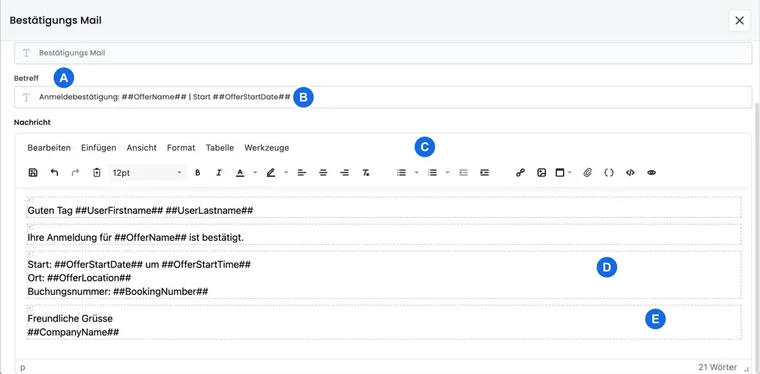
edoobox provides ready-made email templates. They are sent automatically or manually, for example for booking confirmations, invoices, waiting lists, requests, payments, reminders or cancellations.
With customized templates, you align the subject, message, language, placeholders, attachments, and PDF content with your organization. Edit templates carefully because they are sent directly to customers.
When to edit email templates
Edit a template when the tone, legal notices, payment information, preparation notes, attachments, or multilingual texts no longer fit your organization.
If email templates are enabled for your edoobox subscription, you can customize system templates and create your own templates. Before making changes, check which template is actually used by the desired trigger.
Open email template
Open the app menu.
Select Settings.
Open the Email section.
Switch to system templates or custom templates.
Select the template, edit the subject, message, and settings, and save.
Understand template and sending method
Not every template is used in the same way. Some are triggered automatically, others can be sent manually. You can find an overview of purpose, recipient, trigger, and manual sending options under Compilation of all email templates.
Pay particular attention to whether a template is sent to the person making the booking, to participants, to alternative billing addresses or internally. This affects content, placeholders and data protection.
Use texts and placeholders
Placeholders dynamically fill email content with data from the booking, offer, participant profile, invoice, or organization. Use the placeholder selection in the editor instead of copying placeholders from old templates without checking. The editor inserts the selected key at the current cursor position.
The base template is decisive, not just the visible name. The placeholder selection in the editor therefore only shows groups that have been loaded for this template. Only type placeholders manually if you are sure that the key is available in exactly this template.
A complete list can be found under All placeholders for emails and PDFs.
Languages and saved variants
A separate version can be maintained for each active language. Switch the language deliberately and save each version. If you customize a system template, an account variant is created for exactly this template and language; other language variants remain unchanged. For custom templates without a matching recipient language, edoobox uses the first active account language. Nevertheless, maintain all actually used language variants instead of leaving the output to an arbitrary fallback language. If your booking process is multilingual, test not only the standard language.
The available languages depend on your language settings. Details are available under Understanding languages in edoobox and Language settings: offering the booking process in multiple languages.
Attachments, PDF templates, and headers/footers
Emails can contain PDF attachments, for example Rechnung.pdf, Booking.pdf, Ticket.pdf, or certificates. PDF attachments can use custom backgrounds, headers and footers, or templates.
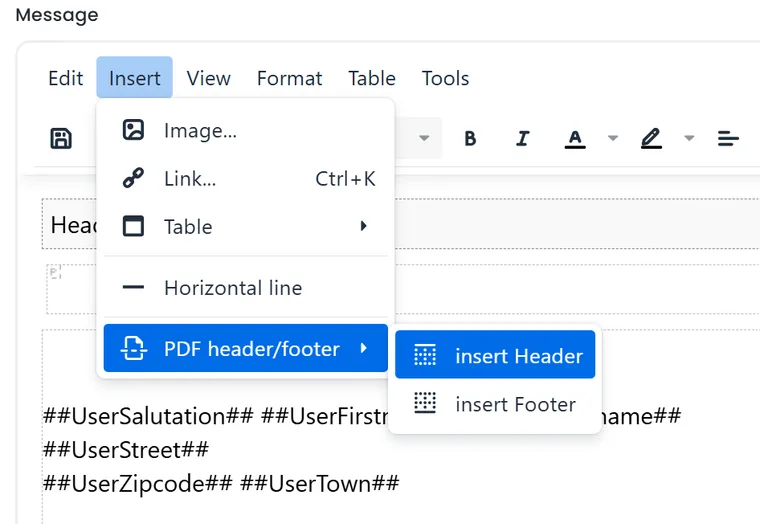
In the editor of a PDF template, you insert a repeated header or footer via Insert → PDF header/footer. The screenshot shows the English menu labels.
Insert headers and footers via the editor or the PDF template functions if they should appear on every page. Afterwards, check page breaks, logo, sender data, and mandatory information.
Find more about this under Custom PDF attachments and templates for email templates and Editing email templates: Invoice/PDF.
Additional texts, IF, and EACH
If an offer requires individual information such as access links, preparation, or material notes, use Additional texts and include the appropriate placeholders.
For conditional content or lists, use IF and EACH. This allows you to output texts only for specific tags, data fields, or repeated data sets.
Preview, test, and reset
Use the preview to check the subject, text, placeholders, and attachments. The preview first saves the current HTML status and then renders the email or PDF. It is therefore not a draft view separate from the saved template status. Afterwards, perform a test booking or a manual send with demo data.
When switching languages or closing an edited template, edoobox may ask whether unsaved changes should be saved or discarded. Therefore, work deliberately to completion for each language before switching to the next variant.
If a system template is corrupted or has become unreadable, resetting it to the standard template may be sensible. Back up important custom content beforehand so that intentionally maintained texts are not lost. For system templates, the template name is often locked; for custom templates or PDF attachments, the name or filename can be edited depending on the template.
Practical example: Customize an invoice email
An organization adds the payment deadline, IBAN, contact, and a note about a different billing address to the invoice email. It then checks Rechnung.pdf, placeholders, language, and outbox with a test booking via bank transfer.
New template groups and custom PDF documents
In addition to the booking templates, check the groups Dunning and Subscriptions and passes. The renewal reminder is a separate system template with its own data context. Dunning fees and subscription payment links belong in the template provided for this purpose.
When creating a custom template, you select Email template or PDF template. For a message, select email; for a dynamic participant document, select PDF. A background PDF can only be assigned to a PDF template. This is explained step by step in Custom PDF templates for participant documents.
Compare preview and real data case
The preview uses sample data. In subscription emails, status, tax display or remaining uses may therefore differ in actual delivery. Check empty payment and invoice links, several booked dates, an instructor without an email address and a visible date field. The searchable placeholder reference lists the available variants for each template.
Access, template type, and name
For changes, you need the right to edit email templates and an enabled account function for this. The type of a custom template is set as email or PDF when created and cannot be changed later by renaming.
The internal name of a custom template family is changed jointly for its existing language variants. You maintain the subject and content in the respective language. For a system attachment, you edit the output filename of the selected language; the name of the parent system email remains fixed.